68 Flowmaster User’s and Service Manual | LBL-000990 [B] Chapter 10
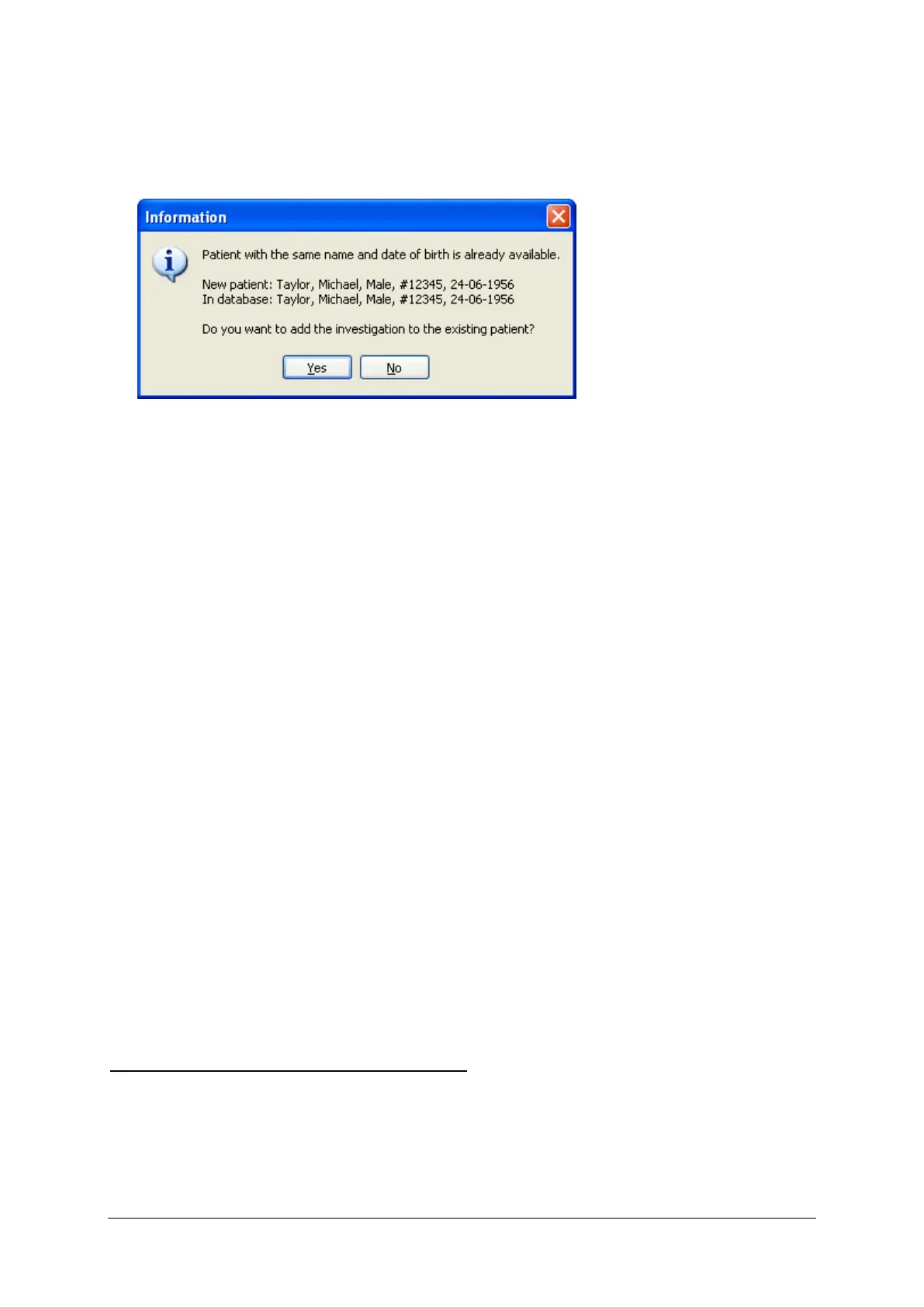
When the database program is started (after recording and saving the
uroflow), and the patient already exists in the Flowmaster database, you will
be asked if you want to add the investigation to the existing patient.
Figure 10.9 Add investigation to existing patient : Yes or No
Click Yes to add the investigation to the existing patient. When No is clicked,
the patient will be added as a new patient to the database, together with the
recorded and saved investigation.
10.4.3 Access HIS via Database Program
Via the database program, there are two ways to access the HIS. They will be
described in the next paragraphs.
Access HIS via the patient menu
▪ Start the Flowmaster database program.
▪ Choose Patient > Read HIS info from the database menu.
▪ Enter the Patient ID and click the OK button. The Flowmaster database will
request the patient demographics from the server.
▪ When the patient is found and the demographics have been retrieved, the
‘Edit patient’ window will be displayed with the patient’s demographics
automatically filled in.
▪ Click the OK button to add the patient to the Flowmaster database
program.
▪ Start the investigation by clicking on the Start uroflow button. More
information about uroflow via the database program can be found in § 3.4.
When the patient is not found in the HIS
When the patient is not found in the HIS after entering the patient ID, the
message ‘patient is not found in the database’ will be displayed. Click OK to
return to the database.



 To Next Page