Watch the procedure. A video of the installation and removal process is available:
• YouTube:
https://www.youtube.com/playlist?list=PLYV5R7hVcs-DTDY1lmpIPpJVOzo7dKq14
• Youku: http://list.youku.com/albumlist/show/id_52222446.html
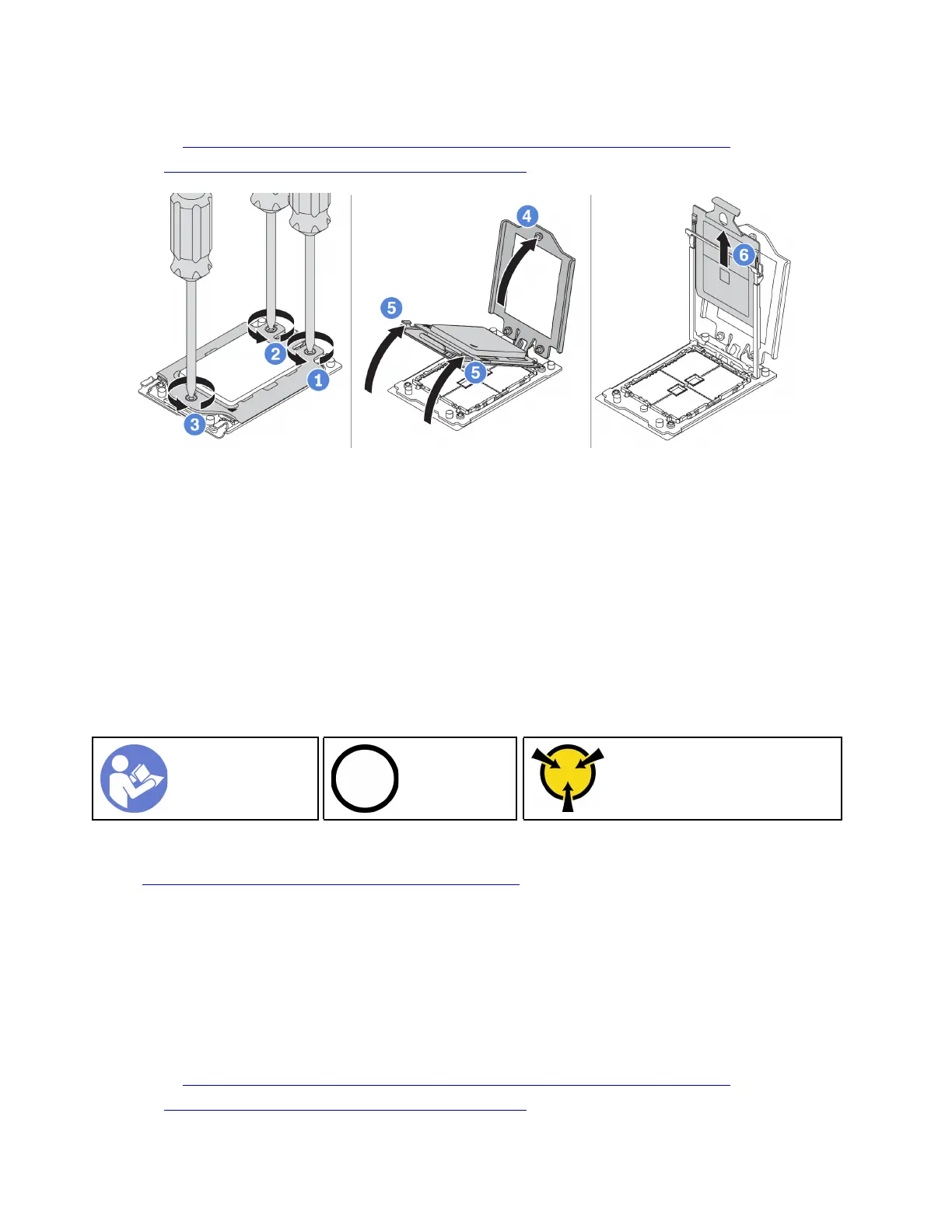
Figure 170. Removing a processor
Step 1. Use a Torx #T20 screwdriver to loosen the captive screws in the removal sequence shown on the
force frame.
Step 2. Slightly lift up the force frame and the rail frame in the direction shown. The processor in the rail
frame is spring-loaded.
Step 3. Hold the blue tab of the processor carrier and slide the processor carrier out of the rail frame.
After removing the processor, install a new processor by referring to “Install a processor” on page 186.
Install a processor
Use this information to install a processor.
“Read the
installation
Guidelines” on
page 79
“Power off
the server for
this task” on
page 11
“ATTENTION:
Static Sensitive Device
Ground package before opening”
on page 82
Notes:
• See
https://static.lenovo.com/us/en/serverproven/index.shtml for a list of processors supported for your
server. All processors on the system board must have the same speed, number of cores, and frequency.
• Before you install a new processor, update your system firmware to the latest level. See “Firmware
updates” on page 8.
• Optional devices available for your system might have specific processor requirements. See “Technical
rules” on page 82.
To install a processor, complete the following steps:
Watch the procedure. A video of the installation and removal process is available:
• YouTube:
https://www.youtube.com/playlist?list=PLYV5R7hVcs-DTDY1lmpIPpJVOzo7dKq14
• Youku: http://list.youku.com/albumlist/show/id_52222446.html
186 ThinkSystem SR635 Maintenance Manual






 To Next Page