13.0 Setup Menu
4.
Press or toscrollupordownthelistofdatavaluesuntiltherequireddatavalueisdisplayed,then
press .
The
DataEntry
screenwilldisplay.
5.
Usethekeypadtoeditthedatavalue,thenpress .
TIP – Press toclearthecurrentvaluename.
6. Completethefollowing:
If ... Then ...
youwouldliketoedit
anotherdatavalue
n
Press untiltherequireddatavalueisdisplayed,thenpress .
n
Gobacktostep4.
youwouldliketoselecta
differentdatafield
n
Press.
n
press untiltherequireddatafieldisdisplayed,thenpress .
n
Gobacktostep5.
youhavefinishedediting
datavalues
Press twicetoreturntothe
SetupMenu
.
13.12 Clock
The time, date and year can only be changed if
ClockEdit
functionality has been
enabled during installation.
Youcansetthetime,dateandyearontheIndicator.
13.12.1 Setting the time
1.
Fromthe
ClockMenu
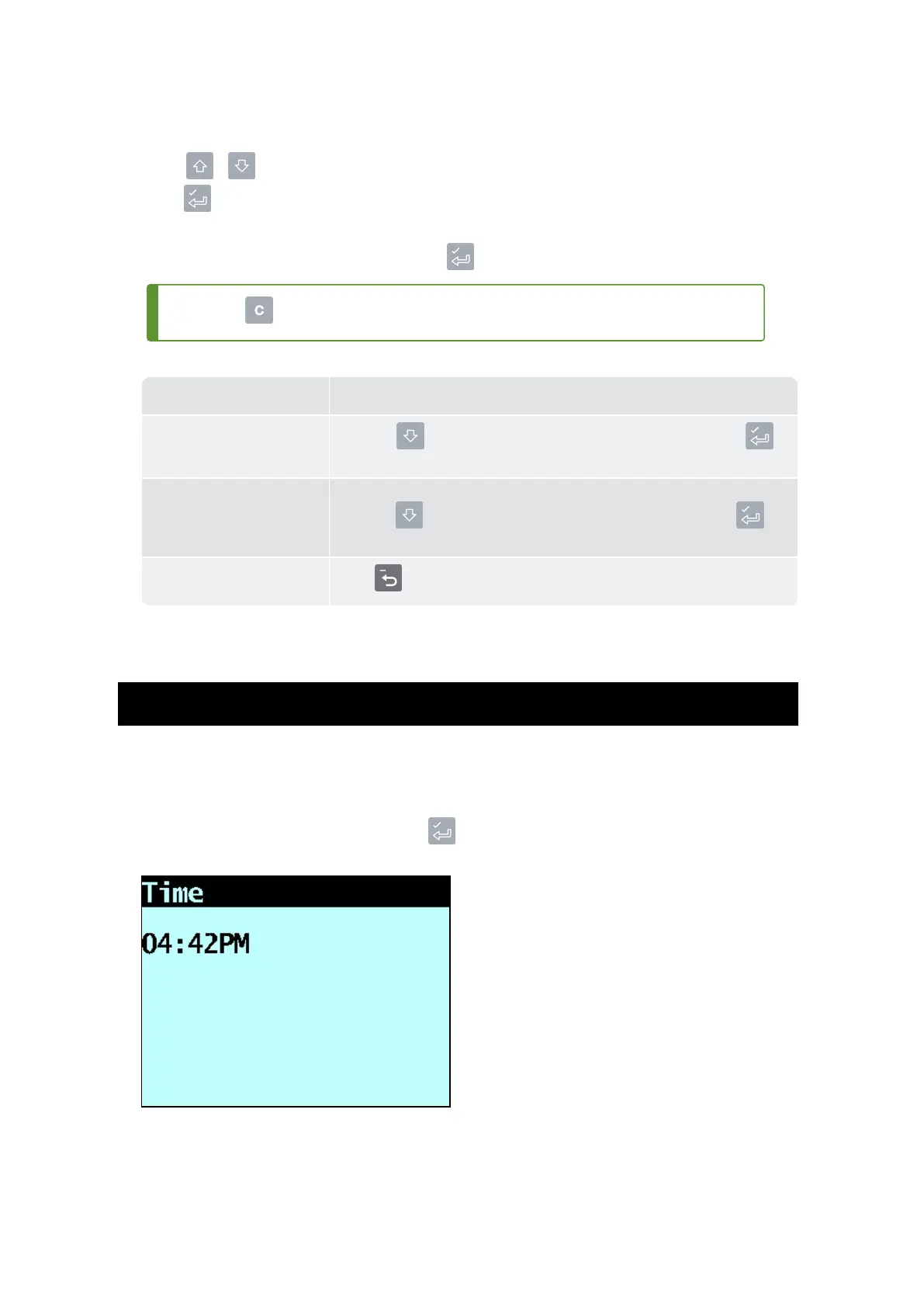
selectTime,thenpress .
Thetimewilldisplaywiththecursoroverthefirstdigit.
Loadrite L2180 loader scales | 71


 To Next Page