92 Chapter 6
LightPath Analysis Software Guide
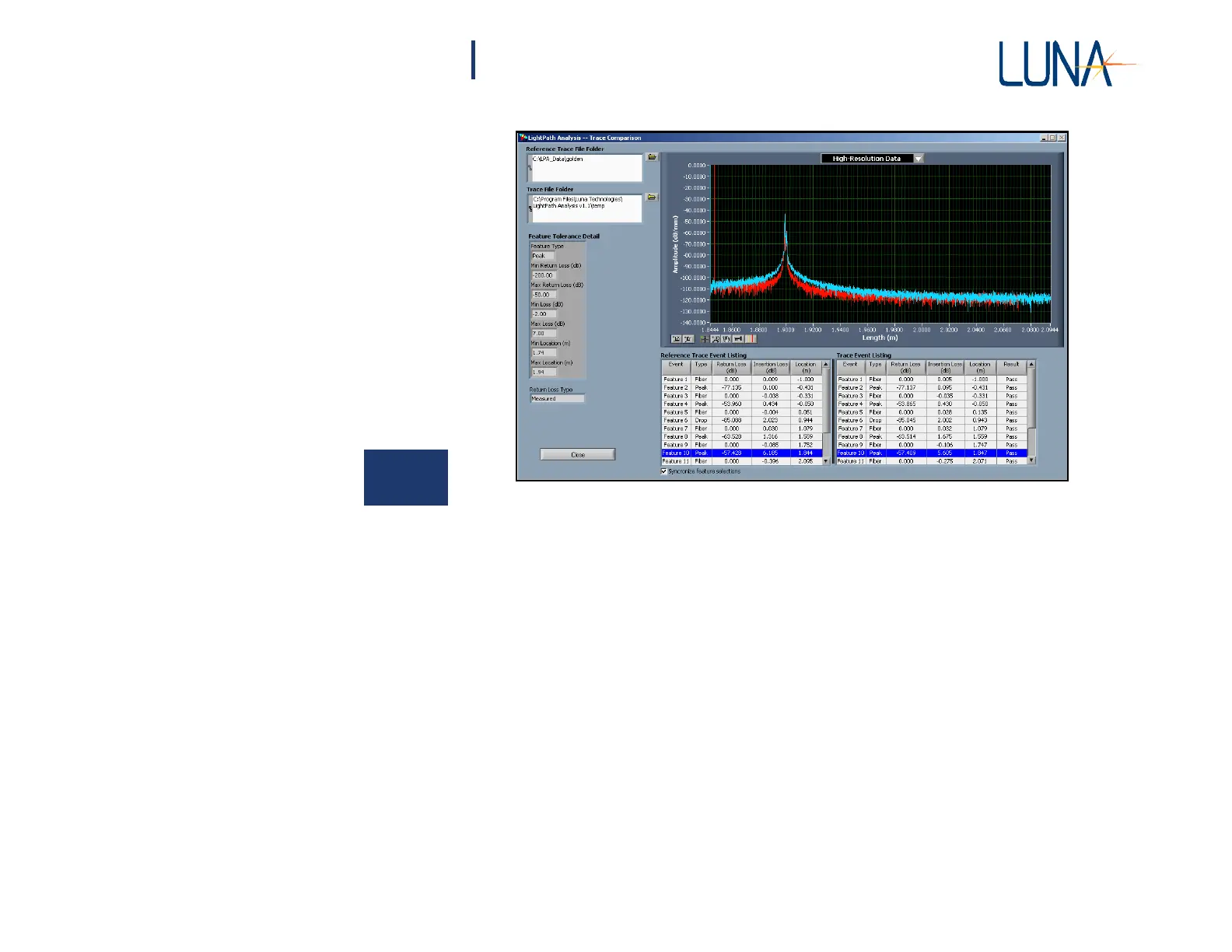
Figure 6-10. The Trace Comparison window, with the graph pull-down menu set to
High Resolution Data. The Reference data shows in blue, and the loaded
trace shows in red.
Select several different features using either the Event Listing grids or the vertical
cursors with the cross-hair tool. Use the pull-down menu to select show the High
Resolution Data, which will compare two features with more detail. The Reference
data is shown in blue, and the loaded trace in red. View the High-Resolution Data
for all the peak and drop features. (Remember that no High-Resolution Data is
saved for fiber segments.)
Press the Close button at the lower left to exit the Trace Comparison window. In
the main window, click the Save LightPath Files button in the lower left. Enter
device2 as the descriptor and then click OK. This data will be saved to the folder
C:\LPA_Data\device2. This data can be used later as a Reference Trace, or can be
used as documentation of how the particular device compared to the Reference
Trace.



 To Next Page