80 Chapter 6
LightPath Analysis Software Guide
Figure 6-2. Selecting Setup > File Configuration from the main window
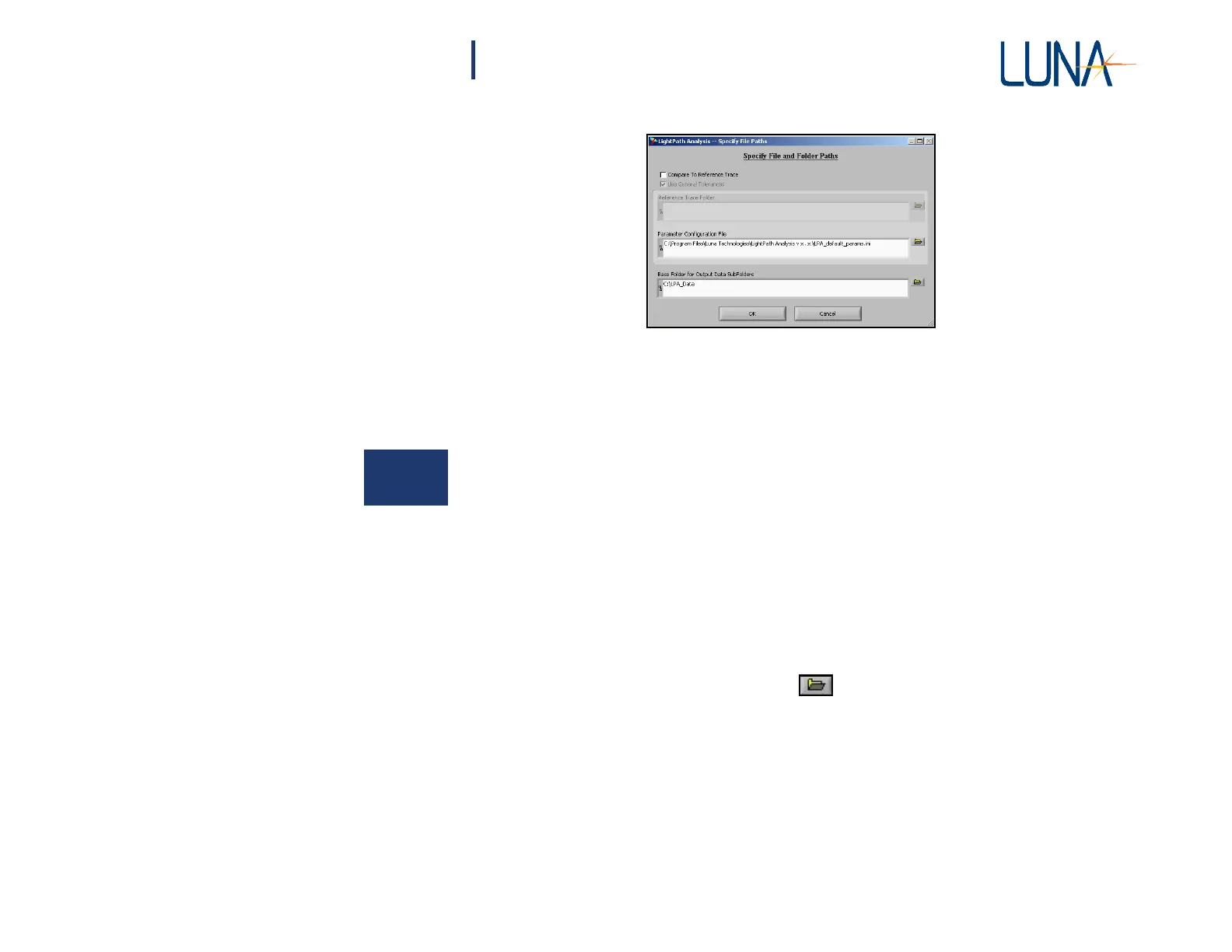
calls up the Specify File Paths window.
New data traces can be compared either to a Reference Trace or to a set of default
parameters held in a Parameter Configuration File. By default, the software is
configured to use the parameter configuration file lpa_default_params.ini, located
in the folder where the software was installed (C:\Documents and Settings\All
Users\Application Data\Luna Technologies\LightPath Analysis v#.#).
The Compare to Reference Trace option is unchecked by default, (meaning the
data will be compared to the Parameter Configuration File), and no Reference
Trace Folder is specified.
The Base Folder for Output Files is set to C:\LPA_Data. All saved traces will be
saved into subfolders located in this folder. Usually, a different Base Folder will
be specified for each part number being tested, and the results for each individual
part tested will be saved into a subfolder within that Base Folder. For instructions,
see “Saving LightPath Files” on page 86.
In the future, you can use the browse button to find other files and folders.
But for this tutorial, press Cancel to retain the default settings.
Loading a File
One would normally begin setting up the LPA software by clicking Scan in the
System Control area of the main screen, and then adjusting tolerance levels in this
file to create a Reference Trace. But this tutorial will use a pre-scanned file to teach
how to create a Reference Trace.



 To Next Page