84 Chapter 6
LightPath Analysis Software Guide
file is loaded, or if the software is closed, the unsaved values will be lost. This may
be useful for some situations (such as this tutorial, or to briefly view the affect
of
a
change), but has the risk of losing tolerance or processing parameter values.
Thus in general, the user would click the Save button in the Parameter
Specifications window after making parameter or tolerance changes. This calls
up
a
dialog box allowing the user to select an existing Parameter Configuration File
or to name a new one.
Why a Feature Failed
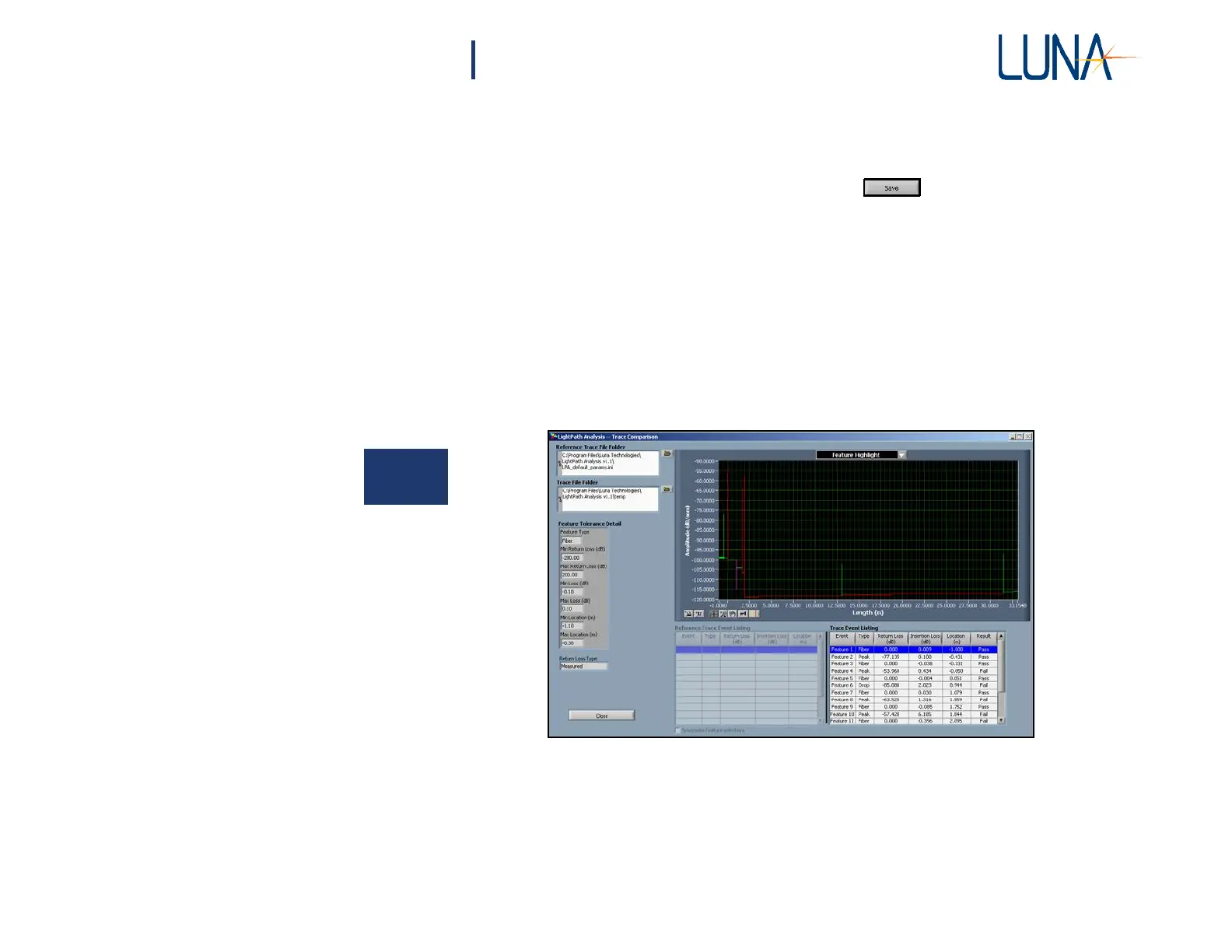
The Trace Comparison window displays a detailed comparison of the detected
features and the tolerance values used to evaluate their pass/fail status. To access
this window, press the Compare button at the lower left in the main window. Note
that the graph shown is the same as the lower graph in the main window.
6
Figure 6-5. The user may view the Trace Comparison window by clicking
the Compare button in the lower left of the main window.
The trace currently loaded in the LPA software is always being compared to a
standard: either a Parameter Configuration File (as in this case), or a Reference
Trace. The name of this standard for comparison—lpa_default_params.ini—is
shown in the Reference Trace File Folder area at the upper left. Because the



 To Next Page