Remote Control Setup Configuration
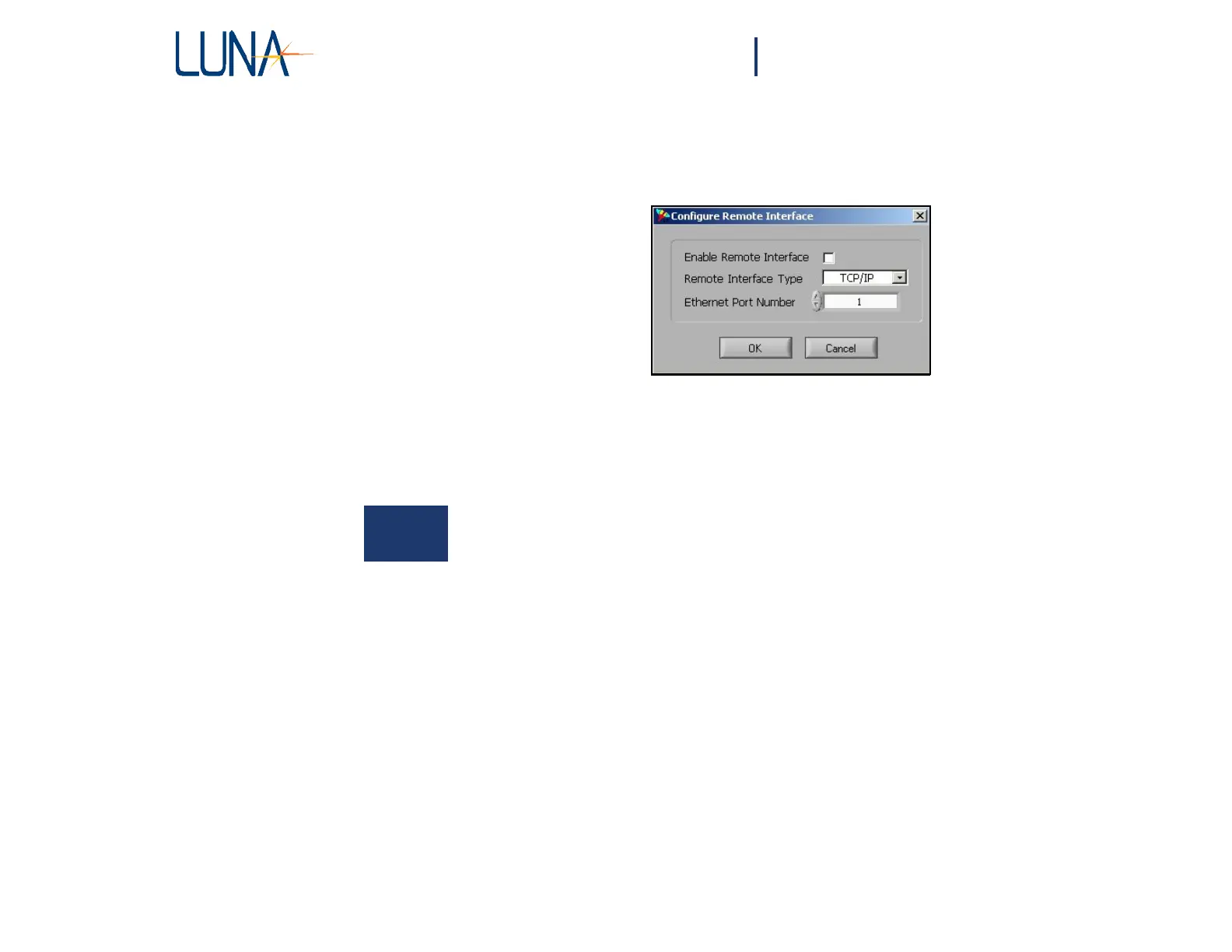
The remote interface type, board address and port number can be configured using
the OBR menu selection Options > Remote Interface Setup. The following dialog
box appears:
Figure 7-1. The remote interface setup dialog box.
If Enable Remote Interface is checked, it is on. The pull-down menu allows the
user to select either GPIB or TCP/IP remote
interface.
TCP/IP is the default interface.
The second field is used to set either the GPIB address or the ethernet port number.
By default, both the GPIB address and the ethernet port number are set to “1”.
The GPIB board name is set to “GPIB0” by default.
Remotely Connecting to the OBR
A remote client can be written in any language that can send TCP/IP packets or can
communicate over a GPIB connection. The remote client should connect to the selected
port on the target (or the correct address on the GPIB network) and then send remote
commands to the server.
The OBR software includes two example remote clients (one for TCP/IP and another for
GPIB) with LabVIEW source code. Shortcuts for these should appear in the Start menu
under Start, All Programs, Luna Technologies, OBR.
The LabVIEW source code for both is included in the folder C:\Program Files\Luna
Technologies\OBR\Remote Control Example Code. This folder also includes example
C++ code to remotely connect to the OBR.
Remote Control Commands for the
OBR
This section gives a description of every remote control command available with



 To Next Page