20 Chapter 3
Software Guide
3
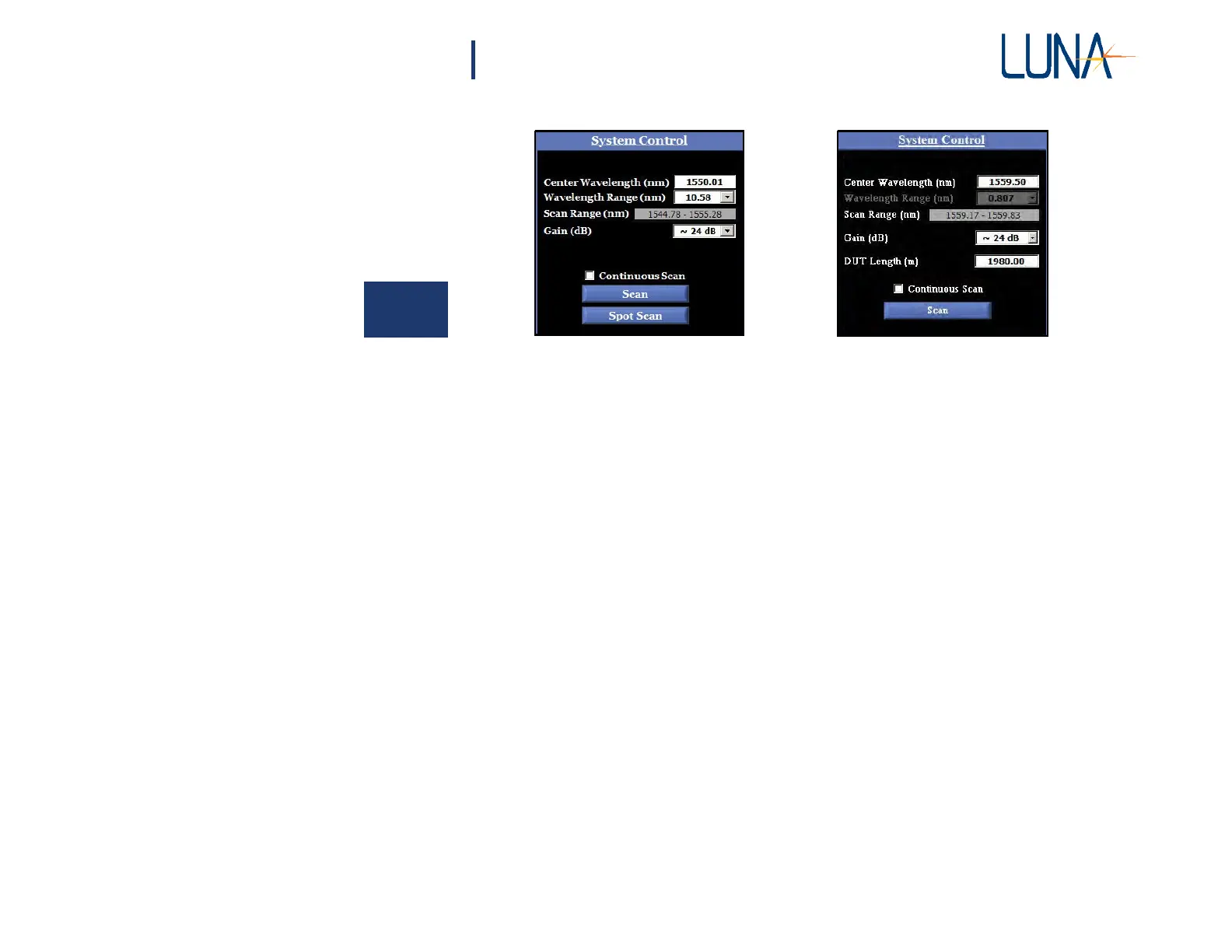
Figure 3-2. The System Control area in the main OBR software window, shown in
Normal (left) and Extended (right) Distance Range modes. Also in the left
example, Spot Scans have been enabled by turning on the Spot Scan Cursor.
• The Center Wavelength (nm) field allows the user to set the center
wavelength of a scan. To set this parameter, type in a number within
the wavelength range of the instrument.
• The Wavelength Range (nm) field allows the user to set the range
of the scan. The wavelength range determines the number of nano-
meters that will be analyzed during the next measurement. A drop-
down list contains the range options available for the OBR model in
use. This value cannot be changed when operating in Extended
Range mode (see “Instrument Configuration” on page 34).
• The Scan Range (nm) field shows the starting and ending wave-
lengths that will be scanned, as determined by the center wave-
length and wavelength range entered by the user (or by default) in
the two fields above.
• The Gain (dB) field allows the user to select the gain of the scan
from a drop-down list of options.
• Continuous Scan, when checked, causes the OBR to take repeated
measurements. The graph displays are continuously updated after
each measurement. This mode is started and stopped by
pressing
the
Scan button.
• Clicking the Scan button starts the measurement of the device
under test. This same button is used to stop scanning when operat-
ing in Continuous Mode.



 To Next Page