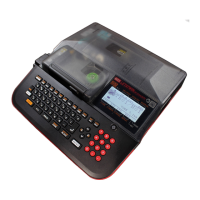
What does 'OVER CAPACITY' mean on Max LM-550A2 Label Maker?
- HHolly MorrowSep 4, 2025
If your Max Label Maker displays 'OVER CAPACITY', use another USB memory device or delete unnecessary files from the current USB to free up space.
What does 'OVER CAPACITY' mean on Max LM-550A2 Label Maker?
If your Max Label Maker displays 'OVER CAPACITY', use another USB memory device or delete unnecessary files from the current USB to free up space.
What to do if Max LM-550A2 Label Maker says 'NO PRINTED MATERIAL'?
If your Max Label Maker shows 'NO PRINTED MATERIAL', it means you need to set the print material in the device.
What does 'NO INK RIBBON' mean on Max LM-550A2 Label Maker and how to fix it?
If your Max Label Maker displays 'NO INK RIBBON', replace the ink ribbon or take out the consumables and set them again, then continue printing.
What does 'CANNOT RECALL THIS FILE' mean on Max LM-550A2?
If your Max Label Maker displays 'CANNOT RECALL THIS FILE', it indicates that the LM-550A2 series can only read files in “CSV” or “LMF” file format.
What should I do if the Max Label Maker indicates that the 'COVER IS OPENED'?
If the Max Label Maker indicates that the 'COVER IS OPENED', you should close it.
| Brand | Max |
|---|---|
| Model | LM-550A2 Series |
| Category | Label Maker |
| Language | English |
Important instructions and warnings for safe and proper operation of the machine.
Covers critical safety information regarding electrical hazards and usage.
Advises on equipment care, environmental factors, and battery safety.
Highlights key capabilities and functionalities of the LM-550A2 series.
Explains the keyboard layout and the purpose of each key for operation.
Details the input screen layout and how to select the machine's display language.
Detailed steps for installing or replacing the ink ribbon in the ribbon case.
Instructions for loading tubes and the ink ribbon case into the machine.
Procedure for loading tape cassettes and the ink ribbon case.
How to perform pitch printing on tubes with specified content.
Procedure for pitch and normal printing text onto tape.
Methods for entering and deleting characters using the machine's interface.
Adjusting character size and width for optimal print appearance.
Configuring pitch length, pitch cut, and normal print parameters.
Covers density, LCD, font choices, and other advanced configurations.
Specifying print range, block repetition, and 180° rotation.
Adjusting the total printing length for tubes or tapes.
Steps for installing the 'LETATWIN PC Editor' and printer driver.
Printing and saving data directly between PC and the machine.
Common error messages and their corresponding countermeasures.
Solutions for common printing, tape, cutting, and USB issues.
Detailed technical data including dimensions, speed, and power requirements.
Regulatory compliance, FCC notice, and disposal guidelines.
Loading...