MINI Hawk High Performance Imager User’s Manual 10-7
Camera and IP Setup
Line Scan
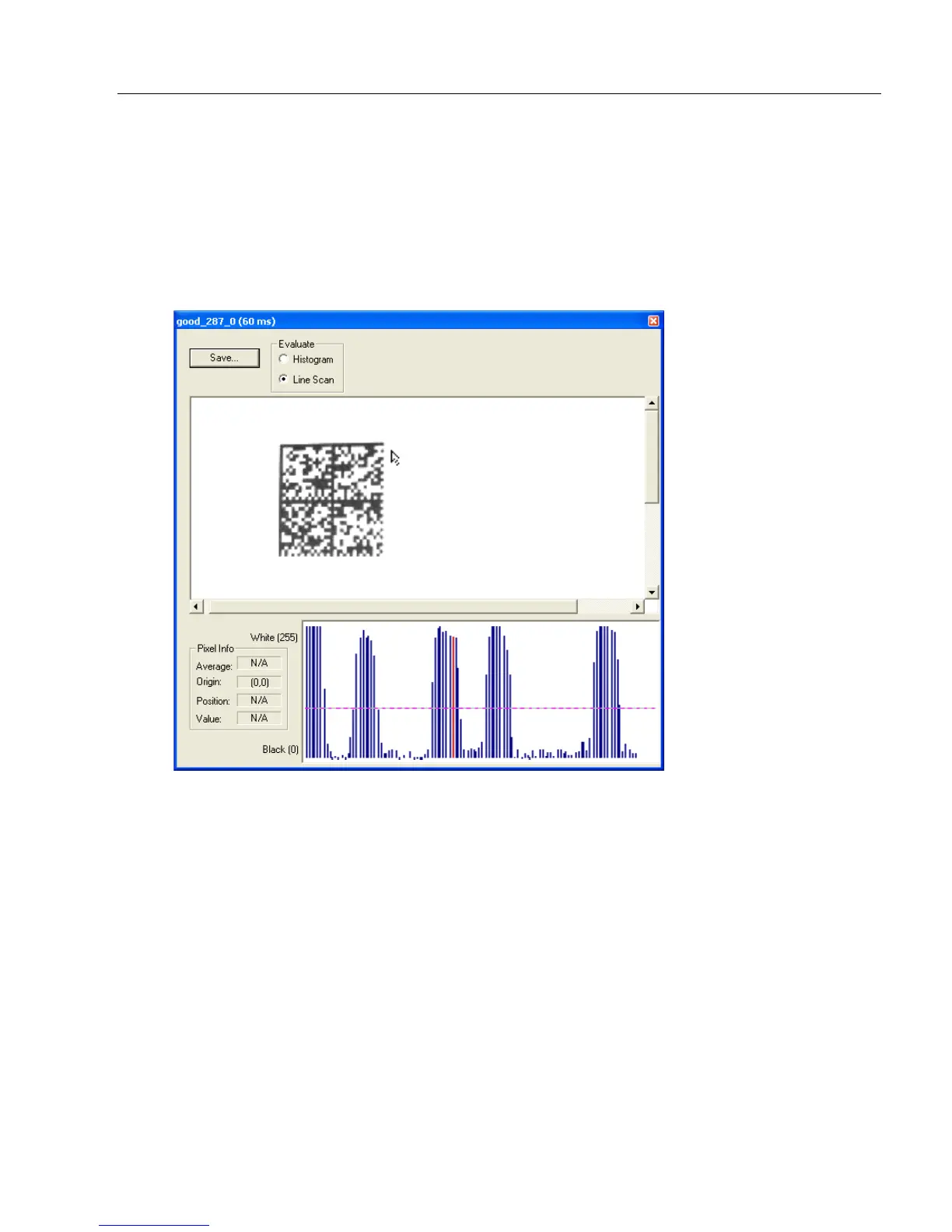
1. From the Evaluation tab, click the Line Scan button. A window like that shown
below will appear.
2. Drag your cursor horizontally across the image.
This will create a dashed horizontal line. Pixel information and a visual representation
of the dark and light pixels will be displayed below the image.
When you center your cursor over the dashed line, it becomes a double arrow cross.
This allows you to move the line anywhere in the window. You can also use your
keyboard arrows to move the line incrementally in any direction.
As with the histogram, the line scan compares light and dark pixels, but in a spatial
distribution. On the Y axis of the graph below, 0 is black and 255 is white; the X axis
represents the horizontal axis of the symbol as described by the line scan.
When you click anywhere on the graph, a vertical red line appears at that point and its
position and value (in terms of black-to-white) are updated in the Pixel Info table to
the left of the graph (237 in this example). In addition, a horizontal dashed red line is
displayed that indicates the average value.


 To Next Page