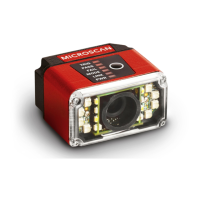
MINI Hawk High Performance Imager User’s Manual 2-3
Using ESP
Application Mode
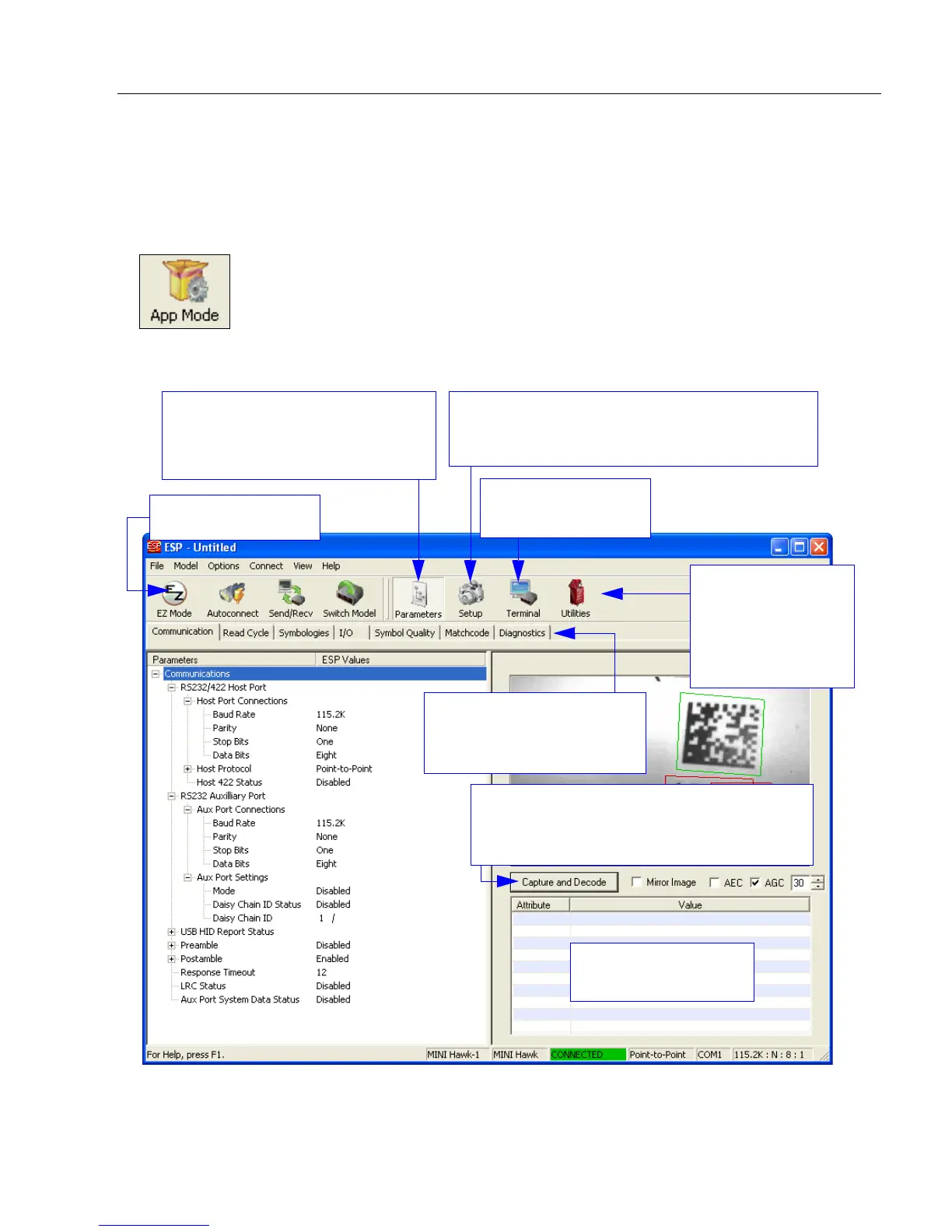
From EZ Mode, you can click on the App Mode button to access specific configuration
menus, Utilities tools, Camera setup, Output Format options, and a Terminal window
where serial commands can be entered.
Note: The App Mode and EZ Mode buttons appear in the same position to allow easy
switching between these primary modes.
Note: For specific information on any of the icons shown above in the operations bar or
configuration bar, see the corresponding sections of this manual.
Open the Terminal
view.
Decoded symbol data
is shown in this table.
Return to EZ Mode.
Video, Evaluation, Calibration, Window of
Interest, Configuration Database, Ordered
Output, Output Format, Dynamic Setup
Click on tabs in this row to
access configuration trees
like the one shown here.
Communication, Read Cycle,
Symbologies, I/O Parameters,
Symbol Quality, Matchcode,
Diagnostics
Read Rate,
Counters,
Device Control,
Differences,
Master Database
,
Firmware
Click Capture and Decode to read the
symbol in the field of view, and to see a high
resolution image capture of the symbol.


 To Next Page