4-4 Microtek User's Guide for Windows
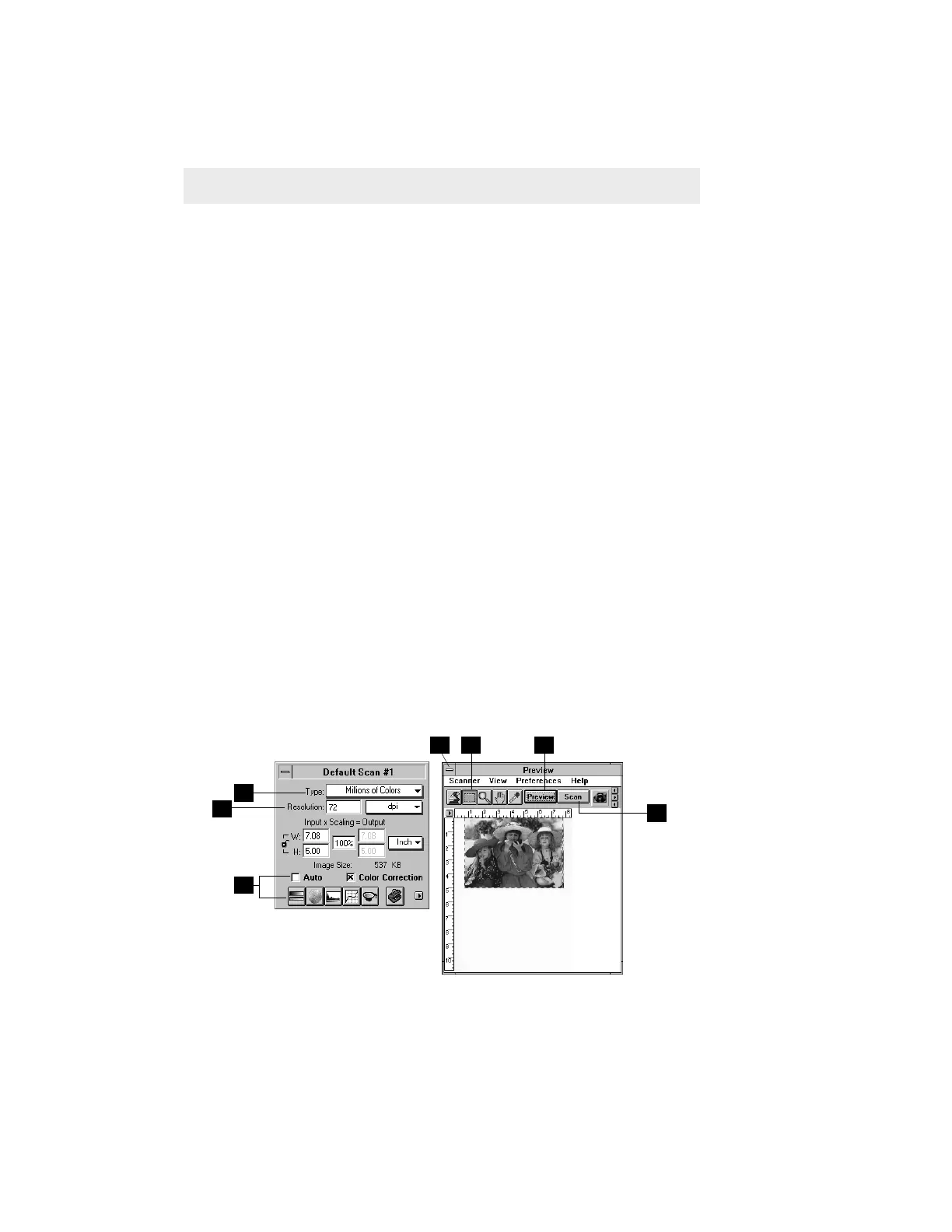
Overview: Using ScanWizard for Windows
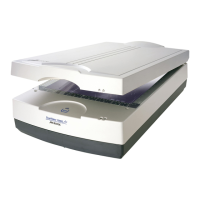
Turn on the scanner, and open the scanner lid. Put the material to be scanned,
face down and upside down, on the scanner glass against the edge of the rulers.
Close the lid.
Start up your image-editing software (like Ulead PhotoImpact SE, ImagePals
Go! 2.0, Adobe Photoshop or Microtek ImageStar II). When the application
opens, choose Acquire from the File menu, and choose Twain from the
submenu. When the ScanWizard windows appear, do the following:
1 Specify how the image will be scanned and processed in the Type box.
2 Click on the Preview button to see a preliminary view of the image.
3 When the preview image appears, you may select the final area to be
scanned. To do this, click on the Scan Frame tool, move to the image, then
click and drag on the mouse to form a frame.
4 To adjust image quality, use the image-enhancement tools.
5 When you're ready to scan, set the resolution. For optimal results, choose a
setting that matches the resolution of your output device.
6 To scan the image, click on the Scan button. The image is delivered to your
image-editing software, where it can be edited further and saved as a file.
7 To exit ScanWizard, double-click on the close box of the Preview window.
2
5
1
4
6
7
3







 To Next Page