Mitel 6970 IP Conference Phone User Guide
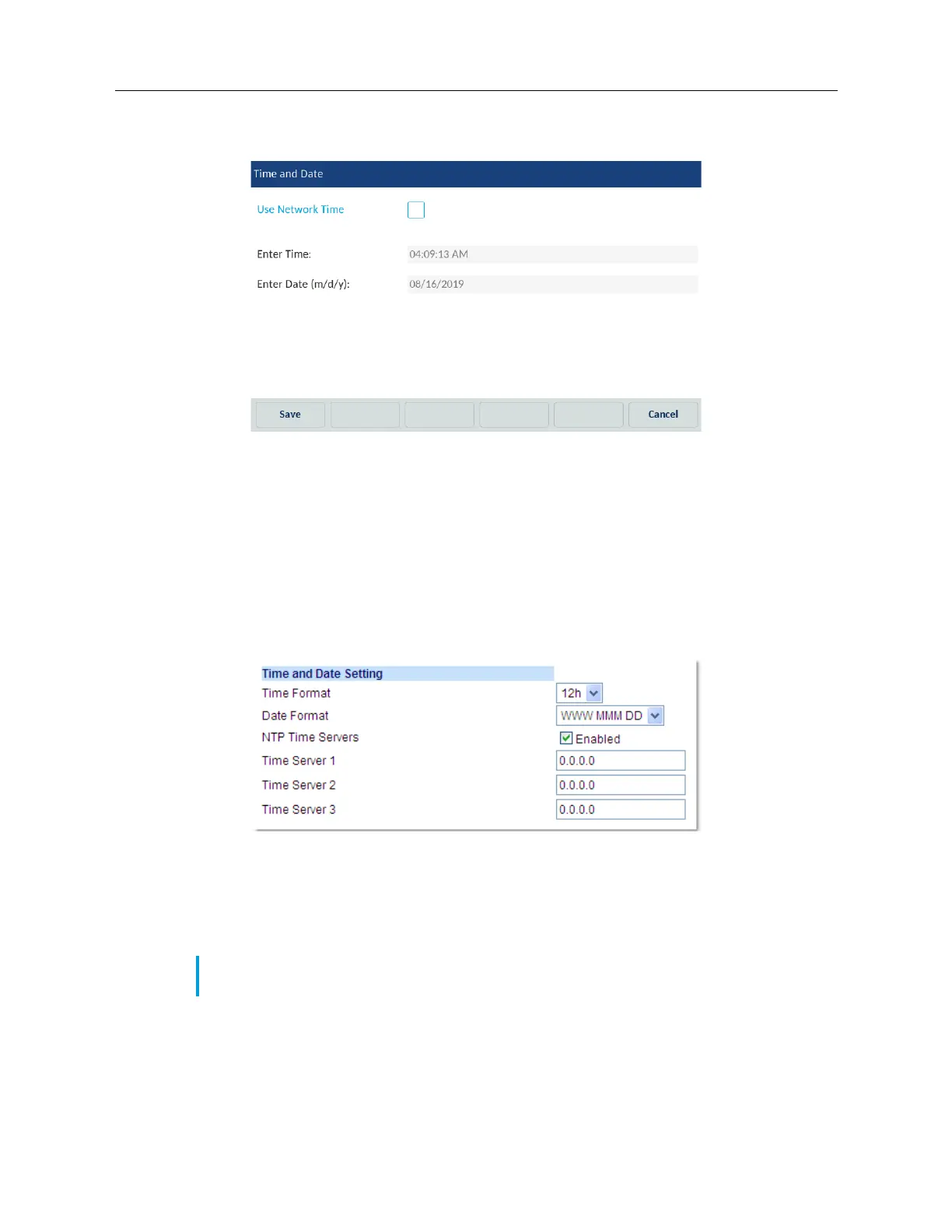
5. If you want to manually set the date and time, tap the Use Network Time checkbox to clear
the checkmark and disable the setting.
a. Tap the Enter Time or Enter Date field.
b. Using the on-screen keyboard, change the time and date accordingly.
When entering the time, use the right arrow key on the on-screen keyboard to toggle between
AM and PM.
6. Tap the Save softkey to save your changes.
Configuring Time and Date Settings using the Mitel Web UI
1. Click on Basic Settings > Preferences > Time and Date Setting.
2. In the Time Format field, select the time format you want to use on your phone. Valid values
are:
• 12h (12 hour format) (default)
• 24h (24 hour format)
3. In the Date Format field, select the date format you want to use on your phone. Valid values
are:
• WWW MMM DD (default)
• DD-MMM-YY
Note: The time format you configure is applicable to the phone’s Home screen as well as the
Received Callers and Outgoing Redial Lists.


 To Next Page