Installing custom ring tones using the Mitel Web UI
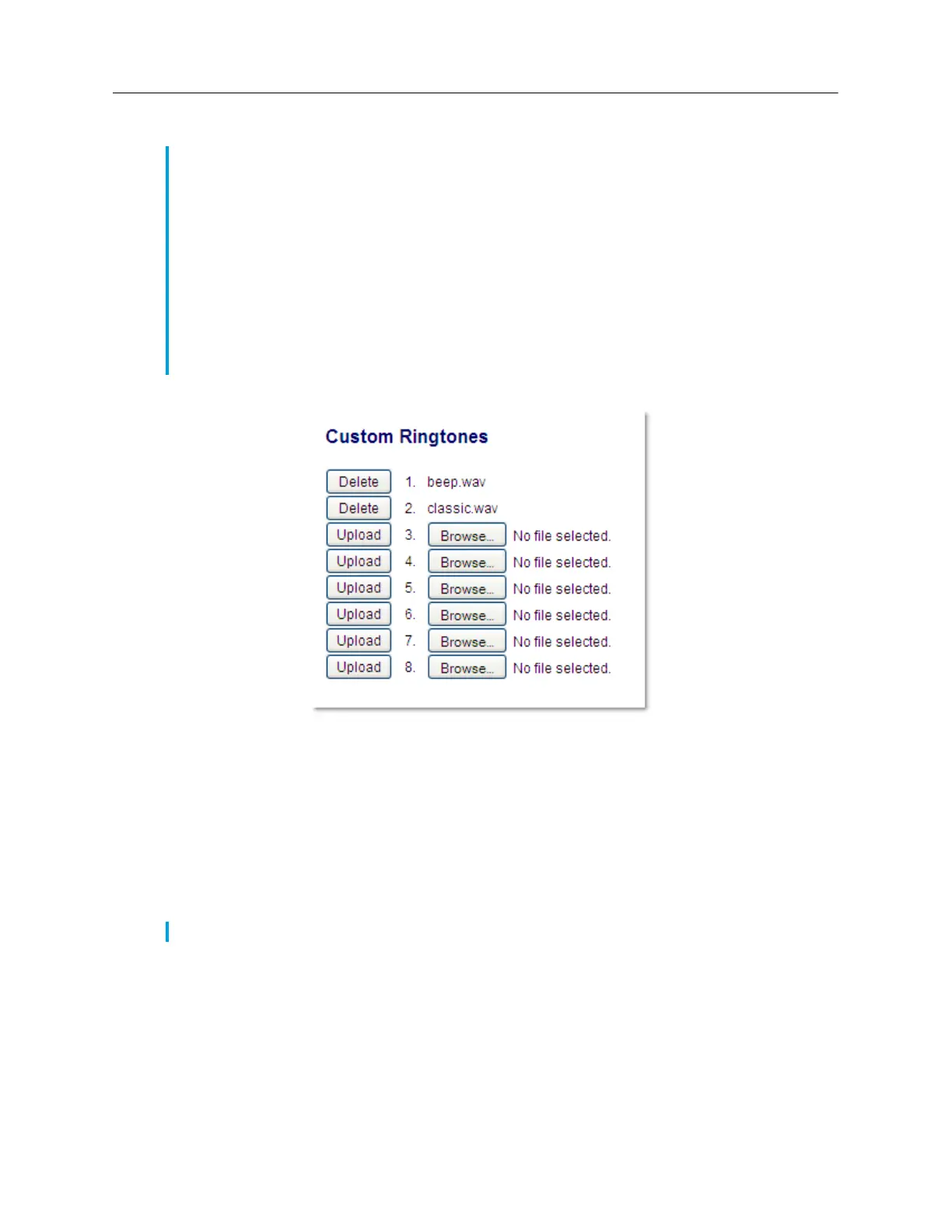
1. Click on Basic Settings > Custom Ringtones
2. Click the Browse... button corresponding to the desired ringtone position (e.g. 1).
3. Navigate to the folder containing the WAV file you want to upload, select the file using your left
mouse button, and press the Open button.
The filename should now be displayed to the right of the respective Browse... button.
4. Click the Upload button to upload the file to the phone.
5. Repeat Steps 2 to 4 to upload additional WAV files to the phone.
Display
The display setting allows you to set the following on your phone:
Notes:
1. Access to the Custom Ringtones Web UI menu is only available if enabled by your System
Administrator.
2. Ringtones must be in .wav format. The IP phones support the following WAV file specifications:
•G.711 μ-law and a-law Codec
• 20 ms packet size
• Mono 8KHz
3. Individual WAV files cannot exceed 1 MB in size (the total combined size of the eight WAV
files cannot exceed 8 MB).
4. Filenames must contain only ASCII characters.
Note: Click the Delete button to delete the desired ringtone from your phone.


 To Next Page