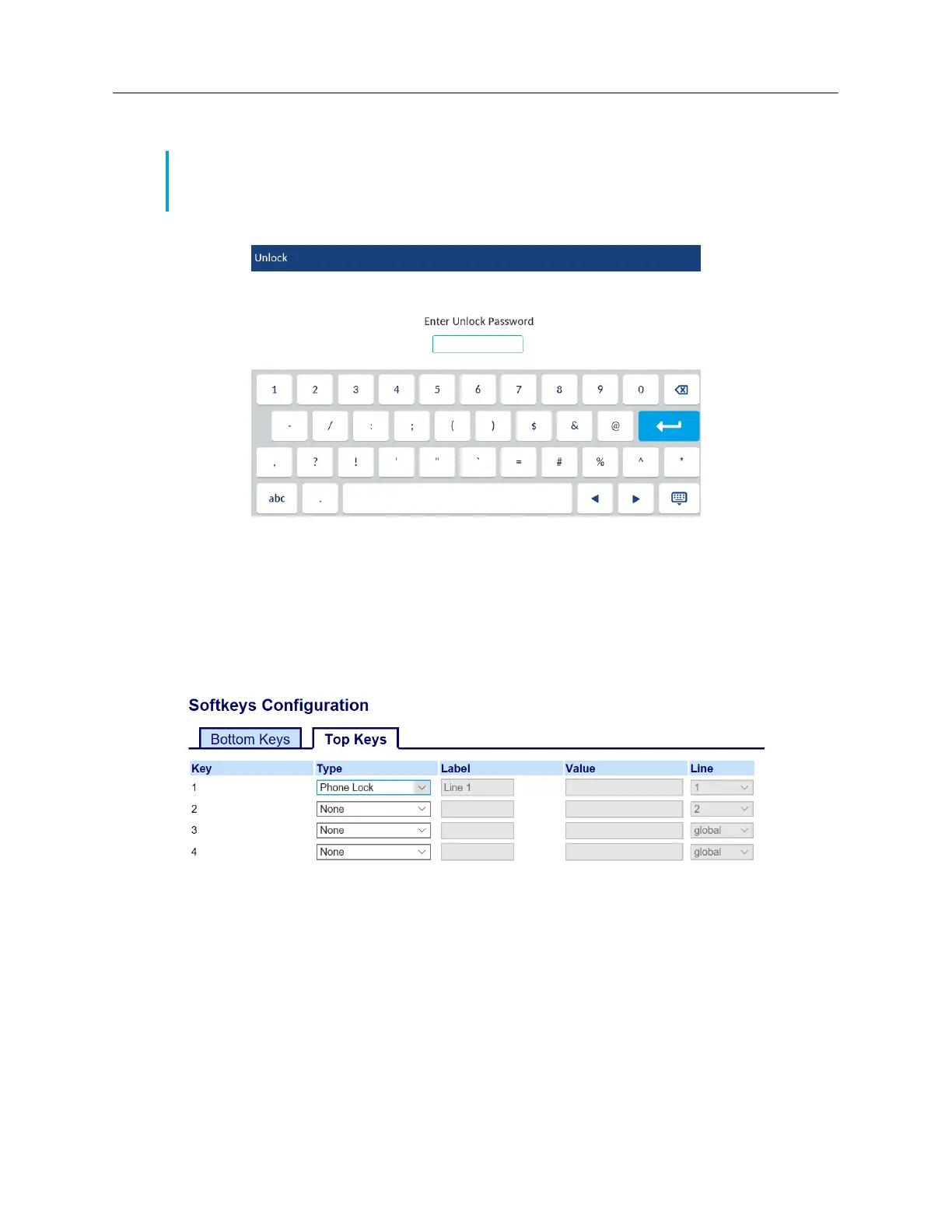
Unlocking the phone using the IP Phone UI
1. Tap the Unlock softkey.
2. At the Enter Unlock Password prompt, enter your user password and tap the blue Enter key.
3. At the Unlock the phone? prompt, tap Yes.
Configuring lock settings using the Mitel Web UI
Configuring a Phone Lock softkey
1. Click on Operation > Softkeys and XML.
2. Select from Key 1 through Key 48 on the Top keys.
or
Select from Key 1 through Key 30 on the Bottom keys.
3, In the Type field, select Phone Lock from the list of options.
4. Click Save Settings.
Note: You can unlock the phone using the IP Phone UI only if the Lock softkey was preliminary
configured. If it was not, you can unlock the phone through the Mitel Web UI. For more information,
see “Locking and unlocking the phone.” on page 76.


 To Next Page