The Mitel 6970 IP Conference Phone supports Bluetooth connections to Bluetooth mobile phones.
Using the Bluetooth settings menu on the phone UI, you can enable and disable the Bluetooth
functionality on your phone as required.
You can also pair, connect, and unpair Bluetooth mobile phones as applicable.
For Mitel 6970 IP Conference Phone, the default “bluetooth” value is set to 1 and hence Bluetooth
is always enabled. The Bluetooth connectivity is retained on the phone even after a factory reset.
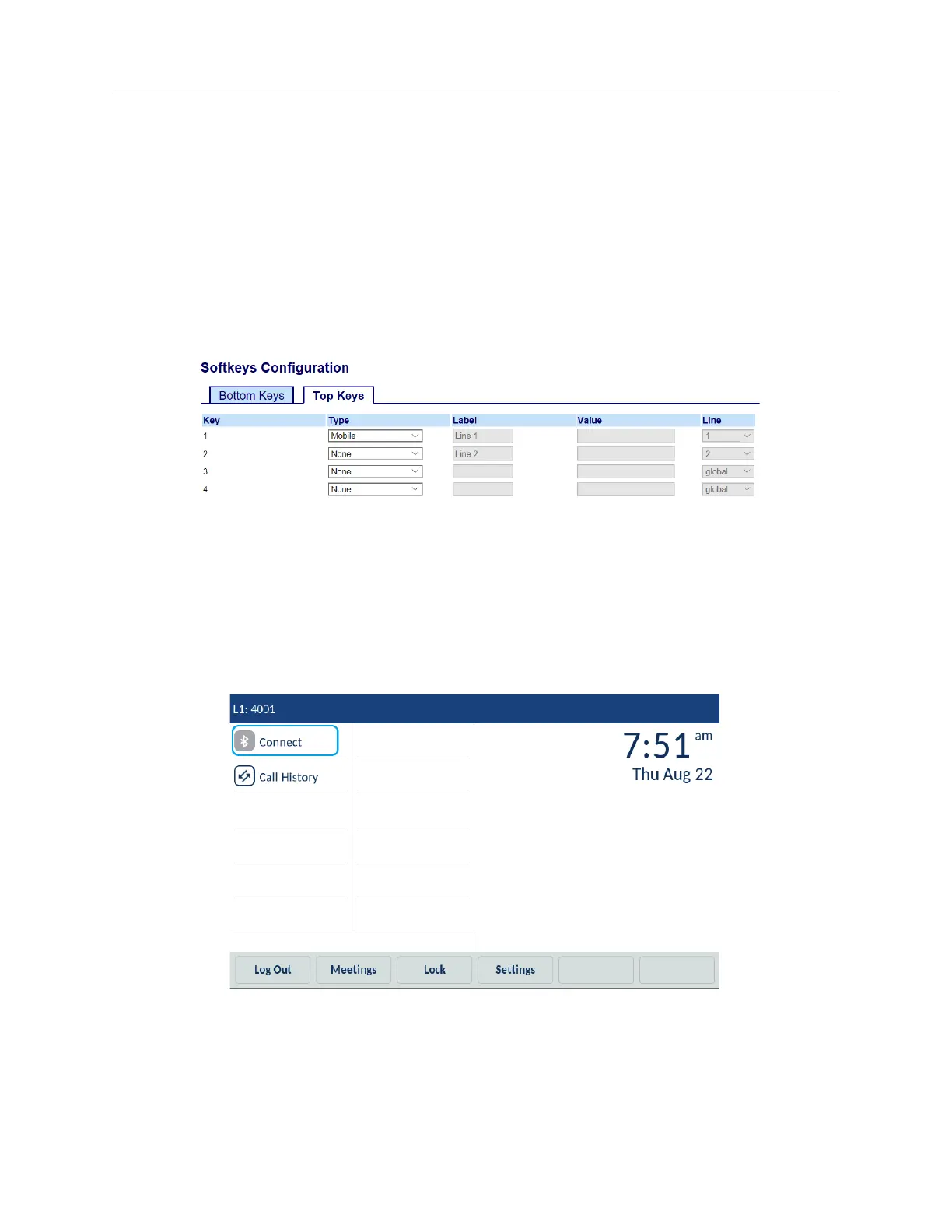
Configuring the Mobile softkey through the Mitel Web UI
1. Click Operation > Softkeys and XML.
2. On the Top keys tab, select from Key 1 through Key 48.
3. In the Type field, select Mobile to apply to the key.
4. Click Save Settings.
The Mobile softkey appears in the Top softkeys area of the Home screen. The Mobile softkey is
initially labelled "Connect". When a mobile phone is paired, the label of the Mobile softkey changes
to the name of the paired phone. When there is an incoming mobile call, the label of the Mobile
softkey changes to the caller’s number or name.


 To Next Page