Rev. 01/2015 65
Proceed as follows:
1. Select a location for saving Ignition Control on the hard disk of your computer, e.g. by
creating a file folder with the name Ignition Control.
2. From the subdirectory MIC software\WIN2000-NT-XP on the supplied storage device, copy
the file IC.exe to the location you selected on the hard disk of your computer.
3. Note the location where the Ignition Control software is saved on your computer. Put a link
on the desktop if needed by right-clicking mouse on IC.exe -> Send to -> Desktop.
Explosion hazard!
Never remove the RS232 interface cover, unless the system is not located in
an explosive environment.
4. Connect the ignition controller to your computer using the provided RS232 interface cable.
If your computer does not have an RS232 interface, you can also use a USB to RS232
converter. Connect the USB to RS232 converter to your computer and connect the RS232
interface cable to the RS232 connector of the converter and the ignition controller.
5. Ensure that the ignition controller is connected to the power supply and that the status LED
on the ignition controller is flashing every 2 seconds for the device to be ready for operation.
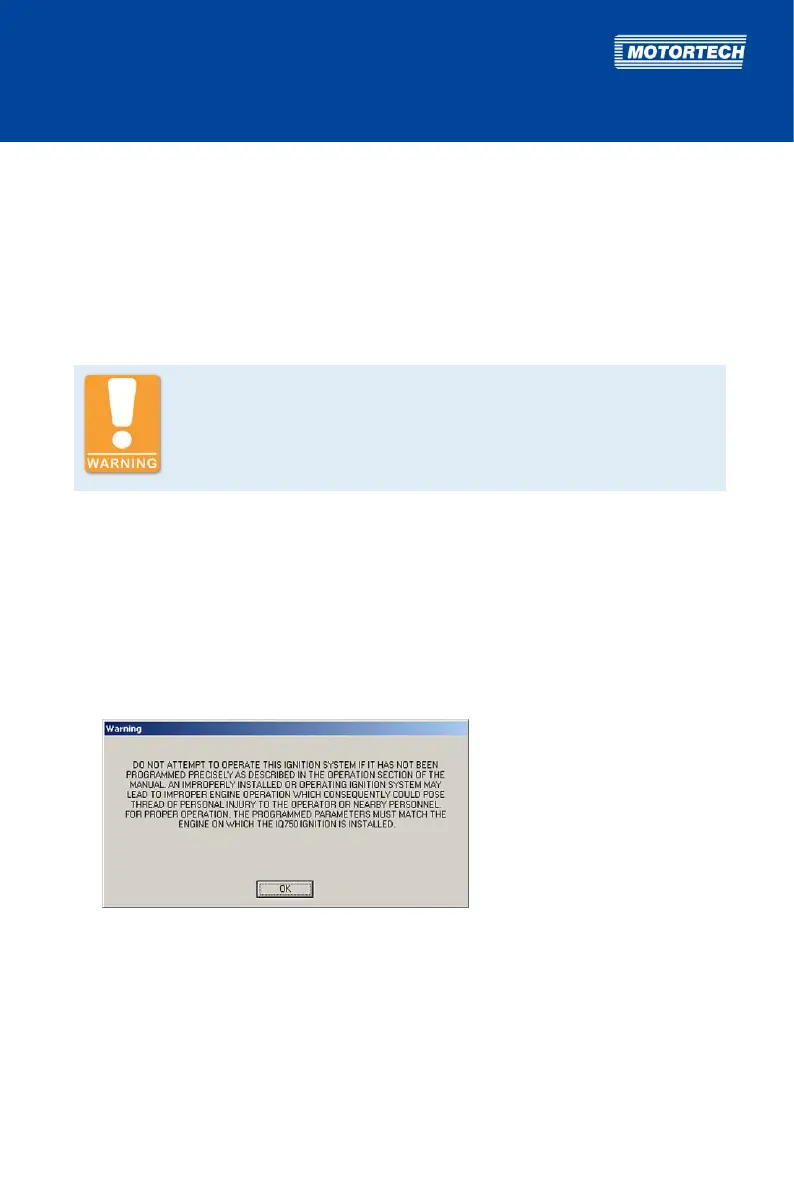
6. Launch the Ignition Control software on your computer by double-clicking the IC.exe file.
The following warning is displayed:


 To Next Page