Main components of your printer 11
Front panel
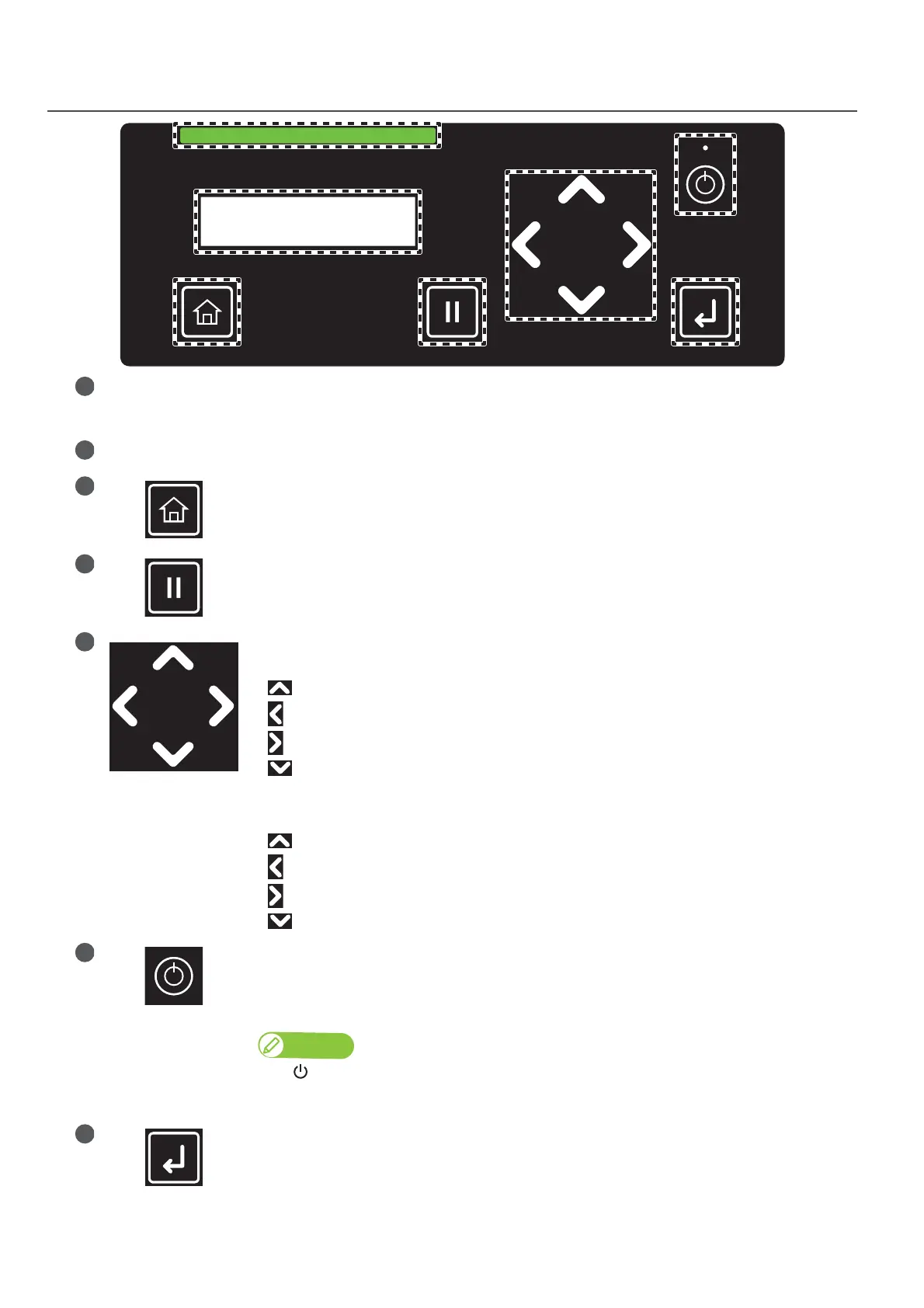
Status Bar Indicates the printer status by LED light.
• Working normally: Solid green
• Error/Alert state: Solid red (error) or flash red (alert)
Display Displays the printer status, setting menu, errors and so on.
[Home] key:
Access to or exit the menu.
[Cancel] key:
• Pause the print job. While pausing, tap the key again to resume printing.
• While the printer is not printing, tap the key to cut the media.
Arrow keys:
When you have entered the setup menu, the arrow keys are used to select a menu or enter a value.
• key: Go to the previous item.
• key: Return to the upper level menu without saving the change.
• key: Go to the sub menu.
• key: Go to the next item.
While the printer is in standby mode, it is used to feed media, run a nozzle check, or perform head
cleaning.
• key: Feed the media backward. Long-touch to feed it with high speed.
• key: Tap to run a nozzle check.
• key: Tap to perform cleaning.
• key: Feed the media forward. Long-touch to feed it with high speed.
[Power] button:
• Long press to power on the printer. The Power LED (above the Power button) turns on with a solid
white light.
• While the power is on, long press the button to power off the printer. In the Off state, the Power
LED lights off.
The symbol means “standby”. Even the Power LED turns off, the device still consumes some
power unless the power cords are disconnected. This state is referred to as the power being “off” in
this Manual.
[Enter] key:
Use the Enter key to select a menu or confirm a value.
• While the printer warms up, tap the Enter key to start printing immediately before fully warming
up.


 To Next Page