Setup 1: User Type 69
Steps
1. Select “PF Adjust 1: Initial Print”.
•“Feed Length: 250 mm” is displayed on the front panel.
2. After the initial adjustment printing, cut the media.
•Measure the distance between the “ ” in the initial adjustment print using a ruler.
3. Refer to Chapter 1 "Media feed adjustment steps" P. 38 and select “PF Adjust 2: Initial Change” on the front panel.
4. Use or on the front panel and enter the measured value in Step 2.
•Tap [Enter] to save the initial adjustment value.
5. Use or on the front panel to select “PF Adjust 3: Confirm Print”.
•“Feed Length: 250 mm” is displayed on the front panel.
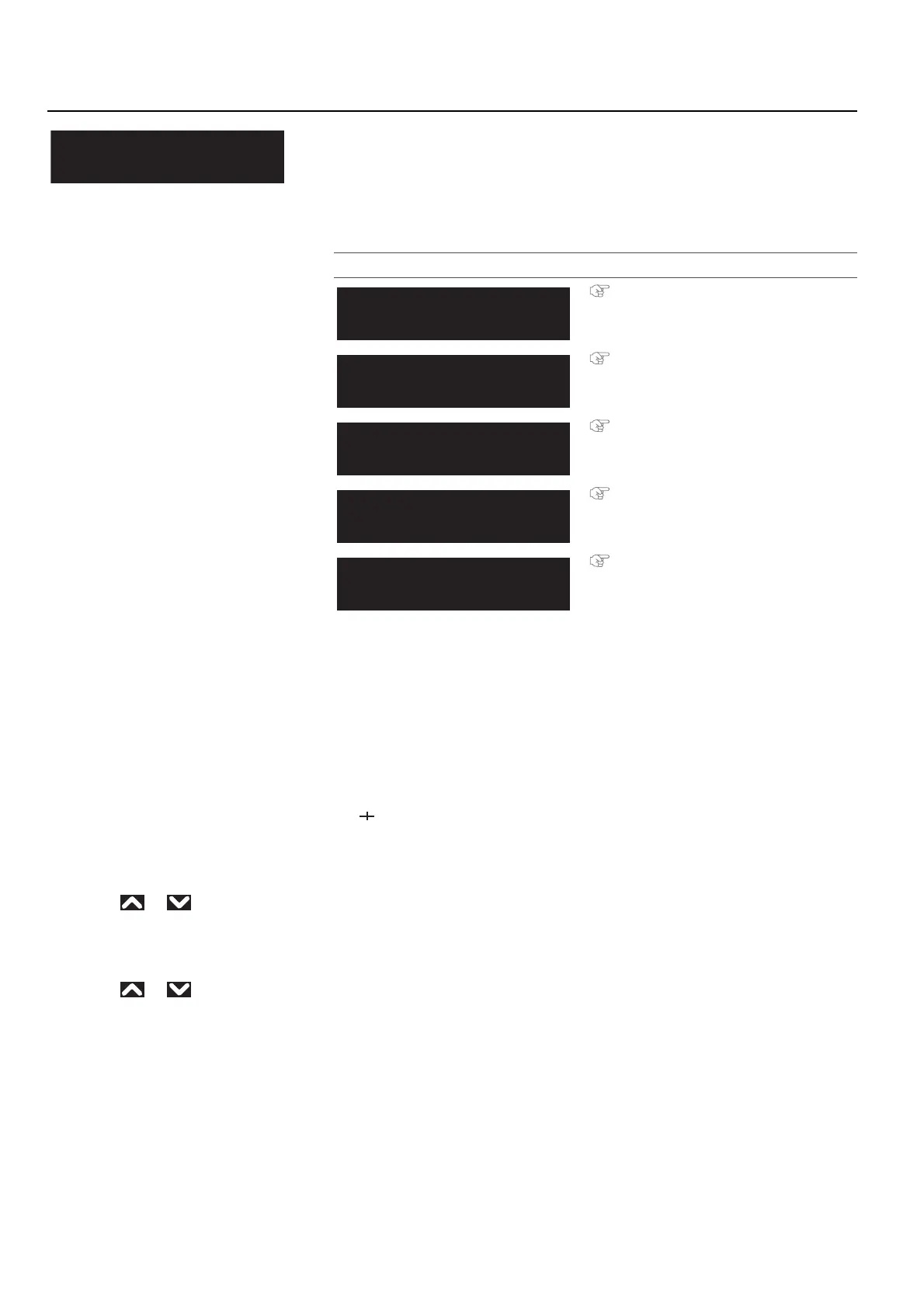
**>3: PF Adjust
Sets up various settings on the Media feed correction.
When the following defects are found in printing results, they may improve by
conducting a media feed correction.
• Images are overlapping.
• There are white lines in images.
Submenus
"PF Adjust 1: Initial Print" P. 71
"PF Adjust 2: Initial Change" P. 71
"PF Adjust 3: Confirm Print" P. 72
"PF Adjust 4: Micro Print" P. 73
"PF Adjust 5: Micro Change" P. 73
** : PF Adjust 1
Initial Print
** : PF Adjust 2
Initial Change
** : PF Adjust 3
Confirm Print
** : PF Adjust 4
Micro Print
** : PF Adjust 5
Micro Change


 To Next Page