UsetheOcéTDS600tocopy 41
Scanner operator panel
The Océ TDS600 is a very user-friendly system. The scanner, in particular, is
very easy to operate. Basic copy jobs can be performed by simply pressing the
green (start) button on the scanner operator panel. Only if you want to perform
more complex copy jobs, you have to change the default copy settings with the
help of the other settings on the scanner operator panel.
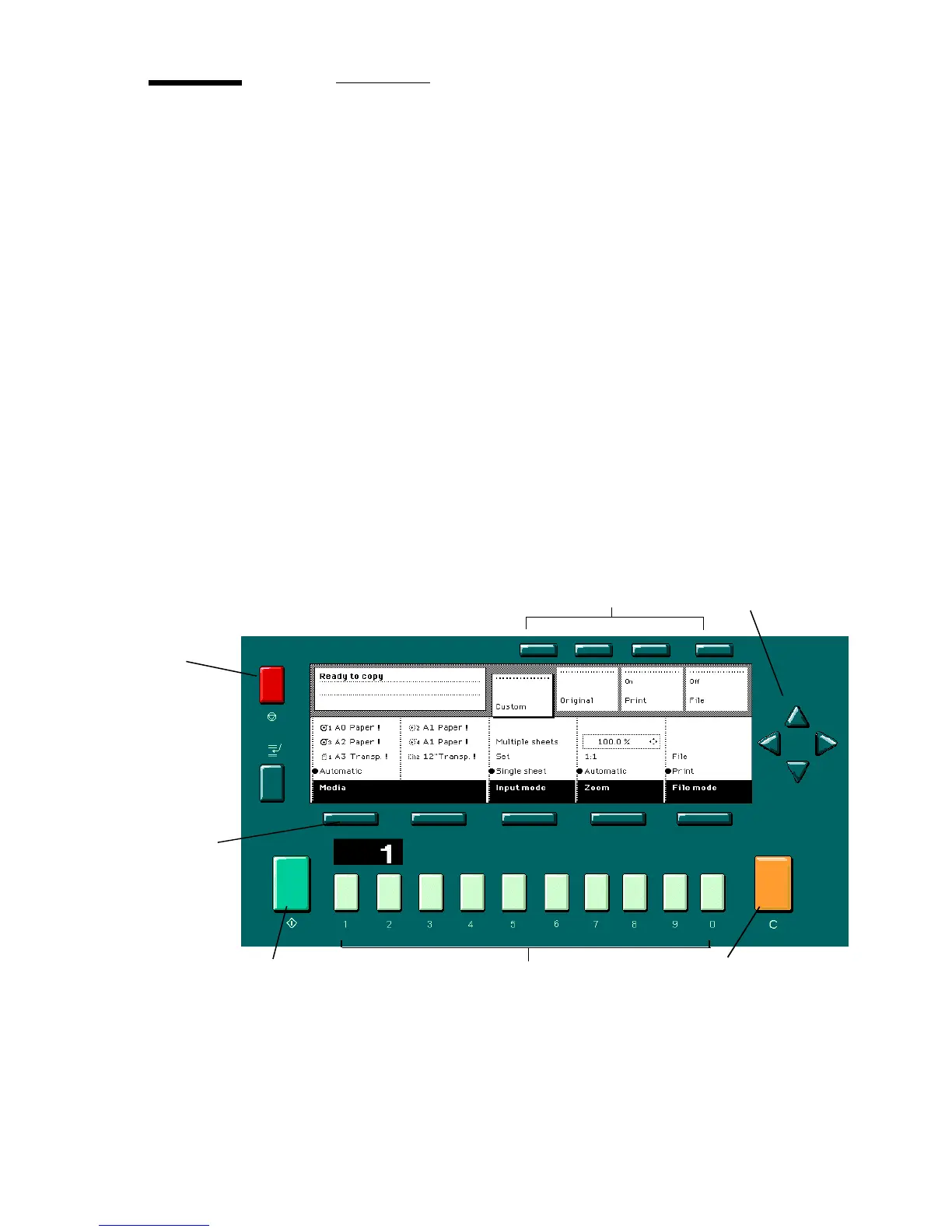
The operator panel is located above the original feed. As you can see in this
diagram (see figure 10), the panel consists of a display in the centre surrounded
by a number of function, section and arrow buttons. To the left of the display,
you can find the ‘Stop’ button and below the display you can find the ‘Start’,
‘Numeric’ and ‘Correction’ buttons as well as the ‘Counter’ window.
This section consists of two parts. The first part explains the basic use of the
buttons. The second part deals with special use of the display. It describes how
to use the soft buttons above and along the sides of the display to define your
copy settings.
.
[10] Scanner operator panel
Stop
button
Correction buttonStart button
Section buttons Arrow buttons
Function
buttons
Numeric buttons



 To Next Page