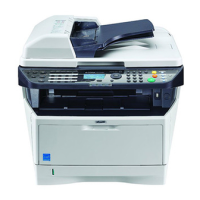
Why do printouts from my Olivetti d-Copia 3000MF have black lines?
- RRobert BarkerSep 9, 2025
If printouts from the document processor of your Olivetti All in One Printer have black lines, the slit glass may be dirty. Clean the slit glass.

Why do printouts from my Olivetti d-Copia 3000MF have black lines?
If printouts from the document processor of your Olivetti All in One Printer have black lines, the slit glass may be dirty. Clean the slit glass.
Why can't my Olivetti d-Copia 3000MF duplex print this paper type?
If your Olivetti All in One Printer cannot duplex print a certain paper type, it is because you selected a paper size/media type that cannot be duplex printed. Select an available paper size/media type or press [Continue] to print without duplex printing.
What to do if my Olivetti All in One Printer has a paper jam?
If a paper jam occurs in your Olivetti All in One Printer, the device will halt, and the location of the jam will be displayed on the touch panel. Keep the printer powered on and adhere to the instructions provided to remove the jammed paper.
How to fix unclear printouts from Olivetti All in One Printer?
If printouts from your Olivetti All in One Printer are not clear, select the appropriate image quality for the original.
What does 'Check the document processor' mean on my Olivetti All in One Printer?
If your Olivetti All in One Printer displays 'Check the document processor', ensure that the document processor is closed. Also, ensure that the top cover of the document processor is closed.
Why is my Olivetti d-Copia 3000MF ejecting blank sheets?
If blank sheets are being ejected from your Olivetti All in One Printer, ensure that the originals are loaded correctly. When placing originals on the platen, place them face-down and align them with the original size indicator plates. When placing originals in the optional document processor, place them face-up.
Why are images skewed on my Olivetti d-Copia 3000MF?
If images are skewed when using your Olivetti All in One Printer: * When placing originals on the platen, align them with the original size indicator plates. * When using the optional document processor, align the original width guides securely before placing the originals. * Check the position of the paper width guides to ensure the paper is loaded correctly.
What does 'Check the cover' mean on my Olivetti d-Copia 3000MF?
If your Olivetti All in One Printer displays 'Check the cover', close the cover indicated on the touch panel.
Why can't I print with my Olivetti d-Copia 3000MF All in One Printer?
If your Olivetti All in One Printer cannot print: * Ensure the power cord is plugged into an AC outlet. * Turn on the main power switch. * Connect the correct printer cable securely. * Power on the machine after connecting the printer cable. * If 'Press Status Key...' is displayed, press the Status/Job Cancel key, select [Printing Jobs], and then [Resume All Print Jobs].
What to do if my Olivetti d-Copia 3000MF All in One Printer says 'Add toner'?
If your Olivetti All in One Printer indicates to add toner, replace the toner container.
| Functions | Print, Copy, Scan, Fax |
|---|---|
| Print Technology | Laser |
| Print Speed (Black) | 30 ppm |
| Print Resolution | 1200 x 1200 dpi |
| Scan Resolution | 600 x 600 dpi |
| Copy Speed (Black) | 30 cpm |
| Copy Resolution | 600 x 600 dpi |
| Fax Modem Speed | 33.6 Kbps |
| Duplex Printing | Yes |
| Paper Capacity | 250 sheets |
| Interface | USB 2.0, Ethernet 10/100Base-TX |
| Operating System Compatibility | Windows, Mac OS, Linux |
| Monthly Duty Cycle | 50, 000 pages |
| Type | All in One Printer |
| Scanner Type | Flatbed |
| Paper Size | A4, A5, B5, Letter, Legal |
| Connectivity | USB, Ethernet |
| Weight | 18 kg |
Lists other documentation provided with the machine, such as the Advanced Operation Guide.
Explains symbols used in the manual for warnings, prohibitions, and required actions.
Covers environmental conditions and electrical safety for machine placement.
General safety guidelines for operating the machine and handling consumables.
Explains the machine's classification as a Class 1 laser product and safety measures.
Guides on connecting cables, network configuration, and accessing the Embedded Web Server.
Covers date/time configuration, language selection, and default screen setup.
Instructions for loading paper into cassettes/tray and placing originals for scanning.
Details on power on/off, low power modes, and sleep modes for energy saving.
Explains basic copying, preview, density, image quality, zoom, and duplexing.
Guides on printing documents from applications and from stored locations.
Covers sending via email, folder (SMB/FTP), and document box.
Explains how to cancel, view status, and manage print jobs.
Describes optional paper handling accessories like the document processor and paper feeder.
Details built-in and document finishers, and job separators for output management.
Covers Key Counter, FAX Kit, Data Backup, Security, and PDF Upgrade Kits.
Instructions for cleaning various parts like platens, slit glass, and rollers.
Guides on replacing the toner container and waste toner box.
General guidelines for common operational issues and their solutions.
Lists common error messages and their corresponding corrective actions.
Step-by-step instructions for removing paper jams in different machine locations.
Explains how to input characters using the on-screen keyboard for names and settings.
Lists supported paper sizes, types, and capacities for all paper sources.
Provides detailed technical data including dimensions, power, and operating environment.