96
Manually Seting an Origin
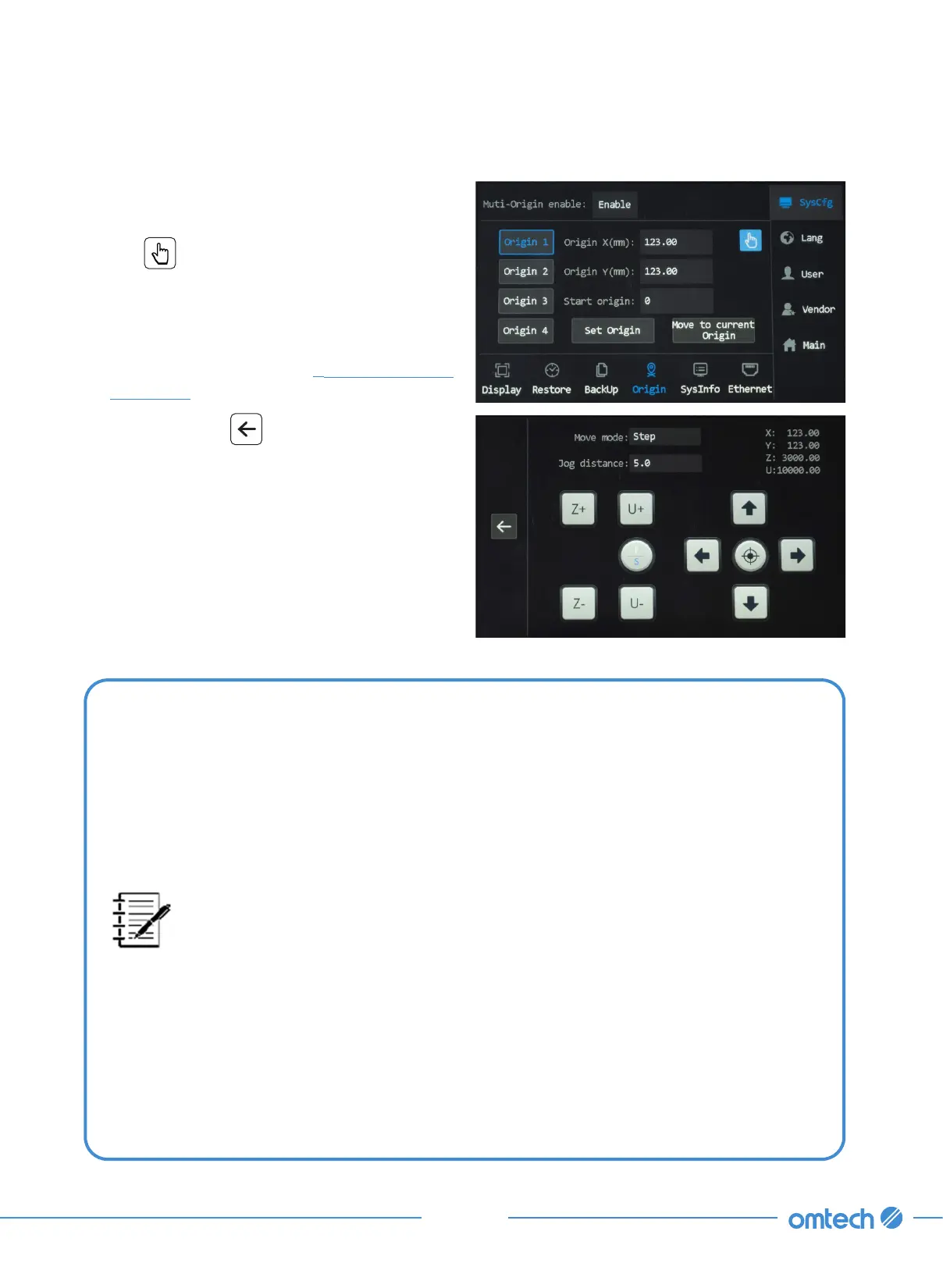
1. Tap to choose an origin, Origin 1 as is in the
case demonstrated below.
2. Tap . And the menu as shown shows up.
3. Use the keys (Z+, Z–) and the arrows to
move the laser head to a desired position
in relation to the workbed. (U+ and U– are
disabled.) To change the way and distance
the laser head moves, see
§
6.6 Setting Axes’
Movement.
4. Once set, tap
to return to the origin
menu.
5. Tap Set Origin to save the settings. To
delete and reset a set origin, tap Cancel
origin and repeat Step 2.
•
The customized origins only work when “Multi-origins enable” is set to
“Enable”. When a set number of origins is set, say 4 origins, there will be 5
origins (0–4) for the laser head to start from, with 0 being the coordinates
set by tapping the position mark from the main menu.
•
Any two of the origins 1–4 can be set the same. For instance, origin 1 and 2
are set the same and they are both enabled. After the engraving is finished
starting from origin 1, the system will automatically start from the same
coordinates with origin 1. However, no one of the customized origins can be
set to be the same as the 0 origin.
•
When all customized origins are disabled, the laser head returns to the 0
origin by default.
•
When a set of customized origins are enabled, the system will circle through
the set sequence of the origins. For instance, there are 4 customized origins
enabled and the engraving has been initiated from the main interface, the
system will circle through the origins in the sequence that they are set.
•
If the engraving is initiated directly and wirelessly from the control computer
and the current position of the laser head is set as the origin, the laser
head will start from the current coordinates regardless of the origins set by
tapping SysCfg >Origin.


 To Next Page