95
Setting Multi-Origins
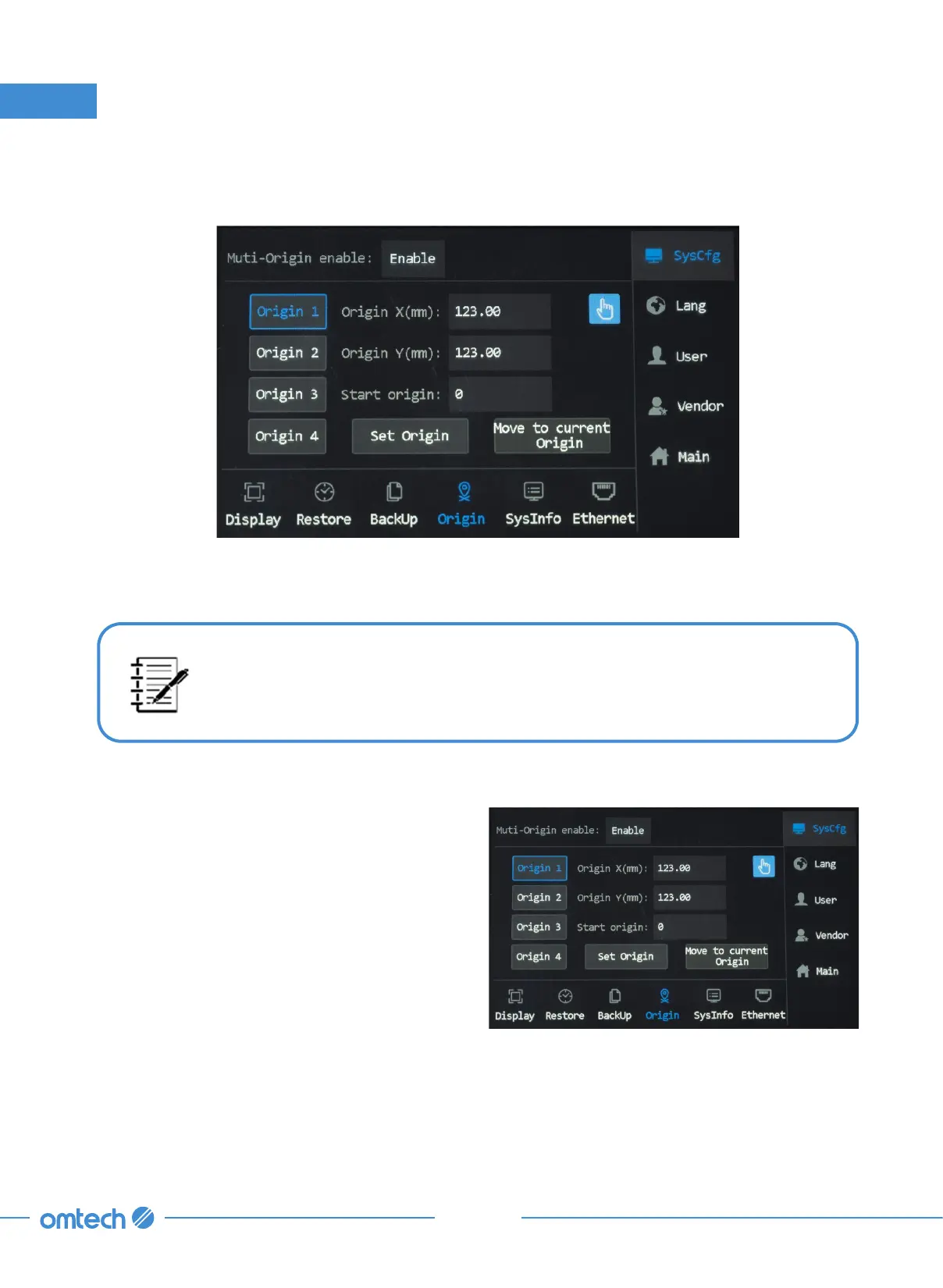
Tap Origin from the SysCfg menu, and the menu as shown shows up.
6. Touch Screen Operations
To enable this menu, tap the box after Multi-origins enable and set the option to Enable. With
Disable selected, the system has a single default origin that the laser head returns to.
There are four customizable Origins. You can set them either through putting
in desired coordinates or tapping keys to move the laser head to desired
coordinates.
Inputing an Origin
1. Tap to choose an origin, Origin 1 as is in the
case demonstrated below.
2. Put in your desired X & Y coordinates. If
you are unsure whether the coordinates
you put in will be the position you want the
laser head to move to, tap Move to current
Origin.
3. The laser head should automatically move
to the coordinates you put in. Adjust as
needed.
4. After setting a desired origin, tap Set Origin
to save. To delete and reset a set origin, tap
Cancel origin and repeat step 2.


 To Next Page