67
5. Typical Operation Sequence
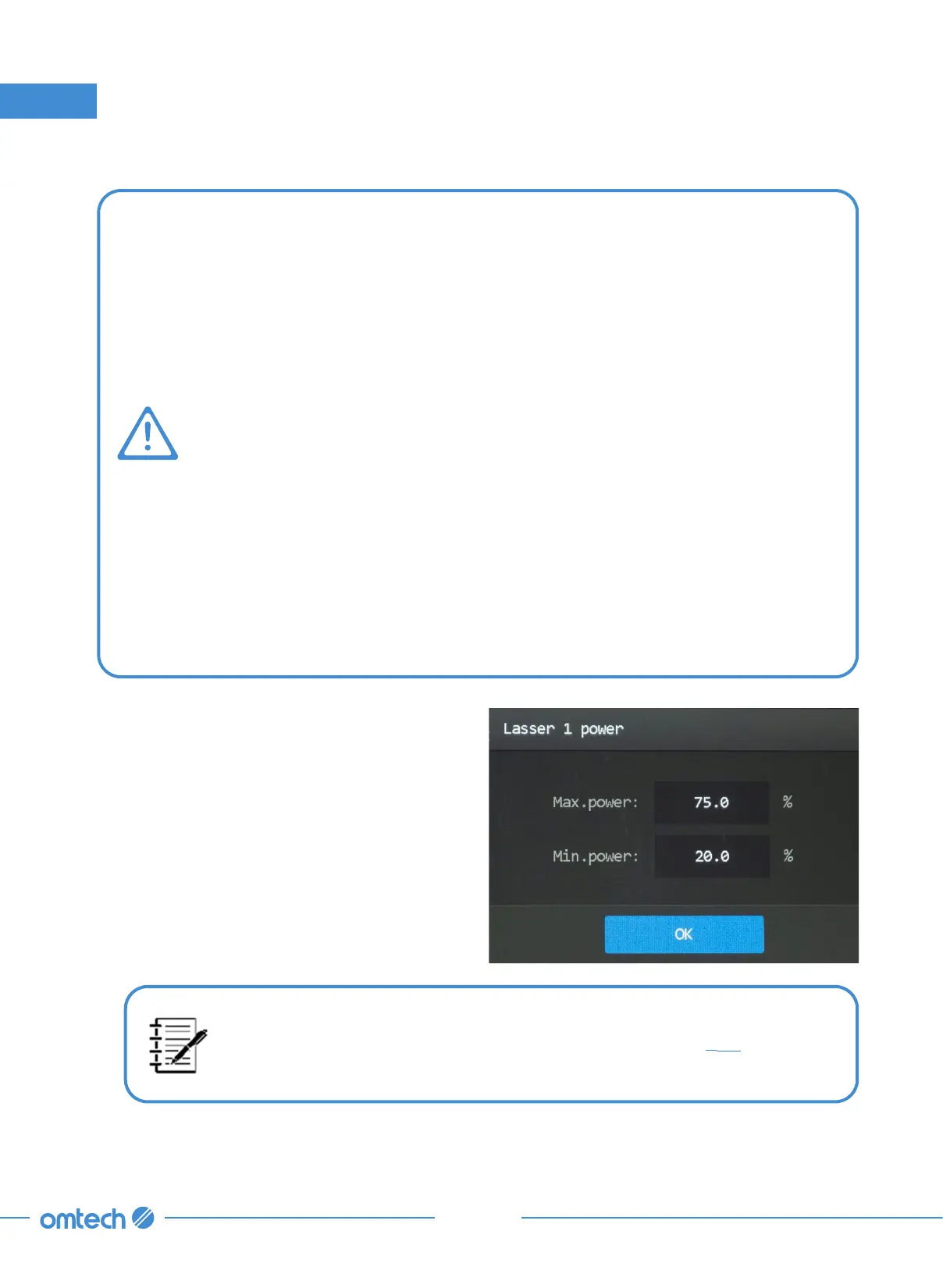
1. Tap Power in Parameter Display Area, and
the following menu pops up.
2. Tap the parameter box to enter the power
that you desire to use.
3. Tap OK to confirm the modification and exit
the current menu.
The exact power value deepends on the material, its thickness, among
other things. To aceive the best resultant pattern, See
§
5.3 for power
recommendation for specific materials.
Power Levels
•
All powers are displayed as percentages (%) of the engraver’s rated power.
Running your laser above 70% risks shortening your laser’s service life. If you
find power settings of 70% or lower do not produce the results that you need,
for most materials it is better if you first attempt to increase the amount of
energy per unit area by slowing the laser or running more loops before further
increasing the power setting itself.
•
The threshold for the lowest setting is around 10% and the laser will not have
sufficient voltage to fire at settings below this. It is NOT recommended to
use the laser tube at full capacity either, especially for extended periods. The
recommended maximum power setting is 70%, as prolonged use above that
amount will shorten your laser’s service life. To increase the engraving depth,
increase the amount of energy per unit area by increasing the laser’s power or
the number of loops or by slowing down the speed parameter. Engraving too
deep, however, reduces image quality, especially for coated materials.
•
When working with new materials, remember that you should always start
on the low end of likely settings. If the effect is not yet strong enough, you
can always rerun the design loop several times or rerun it with more powerful
settings until you create the effect that you want. You can also try grids of
possible settings at first to find what works best with your material.


 To Next Page