40
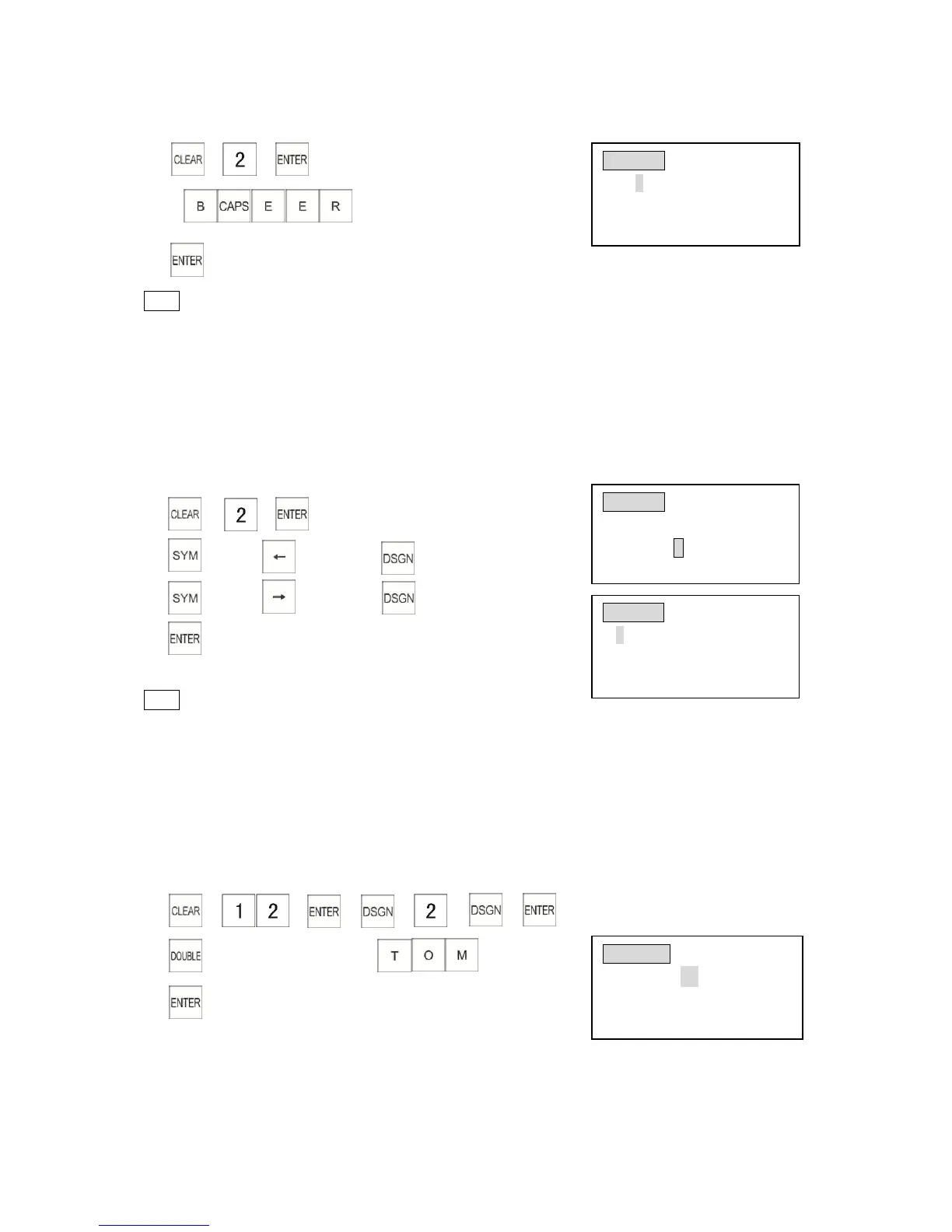
Example: Program the name of DEPT 01 as “Beer”
1) → →
→
(DEPT name)
2)
Note
*The default is capitals. You can use [CAPS] key to change to lowercase.
3.17.1.2 Symbols Input
A. Press [SHFT] key to choose symbol input method;
B. Press the [←] key or the [→] to choose the symbol.
C. Press the [DSGN] key to confirm the symbol.
D. Press the [ENTER] key to finish the entry.
Example: Program the name of DEPT 01 as “+/”
1) → →
2) →Press key twice→ (“+”)
3) →Press key twice → (“/”)
4)
Note
*You can use [↓] key to search for more characters during input mode.
3.17.2 Character Input - Double Width
A. Turn the control lock to the “P” position and select a programming item;
B. Select input method
C. Press [DOUBLE] key before inputting characters, then press [ENTER] key to complete.
Example: The following example shows how to print the name of the Clerk 2 as “TOM” in double
width.
1) → → → → → →
2) (Input in double width) →
3) (Finish the double width input)
3.17.3 Switch Cursor Position
A. Turn the control lock to the “P” position and select a programming item
B. Select symbol input method



 To Next Page