EasyManua.ls Logo

Optimas OP-680 - Using Special Function Keys; How to Use the [→] Key and the [←] Key during Setting Flag; How to Use the [→] Key and the [←] Key during Inputting the Symbol

Default Icon
76 pages
Print Icon
To Next Page IconTo Next Page
To Previous Page IconTo Previous Page
Loading...
41
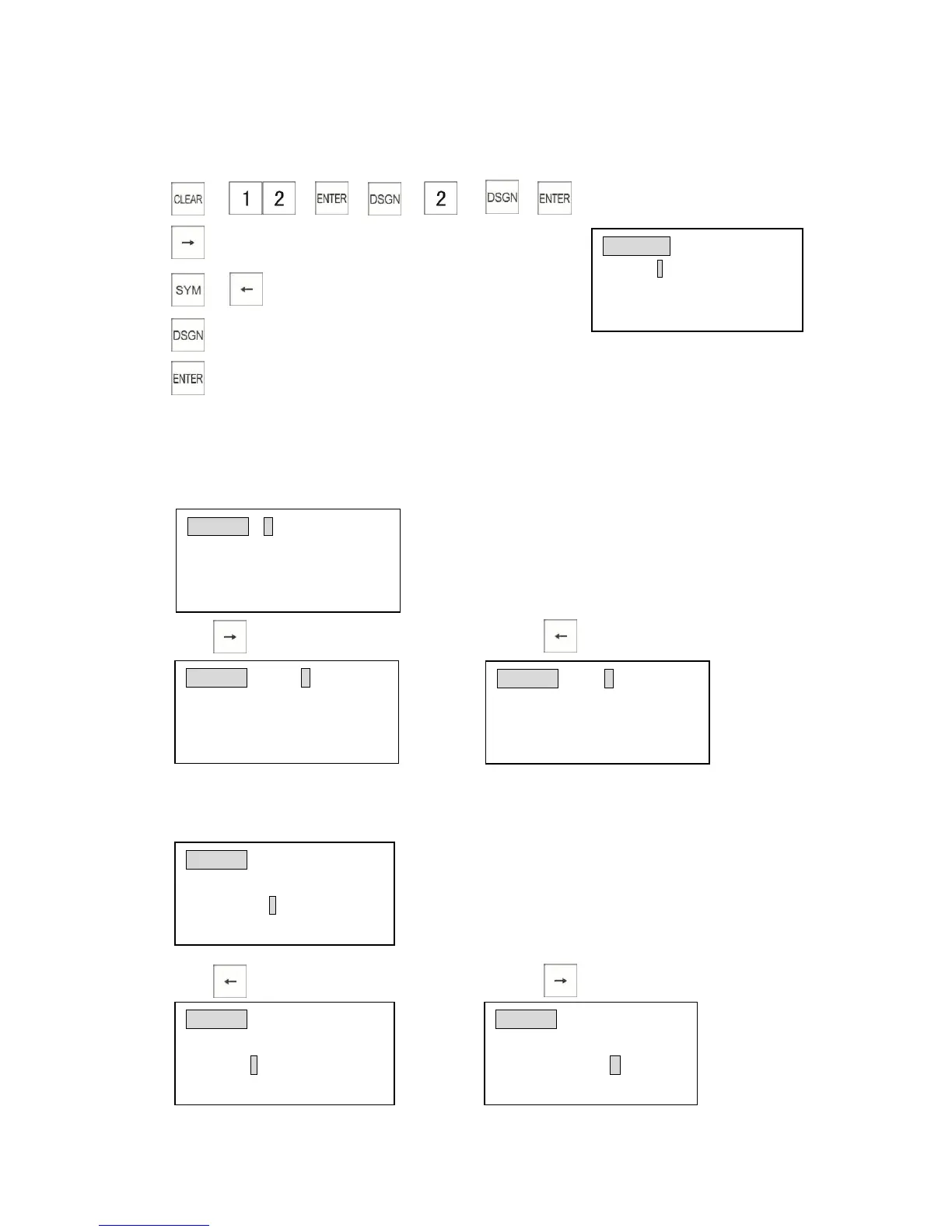
C. Press [] and [→] key to switch cursor between name edit line and symbol line.
Example: The following example shows how to switch cursor position while in symbol input
method.
1)
2) (5 times)
3) (10 times)
4)
5)
3.18 Using Special Function Keys
3.18.1 How to Use the [] Key and the [] Key during Setting Flag
Example: Select department flag setting, the display shows;
1) Press key 5 times. 2) Press key .
3.18.2 How to Use the [] Key and the [←] Key during Inputting the Symbol
Example: Select the symbol input, the display shows:
1) Press key 3 times 2) Press key 9 times

Dept0001#800000000 SETUP1
Input # then [enter]
Dept0001#300000000 SETUP1
Tax3 selection:
0=Tax3 OFF 1=Tax3 ON
Input # then [enter]
Dept0001 (ABCD)NAME
DEPT0001
!”#$%&’()*+,-. /:;<=>?@[\
[Uppercase]
Dept0001 (ABCD)NAME
DEPT0001
!”#$%&’()*+,-. /:;<=>?@[\
[Uppercase]
Dept0001
(ABCD)NAME
DEPT0001
!”#$%&’()*+,-./:;<=>?@[\
[Uppercase]
CLERK 02 (ABCD)NAME
CLERK# 2
Enter alpha characters:
[Uppercase]
Dept0001#400000000 SETUP1
Tax4 selection:
0=Tax4 OFF 1=Tax4 ON
Input # then [enter]

Table of Contents