When OPTI CCA-TS software is updated, Release Notes are provided.
Steps
1. Click on Resources menu.
2. Select Software Tab
3. Click an OPTI CCA-TS software link to download a le.
4. Unzip and extract Compact Flash Files to a Compact Flash Card.
To download the current instrument software and current release notes, please visit the OPTI
Medical Website www.optimedical.com.
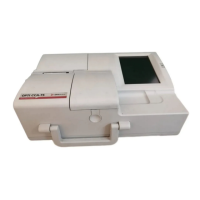
OPTI CCA-TS Software Update Procedure
Please Insert Software Release Notes in this section.
Necessary Supplies
1 - Software update kit
-contains 1 compact Flash (CF) Card and Instructions
Procedure
1. Print the conguration report to obtain a printed copy of the instrument Setup. This report
is located in the Data Manager menu.
Warning: All instrument settings, patient data and QC data will be deleted
from the system during the update. if your data needs to be exported please do so
prior to performing the update.
2. Turn the analyzer OFF.
3. Locate the CF card slot on the back of the instrument.
4. Insert the CF card with the label facing up and the arrow pointing in.
5. Turn analyzer power ON.
6. Wait for analyzer to load the software.
7. The update is complete once the memory error is displayed.
Unzipping
To unzip les, use the Extract button on the toolbar or select Extract from the Actions menu
to display the Extract Window. Use the Extract window to extract or “unzip” les from the
open archive to your disk.
SOFTWARE UPGRADES
Operator’s Manual - OPTI CCA-TS SW-1


 To Next Page