3. A status bar displays showing the progress of the transaction. Once the postage has been
downloaded to your meter you can print a receipt from your PC:
a. To bypass the printing of the receipt, click Skip.
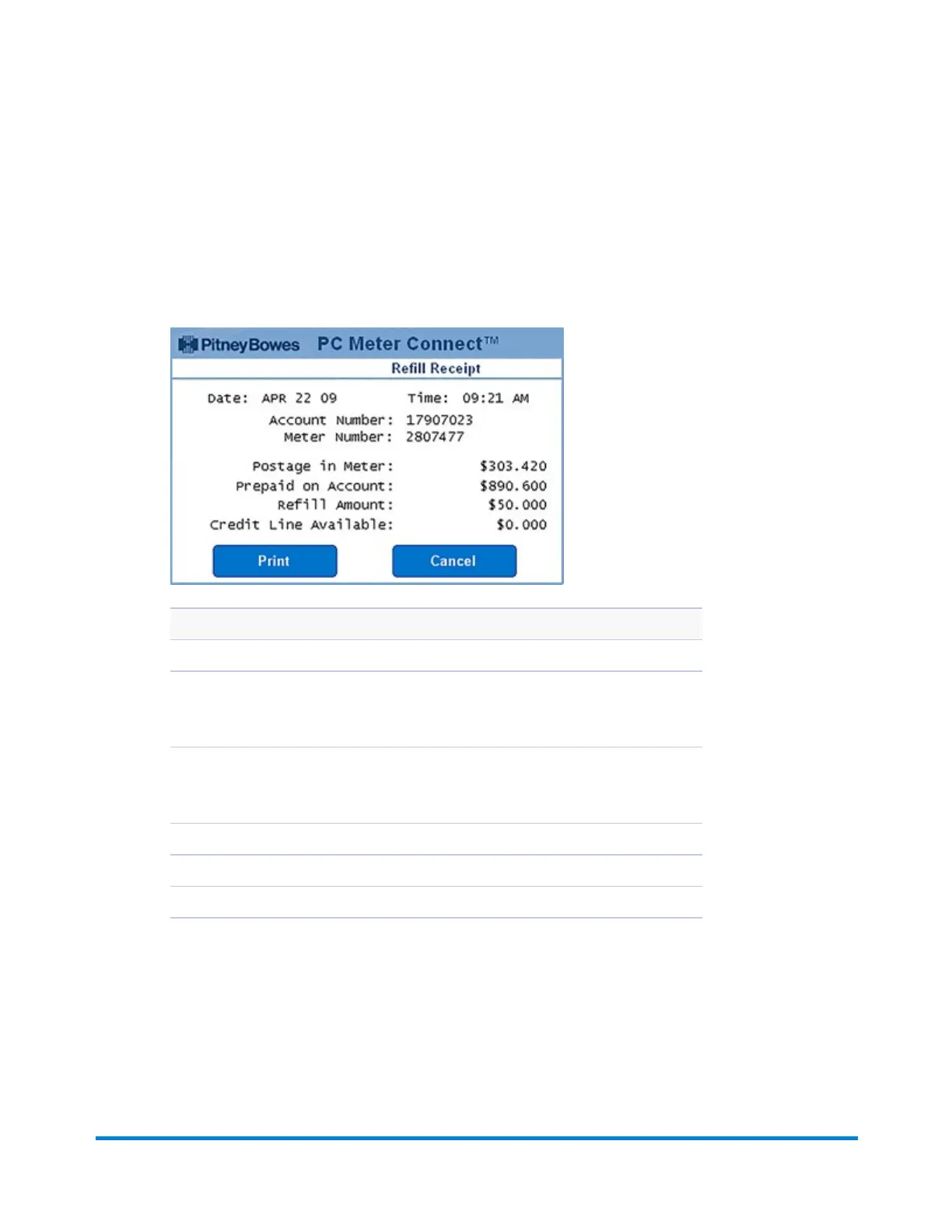
b. To print, click Print Receipt. The Refill Receipt screen displays:
Description
Postage in Meter: Amount of postage (funds) in your meter.
Prepaid on Account: Amount you have left in your Postage By Phone® system
account of those funds you paid for in advance (by sending in a check, direct
withdrawal, etc.).
Credit Line Available: Amount you have left in your Postage By Phone® system
account of those funds you established as credit with Pitney Bowes (such as
Purchase Power®, etc.).
Refill Amount: Amount of your refill.
Account No. : Your Postage By Phone® system account number.
Meter No. : Your meter serial number which is printed on the meter stamp.
4. Click Print to continue.
5. Click Done when finished.
Using PC Meter Connect
Pitney Bowes Operator Guide February, 2017 Page 166 of 226











 To Next Page