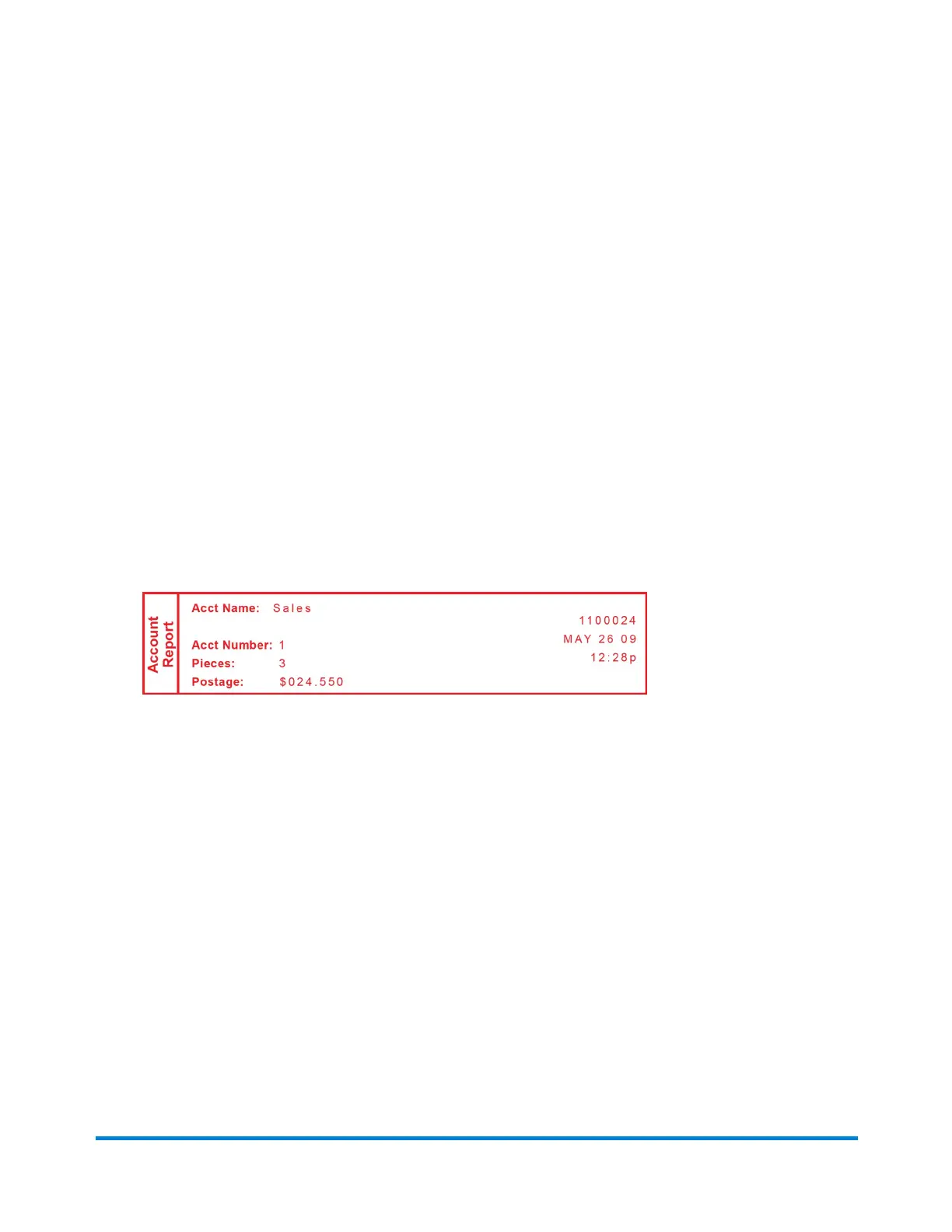
Printing a Single Account Report
This report provides the postage amount and number of pieces applied for a single account (if the
Departmental Accounting feature is set up on your system).
To print an account report:
1. Press Reports.
2. Select Printable report.
3. Select Single Accounts Rpt.
4. Key in an account.
5. When prompted, insert tape sheet or envelope into machine. The report is printed and you return
back to the Printable reports menu.
6. Press Clear (back arrow key) to return to Report type menu or press Home to return to the Home
screen.
To perform this with PC Meter Connect, refer to Printing an Account Report Using PC Meter Connect.
Reports
Pitney Bowes Operator Guide February, 2017 Page 89 of 226











 To Next Page