5-4 SV63136 Rev. A
5 • Troubleshooting
Setting the Time
and/or Date
Follow the steps below to adjust the internal Time and/or Date of the sys-
tem:
1. From the Home screen, select "Menu".
2. From the Menu screen, select "Tools".
3. From the Tools screen, select "Configure System".
4. From the Configure System screen, select "Set Date/Time".
NOTE: If you are not logged in with supervisor or manager access rights, you
will be prompted to enter an access code.
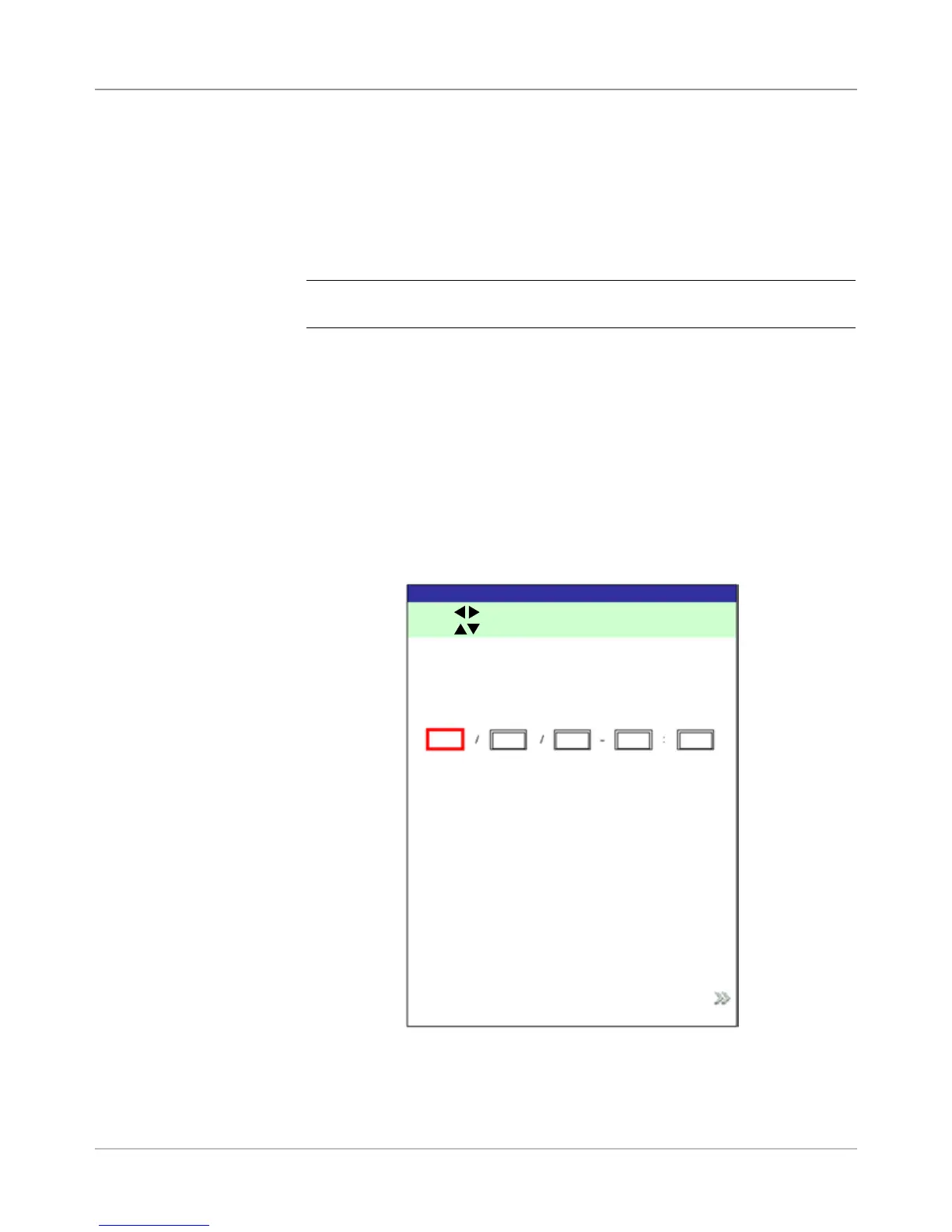
5. Press the LEFT/RIGHT arrow key(s) to select the item you want to
change, i.e., Month, Day, Year, Hour, or Minute. The items highlight as
you press the LEFT/RIGHT arrow key(s).
6. Press the UP/DOWN arrow key(s) to select the desired number.
7. When you are done:
• Press "Finished" to back through the configure system screens to
the Home screen. Your settings will be saved.
OR
• Press HOME to save your adjustments and return directly to the
Home screen.
Set Time/Date Screen
Press to select.
Press to adjust.
7
22 2006 23 54
Finished
Set Time/Date
Month Day Year Hour Minute


 To Next Page