SV63136 Rev. A
3-43
Basic Operation • 3
You can add items to your mail piece one at a time using the procedure de-
scribed below.
To add an item to a mail piece:
1. From the Home screen select Menu>Jobs>Edit Current Job. The Edit
Job screen displays.
2. Select Add Item.
3. Select the appropriate option: Add Outer Envelope, Add Sheet, Add
Insert or Add Large Booklet.
NOTE: Only jobs using the HCEF can have two outer envelopes.
4. If you selected Add Outer Envelope, Add Sheet, Add Insert or Add
Large Booklet the Add Item Location screen displays.
Adding an Item
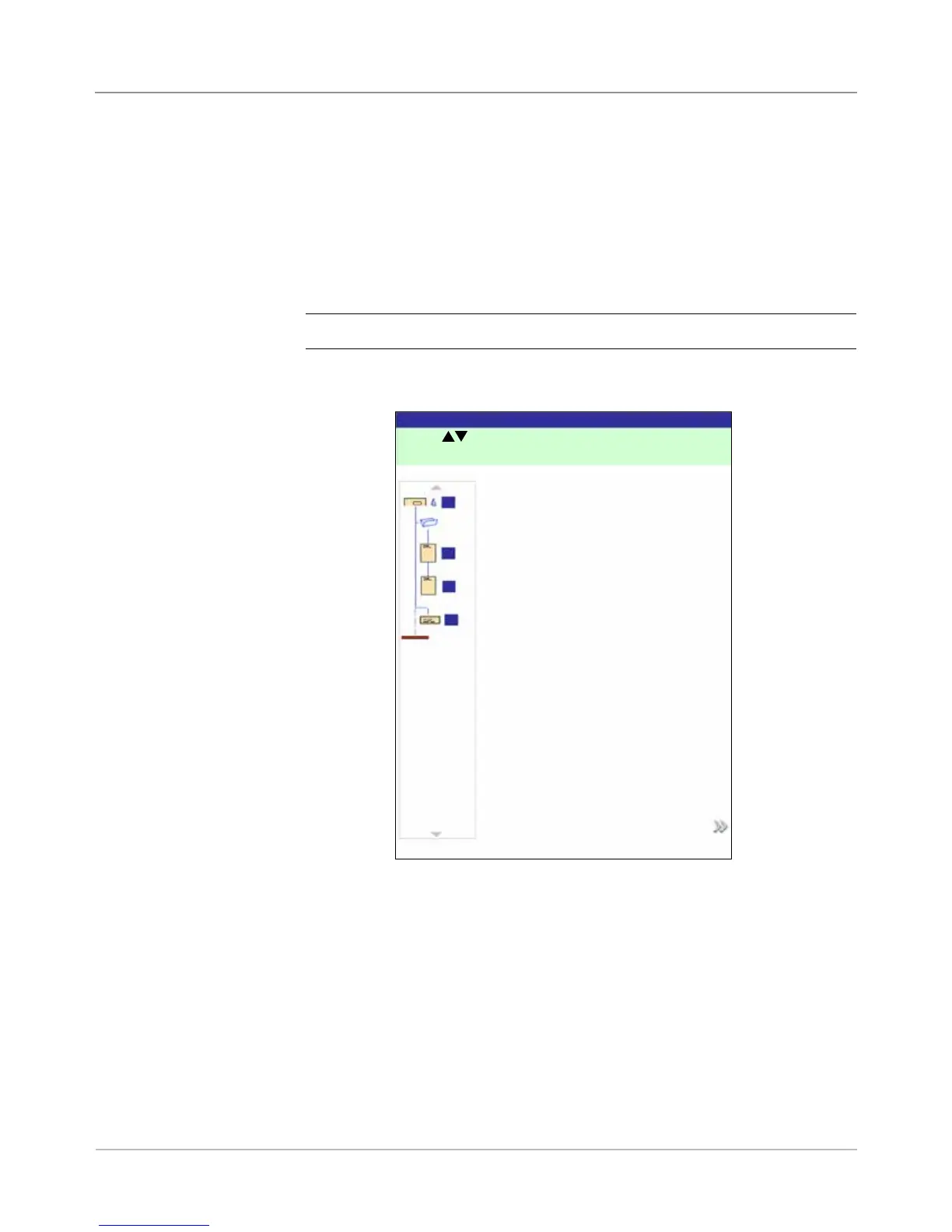
a. Use the UP/DOWN arrow keys to indicate where in the Mail Piece
Icon Tree (the mail piece collation) to place the new item. An insert
marker highlights the selected area.
b. Press Accept Highlighted Location when you are done.
c. Depending upon the item you selected, the Add Sheet, Add Insert, or
Add Booklet screen appears. Use the screen option keys to define
the parameters for the new item.
d. Select the desired item characteristics.
e. Press Accept when you are done.
Add Item Location Screen
Press to select location.
Add Item Location
Job: 123
Accept Highlighted Location
A
B
C
D


 To Next Page