8-16 SV63136 Rev. A
8 • Scanning
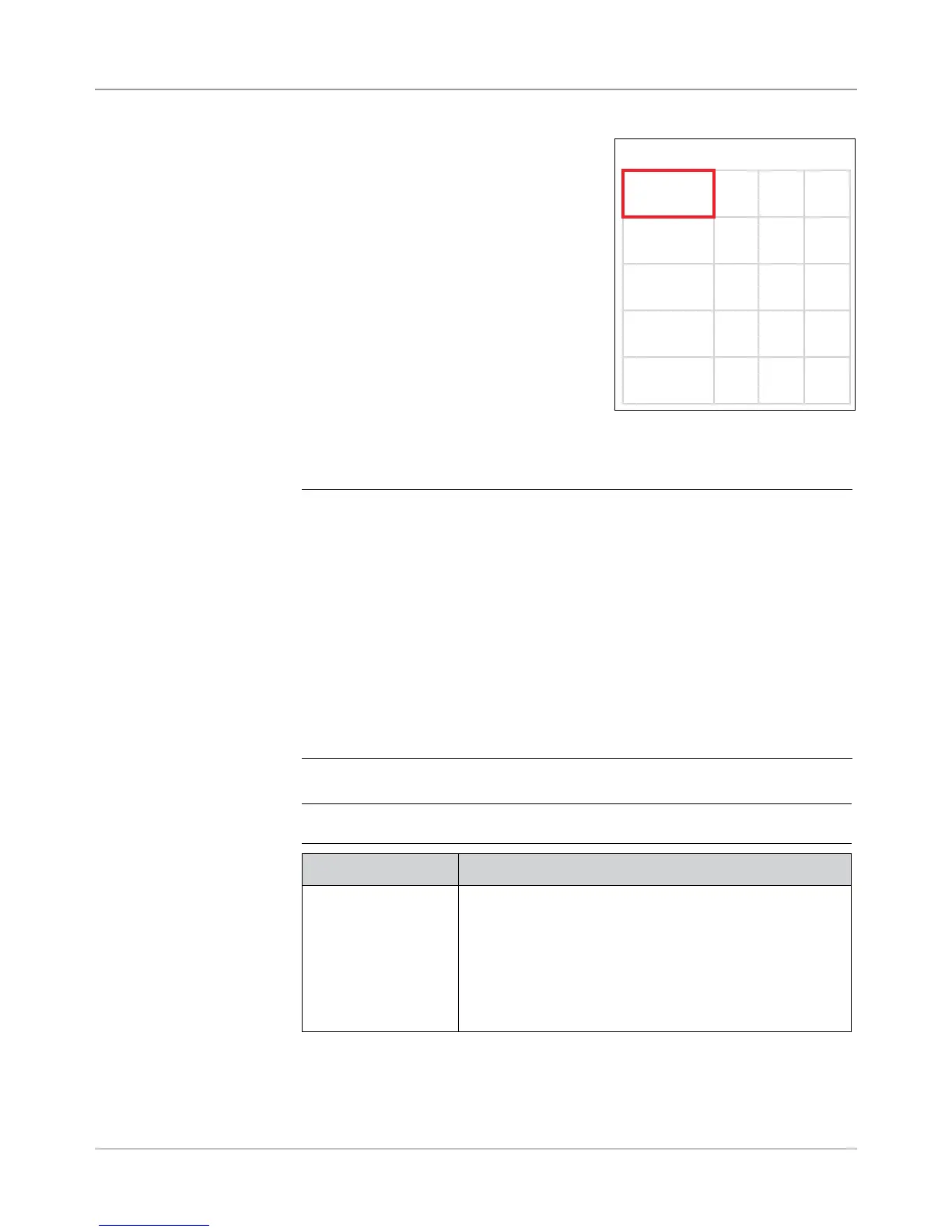
6. The Create Scan Code screen
appears. Enter the character, bit
and size information on the "BCR
Scan Configuration Worksheet" for a
function.
Refer to BCR and OMR Mark Levels
in this chapter for a brief description
of the function of each mark.
a. Use the UP/DOWN and LEFT/
RIGHT arrow keys to highlight an
item within the grid.
b. Press Increase or Decrease to
edit the character (C), bit (B) and
size (S) information for a specific
function (F).
Setting Up
a BCR Scan
Configuration
(continued)
Scan Grid
F C B S
MC 3 4 2
WAS 5 4 2
EOC 7 0 1
SF1 8 0 1
DVF 9 0 1
NOTES:
• On the "BCR Scan Conguration Worksheet," look for the function
abbreviation in the "Function" column. Enter the associated character
information in the "C" column, the bit information in the "B" column and, if
necessary, the size information in the "S" column.
• Bit 0 is the right-most bit (least signicant) in each character:
• For Code 3 of 9 barcodes, bits are 5, 4, 3, 2, 1, and 0.
• For Interleaved 2 of 5 barcodes, bits are 2, 1, 0.
• 2D
• Items with character set to zero will no be included in the nal code.
• For multi-bit elds, the entry in the "S" column depends on the code
type. For Bin, "S" is the number of bits. For CCD, "S" is the number of
characters.
7. Select Set Options. (Refer to the table below.)
NOTE: The options vary, depending upon the selected function.
Menu Option Associated Options/Actions
Use When Toggles:
• Present, or
• Absent.
When Present is selected, the function will be performed
when the bit is "1".
When Absent is selected, the function will be performed
when the bit is "0".


 To Next Page