Setup & User Guide
111 |
DOC-246-GDE-Pivot3 Acuity 2.3 Setup & User Guide-v1.0.docx
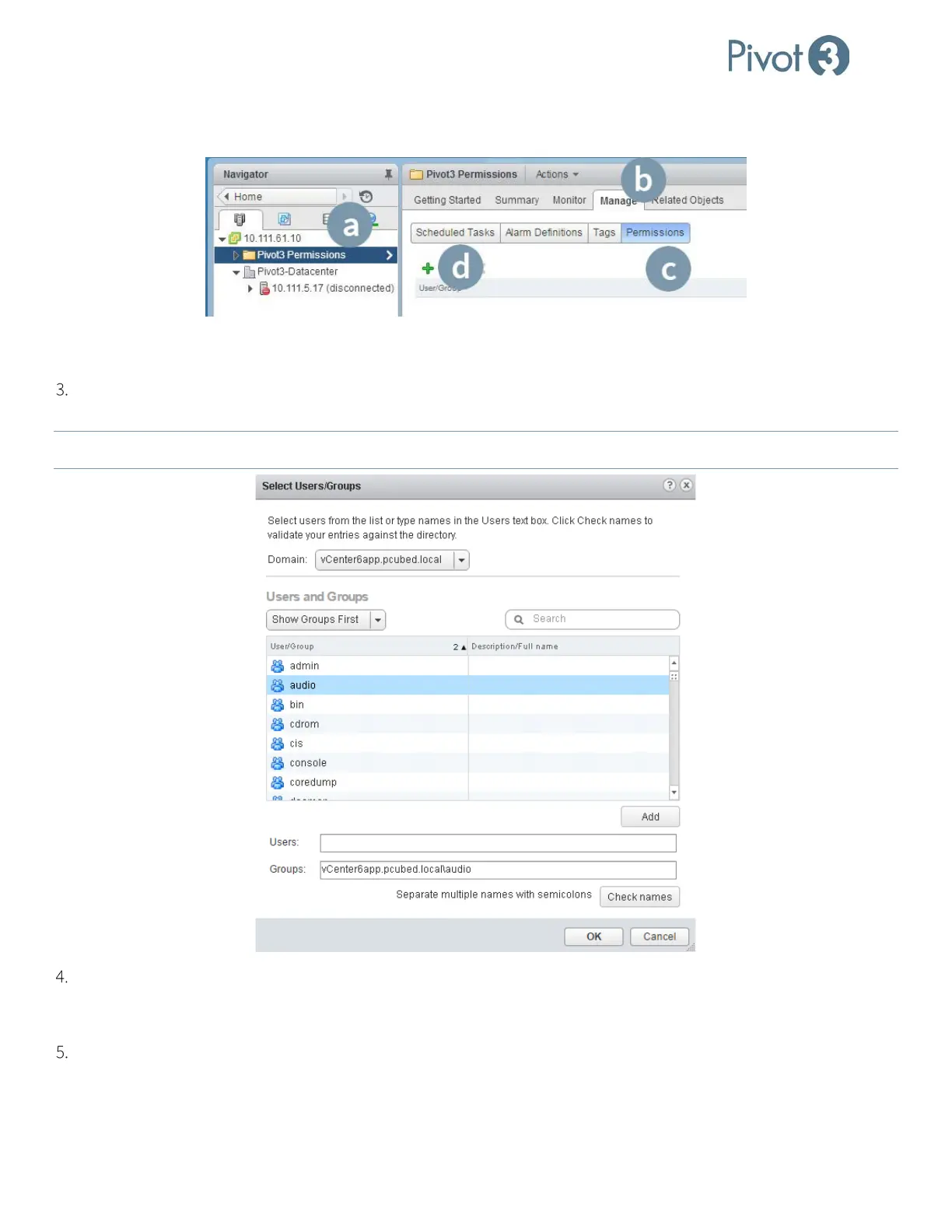
b. Click the Manage tab.
c. Click the Permissions category.
d. Click the green
+ to add a user.
Click Add… to add a new Group. To verify validity of the Group information entered, click Check Names and a dialog
box will convey success or failure of this step.
NOTE:
Multiple groups can be entered here, but ensure the users are separated by semicolons (;).
Click <OK>. The new group will now be listed in the Users and Groups section. Highlight the new group in the left
pane, then click the drop-down box to the right and from the list, select the desired role to connect to the group. This
role must have sufficient privileges to log in to vSphere Web Client and the Pivot3 vCenter Plugin.
Groups are handled differently from how users are handled; regardless of the role chosen for the newly added group,
there will only be two practical privilege levels:
Administrator and Read-Only. Any selected role with less than full
Administrative privileges will become Read-Only and can only be overridden by User privileges.



 To Next Page