Setup & User Guide
| 110
DOC-246-GDE-Pivot3 Acuity 2.3 Setup & User Guide-v1.0.docx
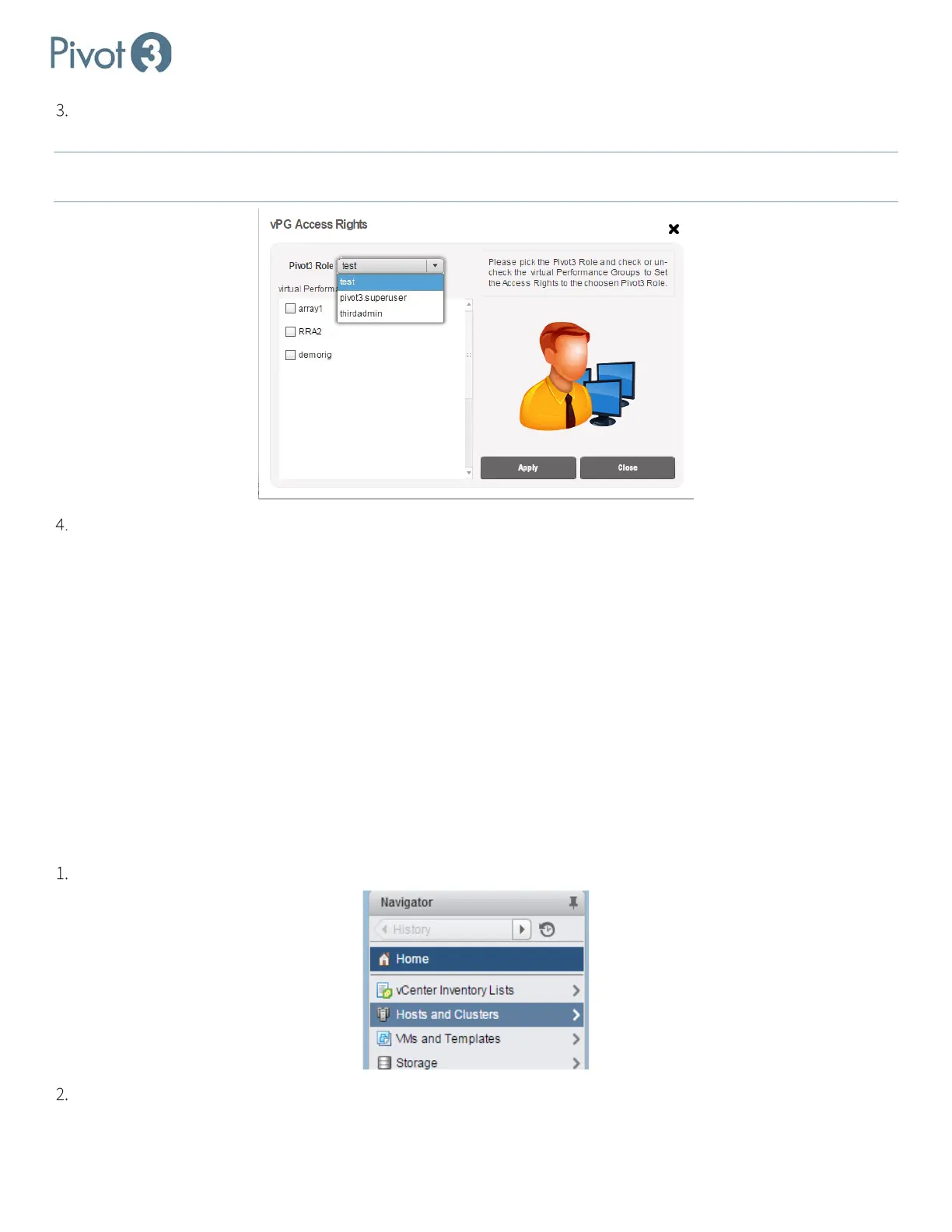
Select the desired role from the drop-down menu and check or uncheck the vPGs to be assigned or unassigned. This
will provide or remove access to the associated vPGs by any user in that role.
NOTE: If an administrator-level role is chosen from the drop-down, the plugin will automatically select all vPGs and disable
the Apply button.
Click Apply to commit changes.
SSO Group Management
SSO users can be set up individually, as part of a group, or both. Groups can be created from any level, and are not
restricted to the Pivot3 Permissions folder. Groups must be initially created outside of the Pivot3 vCenter Plugin
environment, such as in Active Directory or vSphere Web Client Administrative tasks.
There are two levels of access available to groups: Pivot3 Administrator and Pivot3 Read-Only. If there is a conflict in
permissions between a group and a user in that group, the user permissions will take precedence. The vCenter Plugin
does not consider groups by role, but instead by vSphere permissions set up during Group creation. When creating a
group, the permissions level cannot exceed that of the account creating it.
Adding a Group
Groups must be added through Active Directory before they can be managed in vSphere Web Client. Once the group is
created, the procedure to add it is similar to adding a User.
From the vSphere Web Client Home menu, click Hosts and Clusters.
On the next screen:
a. Highlight any line item on the left pane.


 To Next Page