Setup & User Guide
109 |
DOC-246-GDE-Pivot3 Acuity 2.3 Setup & User Guide-v1.0.docx
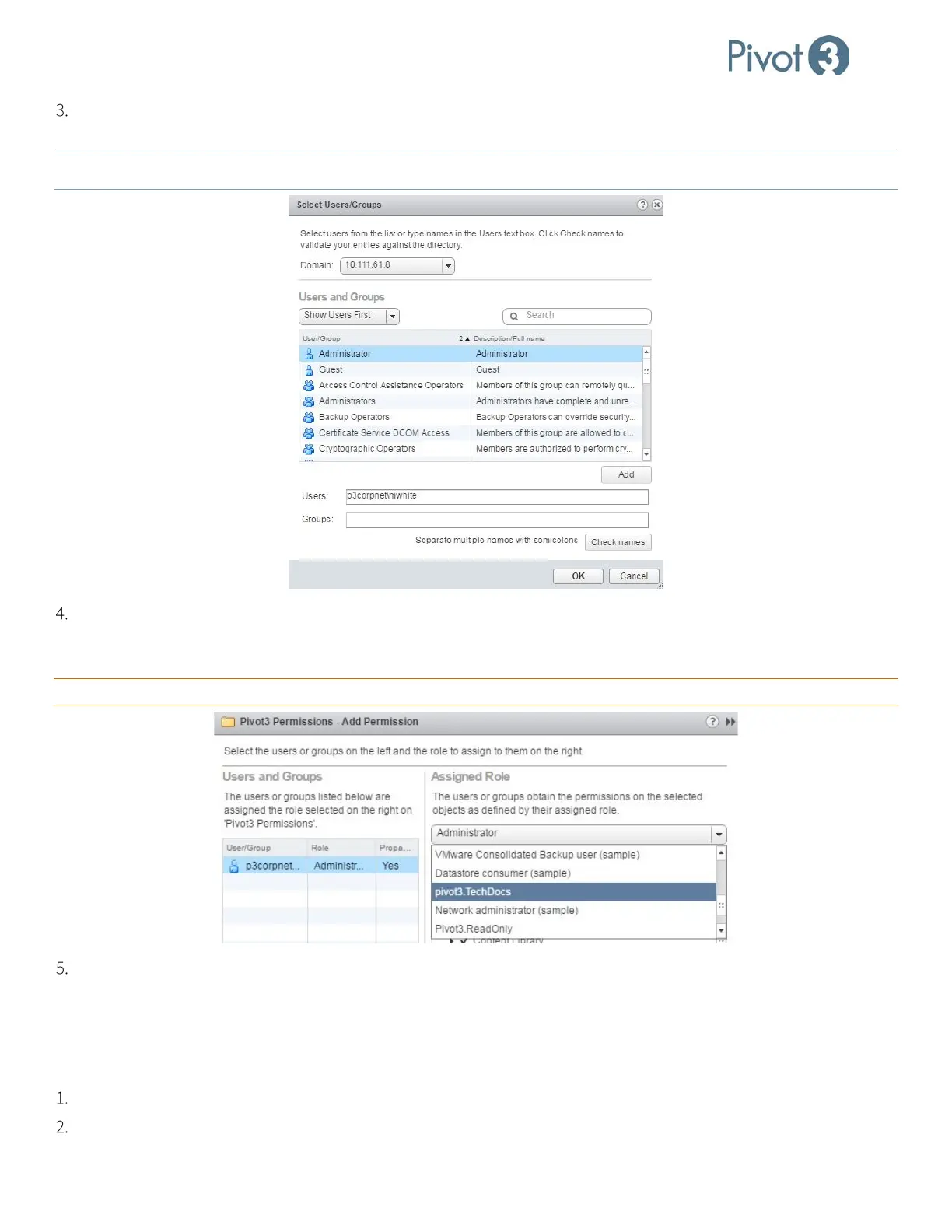
Click Add… to add a new user. To verify validity of the User information entered, click Check Names and a dialog box
will convey success or failure of this step.
NOTE:
Multiple users can be entered here, but ensure the users are separated by semicolons (;).
Click <OK>. The new user will now be listed in the Users and Groups section. Highlight the new user in the left pane,
then click the drop-down box to the right. From that list, select the desired role to be connected with that user. The
check box next to Propagate to Children (optional) sets cascading permission preferences.
CRITICAL:
Ensure that sufficient privileges are provided for the user to log in to both vCenter and the Pivot3 Plugin.
Click OK and verify that the new User/Role pairing is listed.
Associate a vPG with an SSO User
The SSO Administrator is able to create vPGs and associate them with Non-Administrative users for management if
necessary. vPGs cannot be associated with groups.
Log in to the Pivot3 vCenter Plugin with credentials assigned to an administrator role.
Select the Configure tab and click Settings.



 To Next Page