Setup & User Guide
| 88
DOC-246-GDE-Pivot3 Acuity 2.3 Setup & User Guide-v1.0.docx
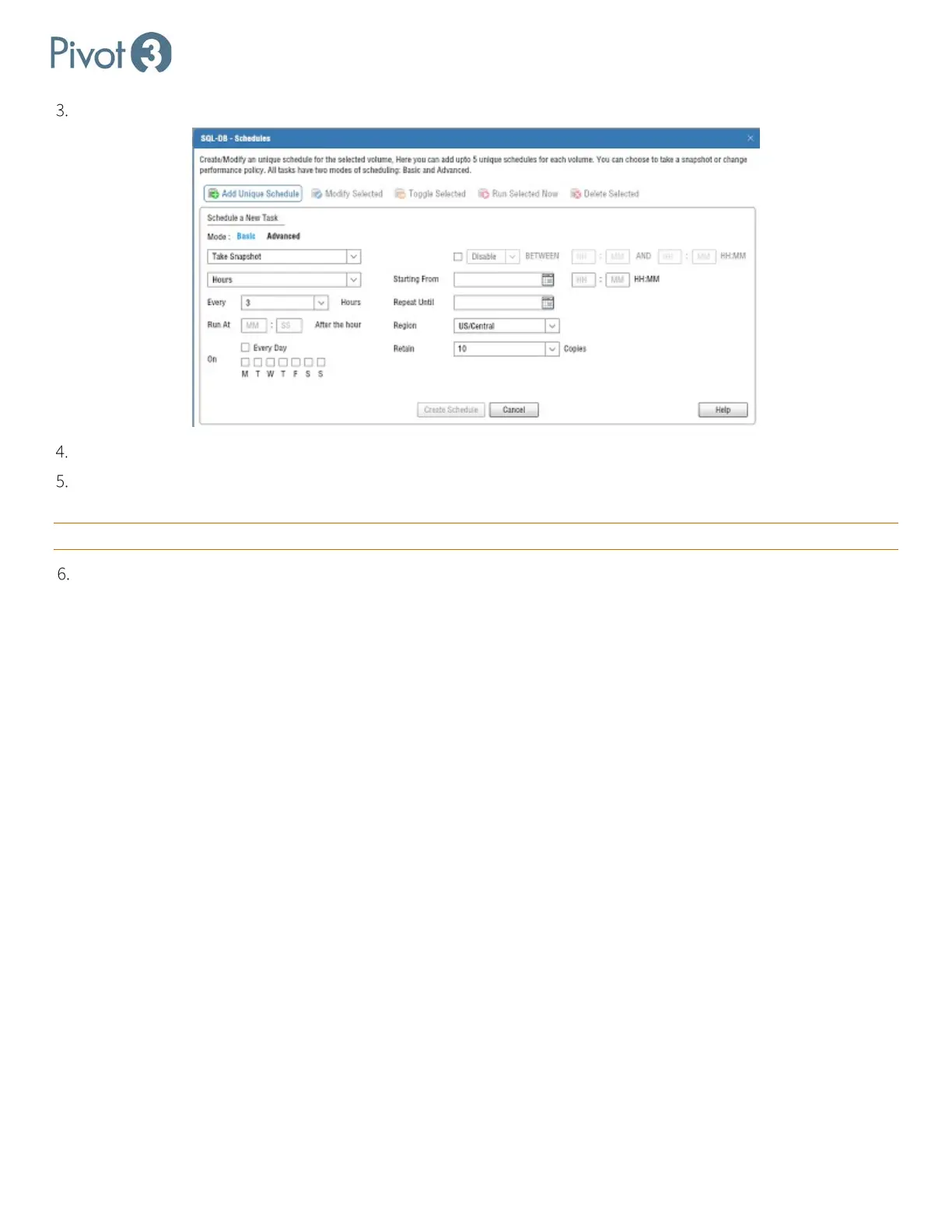
The Advanced schedule mode provides more options to allow users to refine schedules.
Click Create Schedule. The schedule will be created and can be viewed on the Schedules tab.
Retention is set on a scheduled task. If there are multiple schedules on a volume, each schedule can have its own
retention setting and more snapshots may be maintained than originally perceived.
CRITICAL: The retention setting only applies to snapshots from that schedule.
Modification changes will be persisted and will run as scheduled.
Toggle allows users to pause and resume schedule execution without making
other changes.
This command will execute the schedule now, then will continue to execute at the
Delete will remove the schedule, but not the snapshots it created.
Protection Policies Explained
The Acuity Data Protection Policy feature uses policies to protect multiple volumes systematically. A policy is a named
collection of up to three scheduled tasks that can be applied to multiple volumes (without having to enter all the details
for each volume).
Schedule tasks within the policies carefully. Throughput and time spent completing the tasks are optimized by
sequencing a few jobs at a time and not scheduling them to kick off all at the same time.
To view, add, or change policies, navigate to the Provisioning tab > Data Services View > Protection QoS tab.
Working with Protection Policies
The Actions menu on the Protection QoS tab allows for policies to be added, modified, activated or deactivated, run, or
deleted.
Each policy can have up to three tasks, which can be either snapshots or replications. Each task has a basic and an
advanced mode. For more information on configuring tasks, see Snapshots Overview.



 To Next Page