Setup & User Guide
| 56
DOC-246-GDE-Pivot3 Acuity 2.3 Setup & User Guide-v1.0.docx
vCenter Alarms & Notifications
The Alarms section of the plugin notifies the administrator of active issues requiring attention. The audible alarm has
been disabled in the plugin’s functionality, but the plugin provides additional tabs for more detail.
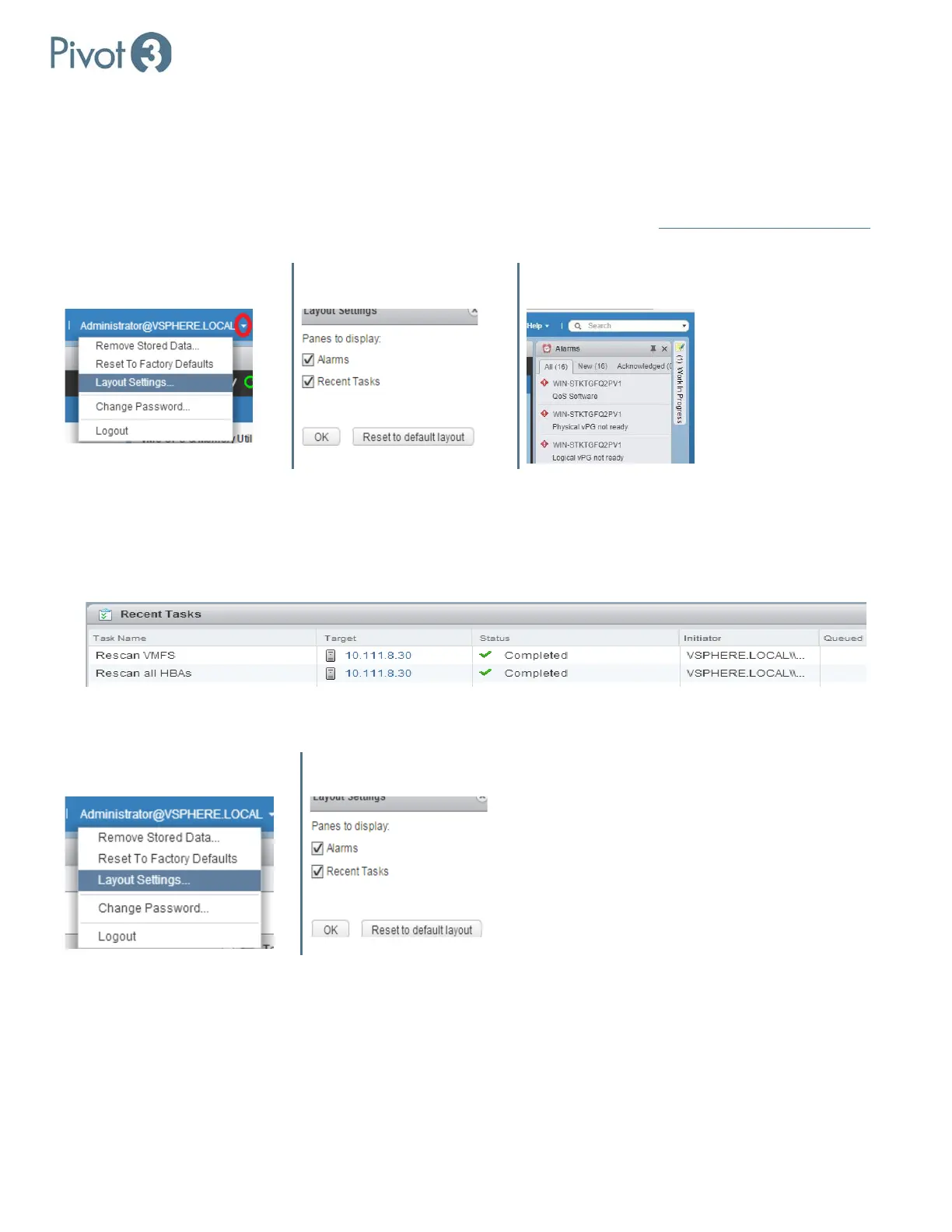
If the Alarms panel is not visible, enable it by navigating to Layout Settings from the drop-down arrow next to the domain
username at the top of the browser window and outside of the plugin (for this example, Administrator@vSphere.local
is
used). Then check the box next to Alarms, click OK, and a vCenter Alarms panel will appear next to the plugin.
Username > Layout Settings Check Box Next To “Alarms” vCenter Alarms Panel
Tasks
The vSphere Web Client has two task windows to monitor: Tasks and Recent Tasks.
Recent Tasks is an optional window at the bottom of the vSphere Web Client that reports every task performed on the
vCenter host by anyone with access.
If this window disappears, it can be reactivated by clicking the credentials at the top of the plugin and choosing Layout
Settings. A dialog box will pop up with two checkboxes; select Recent Tasks and click OK.
Username > Layout Settings Check Box Next To “Recent Tasks”
There are two ways to access the Task Console. Click the Tasks menu item on the left pane of the vSphere Web Client as
shown, or click More Tasks at the bottom right corner of the Recent Tasks Window when visible.
These tasks are different from the tasks accessible through the Pivot3 Plugin via the Alarms and Logs menu.



 To Next Page