Setup & User Guide
105 |
DOC-246-GDE-Pivot3 Acuity 2.3 Setup & User Guide-v1.0.docx
Section 14 Using Pivot3 Acuity Software
Best Practices
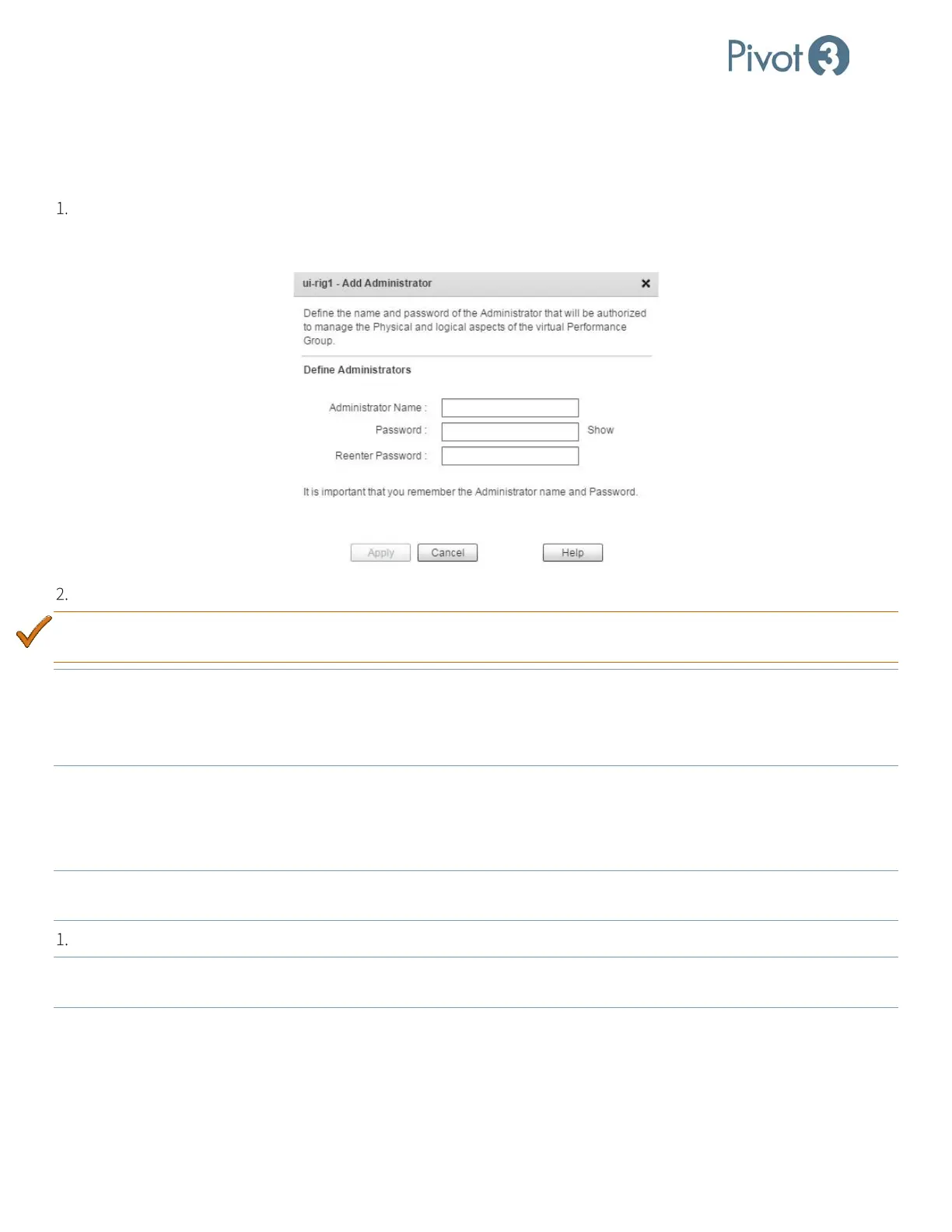
Configure a second vPG Administrator as a backup. After a vPG is created, on the Configure tab of the plugin in the
Physical view at vPG level, navigate to Configuration > Administrators to set up an additional vPG Administrator.
Simply choose Add and fill out the dialog box as shown below.
When finished, click Apply, then Close on the Manage Administrators dialog box.
BEST PRACTICE:
Restarting the web browser can solve many vSphere Web Client Plugin errors, especially if left open
overnight or for an extended period.
NOTE: Connecting to the vSphere Web Client via multiple tabs with the same browser can result in undesirable behavior with
the browser’s Shockwave Flash plugin. Users have reported screen refresh issues, sluggish behavior with the browser
window, and missing or malfunctioning menu selection items when multiple tabs are logged in to the same Pivot3
plugin.
Set Hypervisor Credentials
In order to provide support for all features, the vCenter Plugin as well as Acuity OS require administrator-level access to
each ESXi hypervisor in the domain.
NOTE: All ESXi hypervisors on the Acuity vPG member nodes must accept the same login credentials
to perform VM
configuration operations.
Highlight the desired vPG from the Physical tree view at the vPG level.
NOTE: If the login credentials
for any ESXi hypervisor are invalid, the plugin will report this as “Invalid Hypervisor
Credentials.”


 To Next Page