Setup & User Guide
| 74
DOC-246-GDE-Pivot3 Acuity 2.3 Setup & User Guide-v1.0.docx
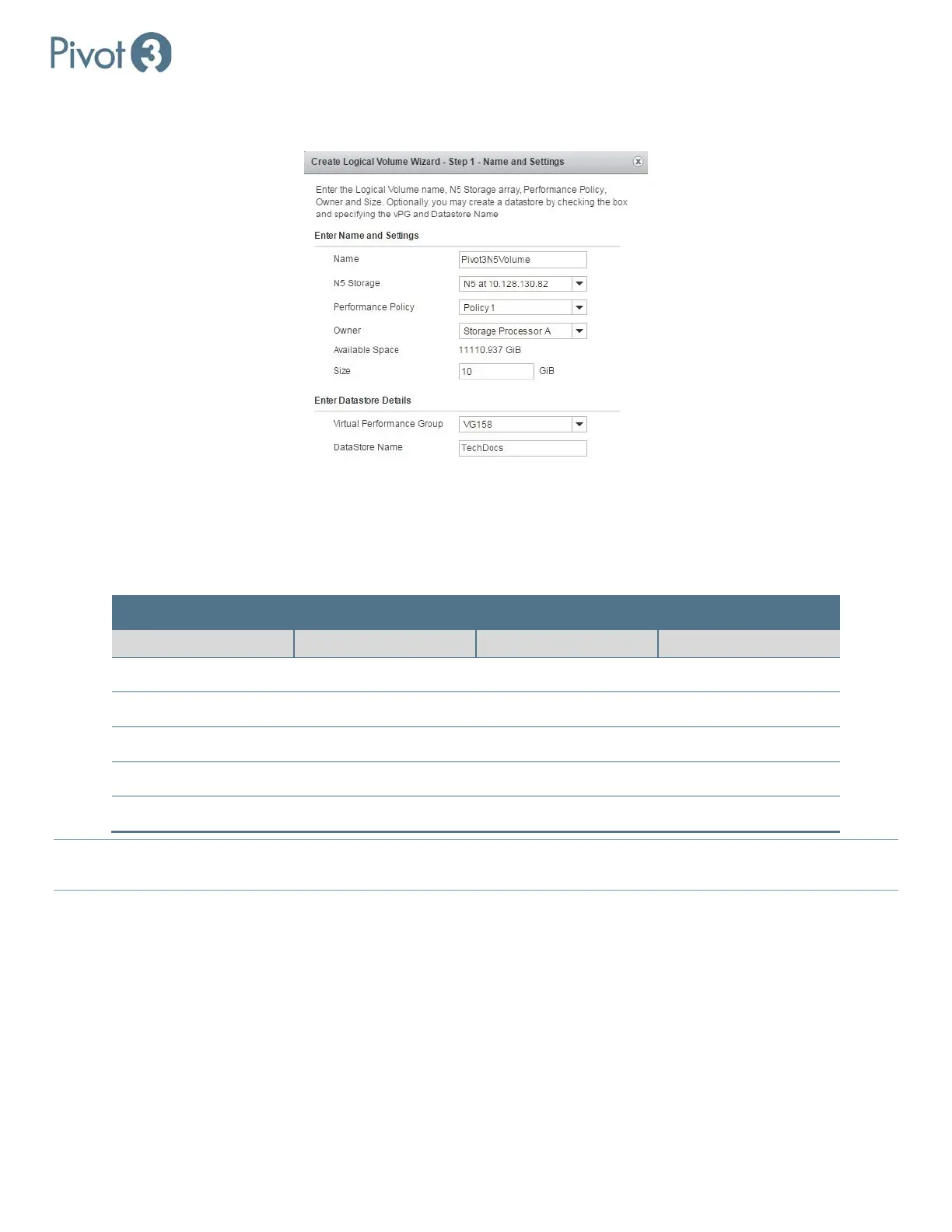
a. First, create the logical volume name (called Pivot3N5Volume in the example below). The name must be unique
and comprised of 1-15 alphanumeric characters.
b. Choose the N5 Storage node to host this volume by IP. Only N5 nodes that have been properly added to the
domain will be available.
c. Assign the Performance Policy based on the definitions below. If the wizard was initiated from the Configure tab,
the Performance Policy will already be set and cannot be changed on this menu.
Performance Policy Service Levels Available
Policy 1 Mission Critical 100,000 5ms
Policy 2 Business Critical 50,000 10ms
Policy 3 Business Critical 20,000 25ms
Policy 4 Non-Critical 10,000 50ms
Policy 5 Non-Critical 2,000 100ms
NOTE: Prioritization of each policy may impact service levels below that policy. If more than ½ of the available performance is
provisioned to Mission Critical, the benefits of this feature may not be realized.
d. Next, choose a Storage Processor (A or B) to own the volume. Once a Storage Processor is selected, the available
capacity will automatically display. Enter the desired volume capacity in the text field.
e. To simultaneously create a Datastore during volume creation, click the checkbox next to Create Datastore and
choose the vPG for the Datastore from the drop-down, then enter a name in the field provided. Click Next to
continue.


 To Next Page