Setup & User Guide
79 |
DOC-246-GDE-Pivot3 Acuity 2.3 Setup & User Guide-v1.0.docx
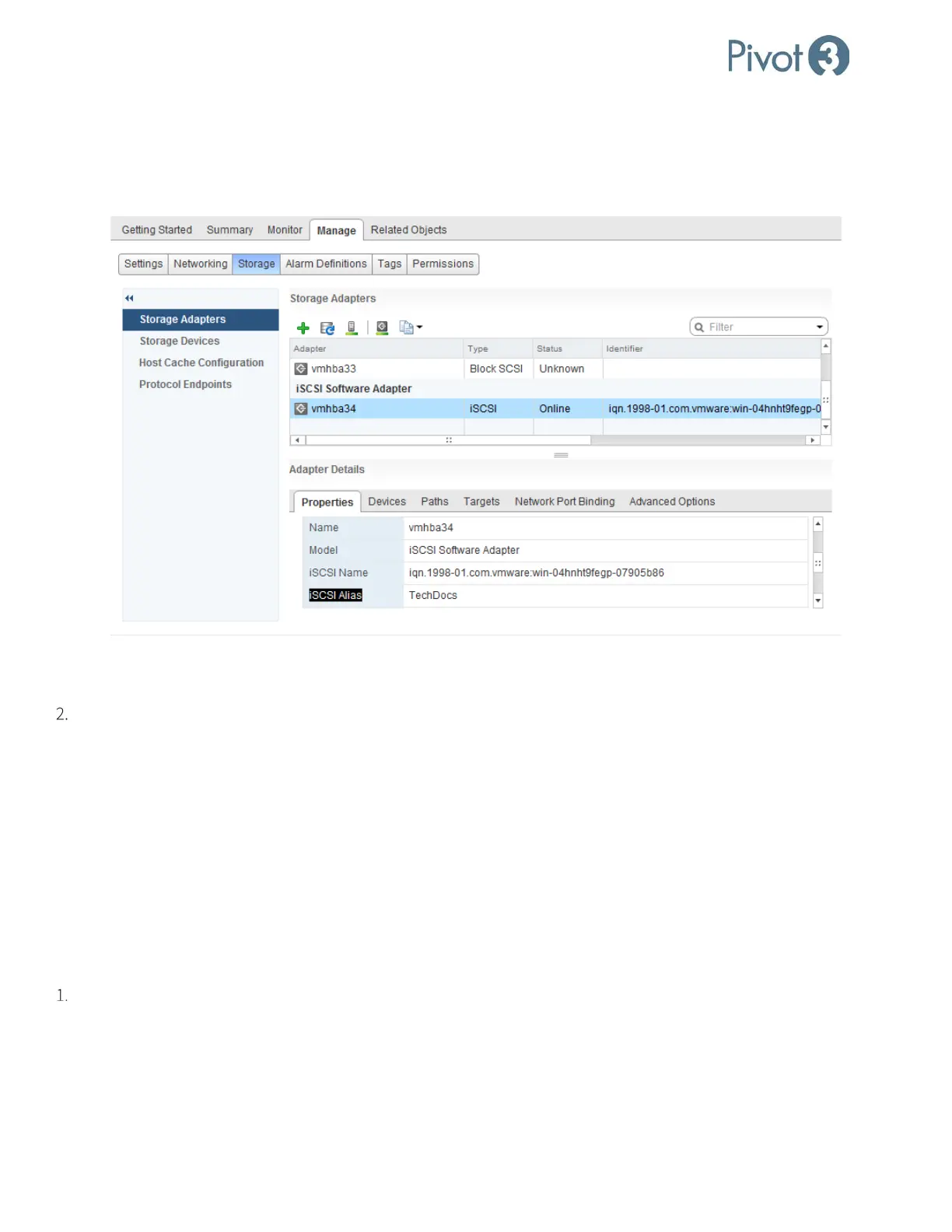
a. Navigate to Home > Hosts and Clusters.
b. Select the new ESXi host in the Navigator panel and navigate to Manage > Storage > Storage Adapters.
c. Locate the iSCSI software adapter section and click on the vmhba.
d. The web client lists the ESXi host’s iSCSI Alias in the General section within the vmhba’s Properties panel.
e. To modify or add the iSCSI Alias, click on the Edit button on the General header row and enter the desired Alias
name in the popup.
Log in to the vCenter Web Client Pivot3 Plugin and use the Modify Membership wizard to add the new vSTAC node to
the vPG.
a. If the new ESXi host already has an iSCSI Alias, the vPG modification process will automatically add the
necessary iSCSI addresses to the host’s Dynamic Discovery list, and the software will automatically start a storage
rescan on the ESXi host.
b. If the iSCSI Alias is added before the host is added to the vPG, the datastore will show up automatically
without further user intervention.
c. If the iSCSI Alias is added after the host is added to the vPG, a manual storage rescan on the ESXi will be
required after the new ESXi host is added to the vPG.
For vPGs with Acuity Storage
Log in to the vCenter Web Client on the new host and locate the host’s iSCSI Name.
a. Navigate to Home > Hosts and Clusters.
b. Select the new ESXi host in the Navigator panel and navigate to Manage > Storage > Storage Adapters.
c. Locate the iSCSI software adapter section and click on the vmhba.
d. The web client lists the ESXi host’s iSCSI name in the details within the vmhba’s Properties panel.



 To Next Page