Changing settings
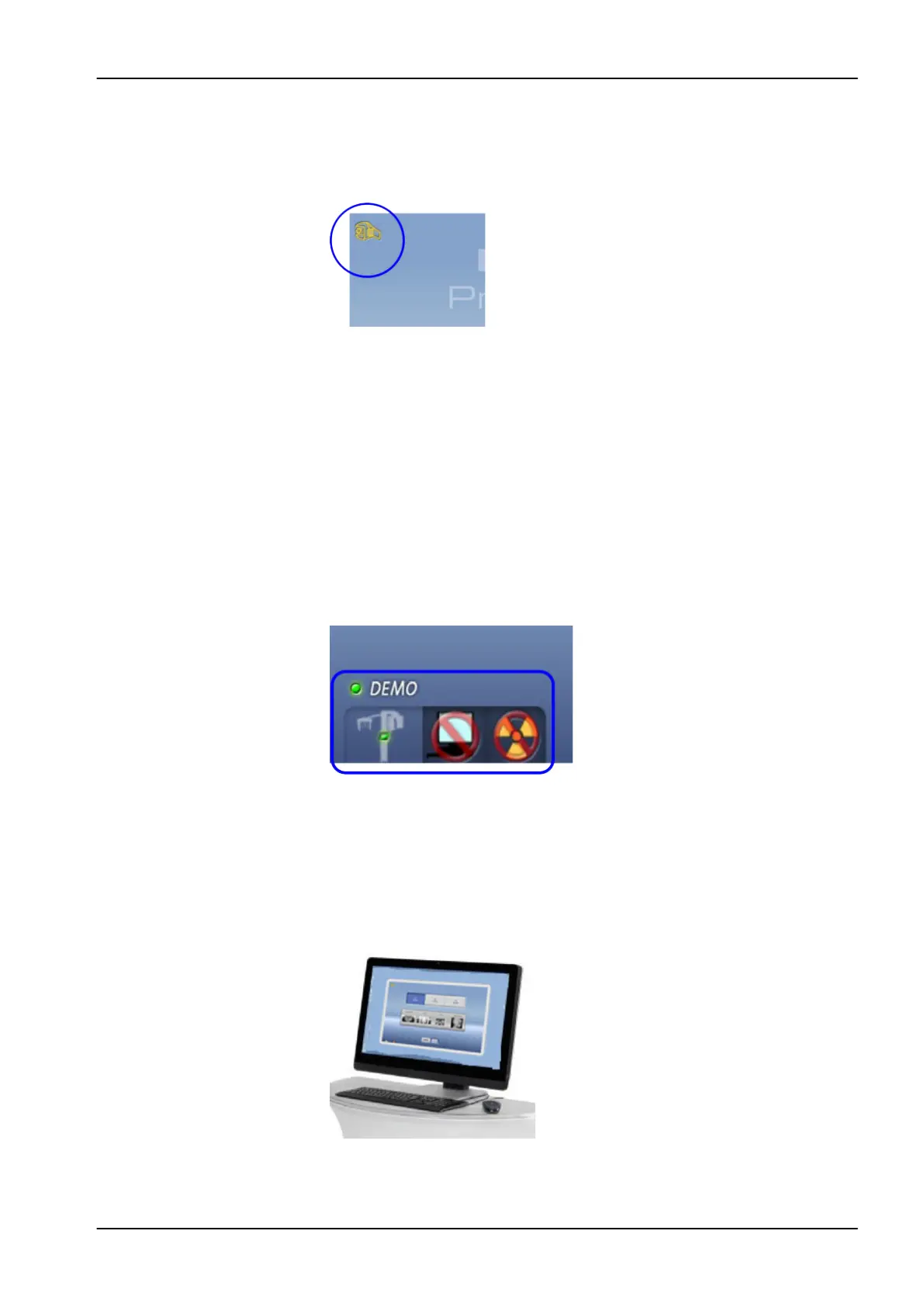
To change a setting, select the settings symbol on the main screen. This
takes you to the settings menu where you can adjust the settings of the X-
ray unit. Refer to section "Settings" on page 85 for details.
About stand-by mode
The touch screen will automatically switch to stand- by mode if you do not
touch the screen or the exposure button for more than thirty minutes. In
stand-by mode the green light on the on / off switch indicates that the X-ray
unit is switched on even though the screen is dark. The screen will switch on
as soon as you touch it again.
Selecting demo mode
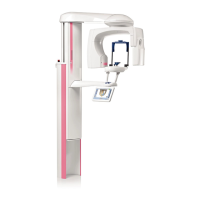
You can switch demo mode on if you wish to practice or demonstrate the
functions of the X-ray unit without radiation and PC connection. To do this,
select Settings > User > 1300 Operational settings > 1310 Use Mode > 1311
Set Demo Mode. The selection is shown in the bottom left corner of the
touch screen.
3.10 ProTouch desktop application
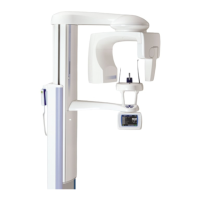
If the ProTouch desktop application is installed on your computer, you can
use a virtual control panel on your computer screen.
The application is identical to the touch screen that is integrated to the X-ray
unit. The two control panels are synchronised, and you can use either or
both of them.
3 Main parts
User's manual Planmeca ProMax 17







 To Next Page