243
Polyend Tracker Mini Manual
242
Polyend Tracker Mini Manual
NOTESNOTES
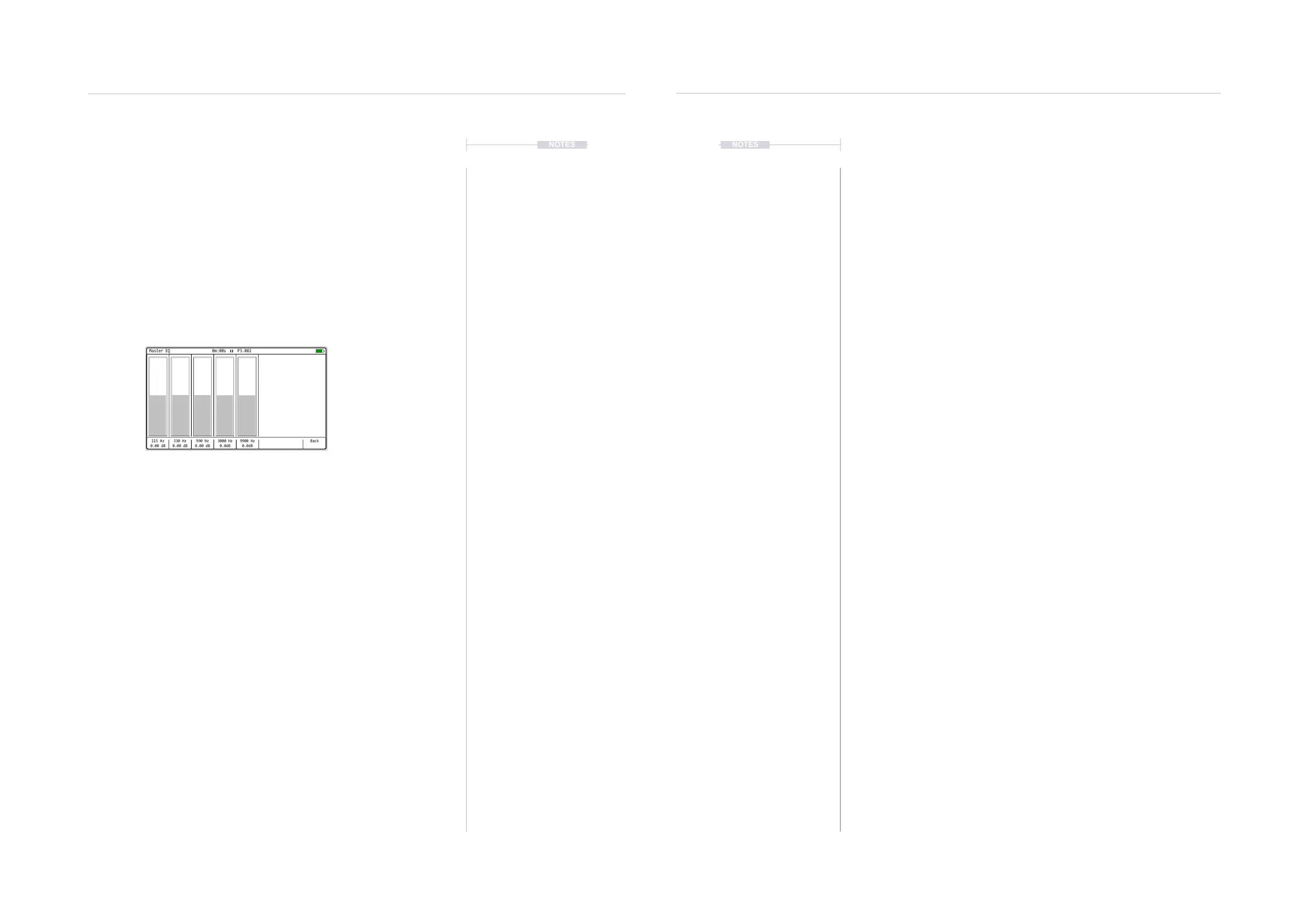
▌ ACCESSING MASTER EQ PARAMETERS
1. Press [4] or use [Menu] to select master section. Press [4] again until
the ‘Master’ Page 1/3 is displayed.
2. Press [EQ], 6
th
Screen button.
3. The ve EQ parameters are presented on the master EQ page.
4. Press [Back], 8
th
Screen button to return to the master page.
115 Hz
0.00 dB
990 Hz
0.00 dB
3000 Hz
0.0dB
9900 Hz
0.0dB
330 Hz
0.00 dB
Back
Master EQ 0m:00s P3.002
10.8 Effect Cong Options
Several options can be set in the ‘Cong’ [Menu] for master effects. The
behaviour of the limiter can be changed between extreme and subtle. Also
the master mix reverb and delay can be congured to send before / pre the
volume level fader of after / post fader.
▌ SETTING THE CONFIG OPTIONS FOR MASTER EFFECTS
1. Press [Menu] the select ‘Cong’ to open the conguration menu.
2. In the rst column, select ‘Project Settings’. Use the 1
st
and 2
nd
Screen
button to navigate. Alternatively use (Left) or (Right) to navigate menus
and Press (Up) or (Down) to select a function.
3. In the ‘Project Settings’ Sub menu the ‘Limiter mode’ and the ‘Sends
mode’ can be adjusted. Select the option from the central sub-menu
with the 4
th
or 5
th
Screen button.
4. The Limiter options are:
• Subtle: Will affect how aggressive the envelope attack and release
operates. Subtle will give a gentle, transparent style and will be slow
in catching fast transients.
• Extreme: Will provide a more aggressive model. Will catch all of the
transients but will also affect the sound adding colour.
5. The Send effects:
• Pre-fader: Will send the audio to the effect irrespective of the
instrument volume. The effected signal may be louder as it is
independent of the volume control.
• Post-fader: Will send the audio after it has been adjusted by the
instrument volume and therefore ensures the effect is more
proportionally consistent with the level, especially when modulated
6. Press [Change], 6
th
Screen button to change the option.
7. Navigate with the 4
th
or 5
th
Screen button and press [Apply], 6
th
Screen
button to accept the option.
Master Effects
10
Master Effects
10



 To Next Page