43
Polyend Tracker Mini Manual
42
Polyend Tracker Mini Manual
3.6 Project Pool & Instrument List
A pre-requisite for creating patterns is to have a series of instruments
available to record or program into steps. Instruments are based on the
samples loaded into the project pool and parameters applied to create
instruments. Instruments can also be loaded from other projects but must
exist in the current project instrument list to be accessible to the pattern
steps. A maximum of 48 instruments are available per project depending on
the sample size and hence memory usage.
An instrument or sample from the SD Card libraries can be added into the
active project instrument list. The instrument list is used to congure steps.
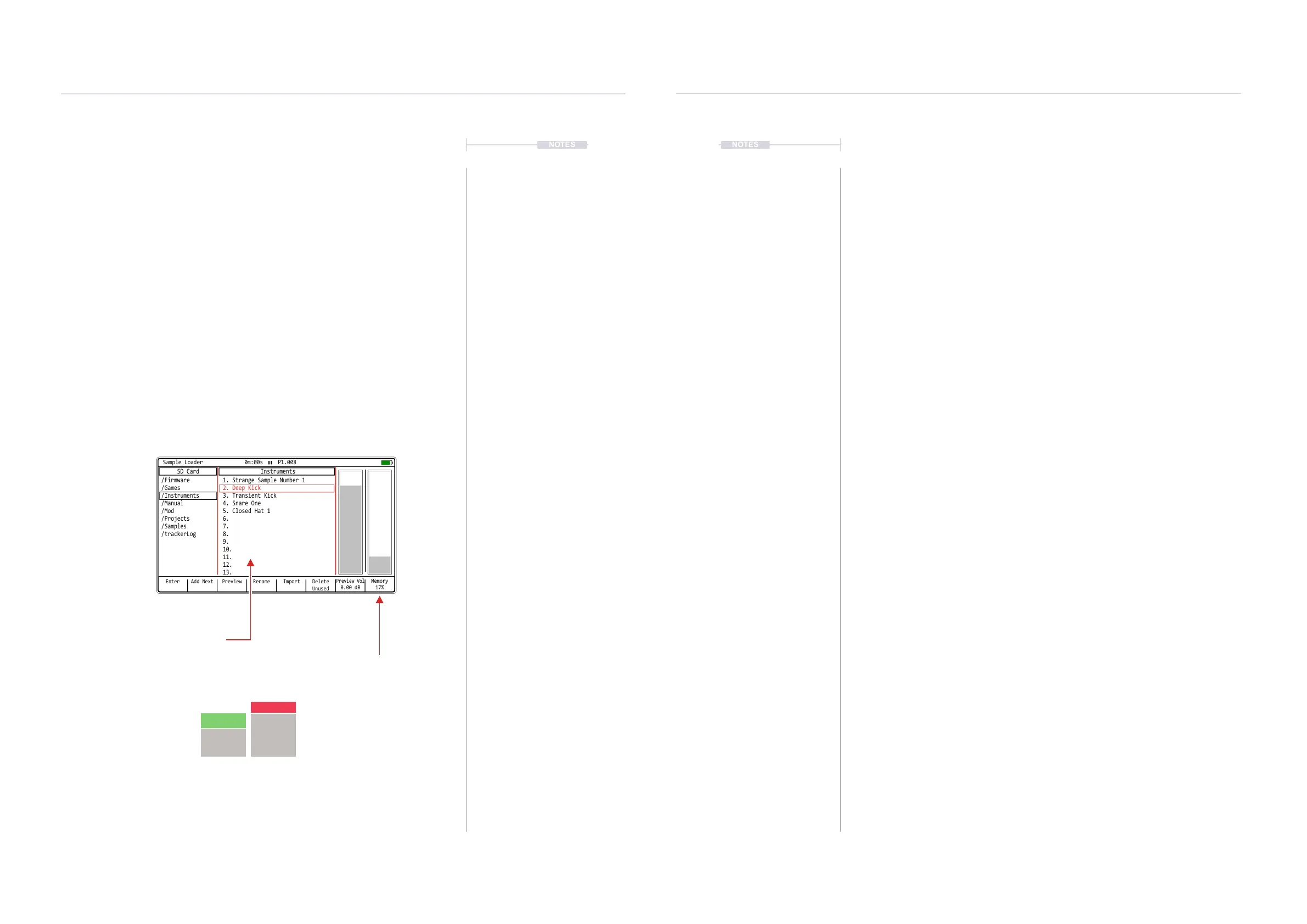
Basics of setting up a project instrument list using the Sample Loader
function, accessed by default with [Shift] + [2] is shown here and further
details on the sample management is detailed later.
Press [Shift] + [2] or navigate in the [Menu] for the ‘Sample Loader’ page
Enter Rename Delete
Unused
PreviewAdd Next Import
Sample Loader 0m:00s P1.008
SD Card Instruments
/Firmware 1. Strange Sample Number 1
2. Deep Kick
4. Snare One
5. Closed Hat 1
6.
7.
8.
9.
10.
11.
12.
13.
3. Transient Kick
/Games
/Instruments
/Manual
/Mod
/Samples
/Projects
/trackerLog
Preview Vol
0.00 dB
Memory
17%
Press (Left) or (Right) to navigate between the option windows a
red bounding box will indicate the selected window. Press (Up) or
(Down) to navigate to the desired listed option.
Window display pains between SD Card
and Instrument List. Max 48 instruments
can be stored in a Tracker Mini project.
Window display pains between SD Card
and Instrument List. Max 48 instruments
can be stored in a Tracker Mini project.
Project memory available based on the
selected samples / instruments in the
instrument list.
The bar will show an additional red
element - if memory will increase and
green bar - if memory will decrease
when browsing a sample / instrument
indicating potential memory impact if
sample / instrument is added.
NOTES
Projects
3
Projects
3
NOTES
▌ CREATING A PROJECT INSTRUMENT LIST
1. Hold [Shift] + [2] to open the ‘Sample Loader’ Page. This is also
accessible within the [Menu].
2. Navigate to the central ‘Instruments’ window and highlight either an
empty slot or an existing instrument. If an existing instrument is
highlighted it will be replaced by the newly selected choice.
3. Navigate to the left ‘SD Card’ window and highlight either instruments or
samples. Use the (Up) or (Down) to navigate and Press [Enter] screen
button to select and open a folder. Use [Shift] + (Up) (Down) D-Pad
navigator to batch select multiple samples / instruments.
4. With a sample or instrument highlighted in the left window, press the
[Add], 1
st
Screen button. This will add or replace in the selected
instrument slot. Using [Add Next], 2
nd
Screen button will add a sample
and will automatically jump the cursor to the next slot.
5. The memory bar chart will indicate the available project memory in
Tracker Mini. This will depend on the type and size of samples selected
and may limit the amount of instruments available in the instrument list.
6. Additional samples / instruments can be added. The instruments in the
list will be available to add to a step.
Notes:
• A prompt will be offered if replacing an existing instrument.
• When navigating, the /.. symbol indicates folders and subfolder
with a name. Selecting /.. alone will navigate up a level of the SD
Card folder structure.
• Instruments have a .pti lename.
• Samples can be previewed and the preview volume adjusted.
• The memory bar will show an additional red band (increases
memory usage) or green band (decreases memory usage)
indicating the potential memory impact when highlighting a sample
/ instrument to add. Should this be added to the instrument pool it
will affect the memory usage as indicated by the red/green bar.



 To Next Page