71
Polyend Tracker Mini Manual
70
Polyend Tracker Mini Manual
NOTESNOTES
Sequencing Steps
5
Sequencing Steps
5
5.1 Dedicated Step Parameter Buttons.
A step is a building block which triggers events such as playing a note or
beat or activating a MIDI action and is used for creating patterns. Steps are
programmed across pattern rows which represent each of the eight
available tracks in the pattern sequence.
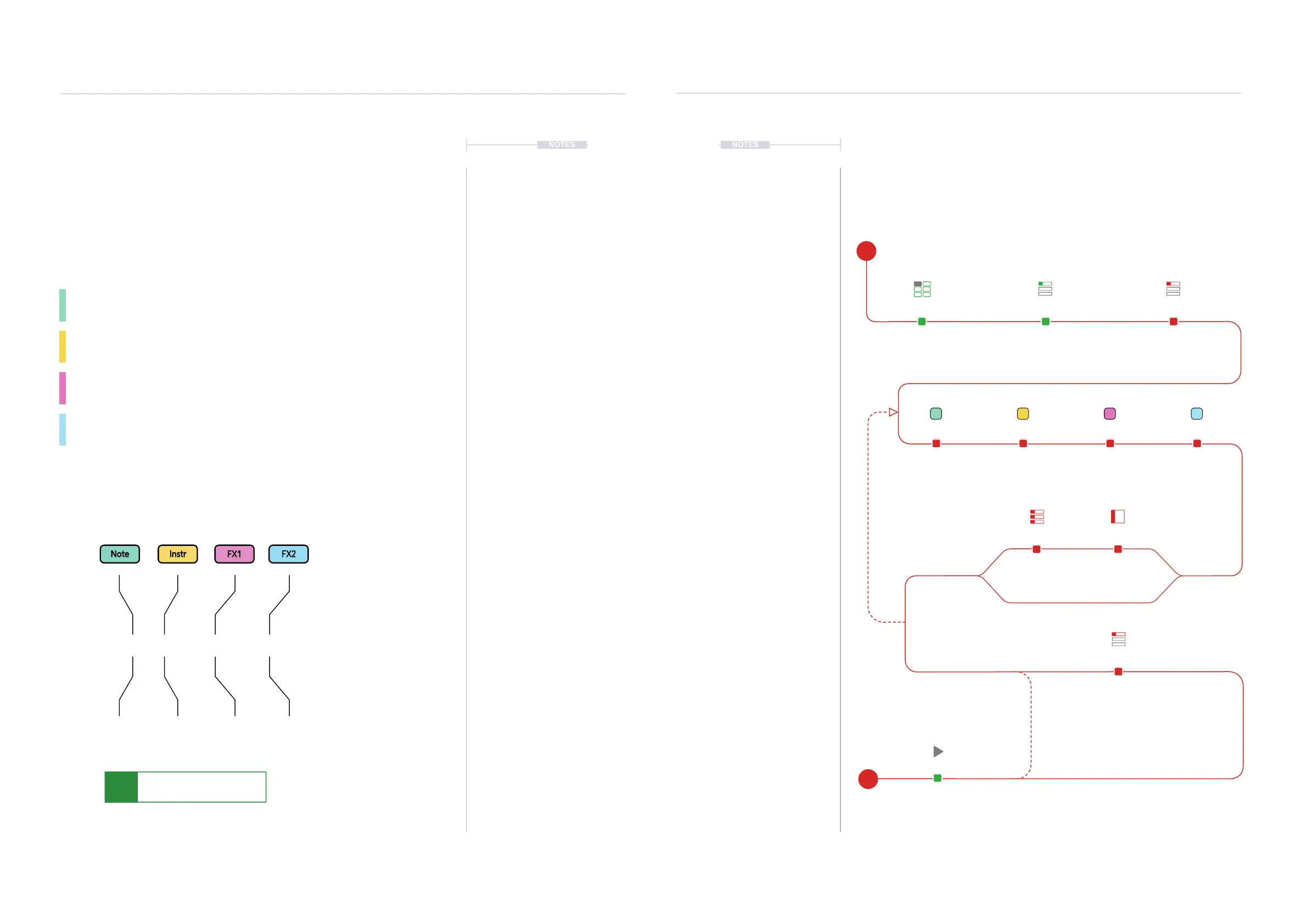
A step is a combination of 4 main components each of which has a
dedicated selection button:-
Note. This sets the pitch of the step and is important for creating
melodies or beats based on sample mapped drum hits.
Instrument. This is a combination of a sample and the parameters and
settings assigned to it. Also for setting MIDI Channel.
FX1. The rst effect slot where the modulation and audio effects can be
applied for the step.
FX2. The second effect slot where the modulation and audio effects can
be applied for the step.
P 25- -- -C5 40
Step Dedicated Parameter Buttons
Pattern page is selected by pressing [1] or from the [Menu] while the Note,
Instrument, FX1 and FX2 have dedicated buttons for editing the selected step.
The step selection box will show solid
colour on the selected option part.
Example: Note is shown highlighted here.
Parameters are colour coded in line with
the dedicated step function buttons
Note
+ Octave
Effect Type
+ Value
Instrument
Number or
MIDI
Effect Type
+ Value
C5 40 ---- P 25
5.2 Process of Creating a Step
Steps are sequenced in the Tracker Mini each of which contains a Note,
Instrument, and two FX slot options. It is good practice to structure these
into tracks of relevance. For example kick drum on track 1, especially at the
starting point.
Pattern Format Set,
Instrument Pool Populated
Navigate to the rst step to
create / edit. It may help to
develop individual tracks rst
Select [Rec] Recording Mode.
Step selection box red.
Use [Rec] + [Play]
Live Recording to capture real
time steps and parameters
using an external controller.
Press [Play]
To play. Also Press [Rec] to
exit record mode.
Hold [Note] + [+] / [-]
To select the step note
Hold [FX2] + [+] / [-]
To select the effect
The D-Pad Navigator Pad (Up), (Down), (Left), (Right) buttons also can be used.
Hold [Instrument] + [+] / [-]
To select Instrument
Hold [FX2] + [+] / [-]
To select the effect
Repeat Cycle to add
more steps manually.
Use ‘Fill’ and ‘Step
Jump’ to assist with
populating multiple steps
Pre-Requisite Select First Step
Note FX1
Edit & Add
Instrument
Fill & Jump
FX2
Recording Mode
Live Recording Mode
Create More Steps /
Develop Other Tracks
Play
E
S



 To Next Page