281
Polyend Tracker Mini Manual
280
Polyend Tracker Mini Manual
System
13
System
13
NOTESNOTES
13.2 Generic Firmware Update
Firmware updates may be provided by Polyend from time to time, to x
bugs or add new features. The process of updating can be performed in
several ways. When performing updates it is strongly advised to follow the
Polyend instructions supplied with each update. The instructions here are a
generic guide.
▌ FIRMWARE UPDATE
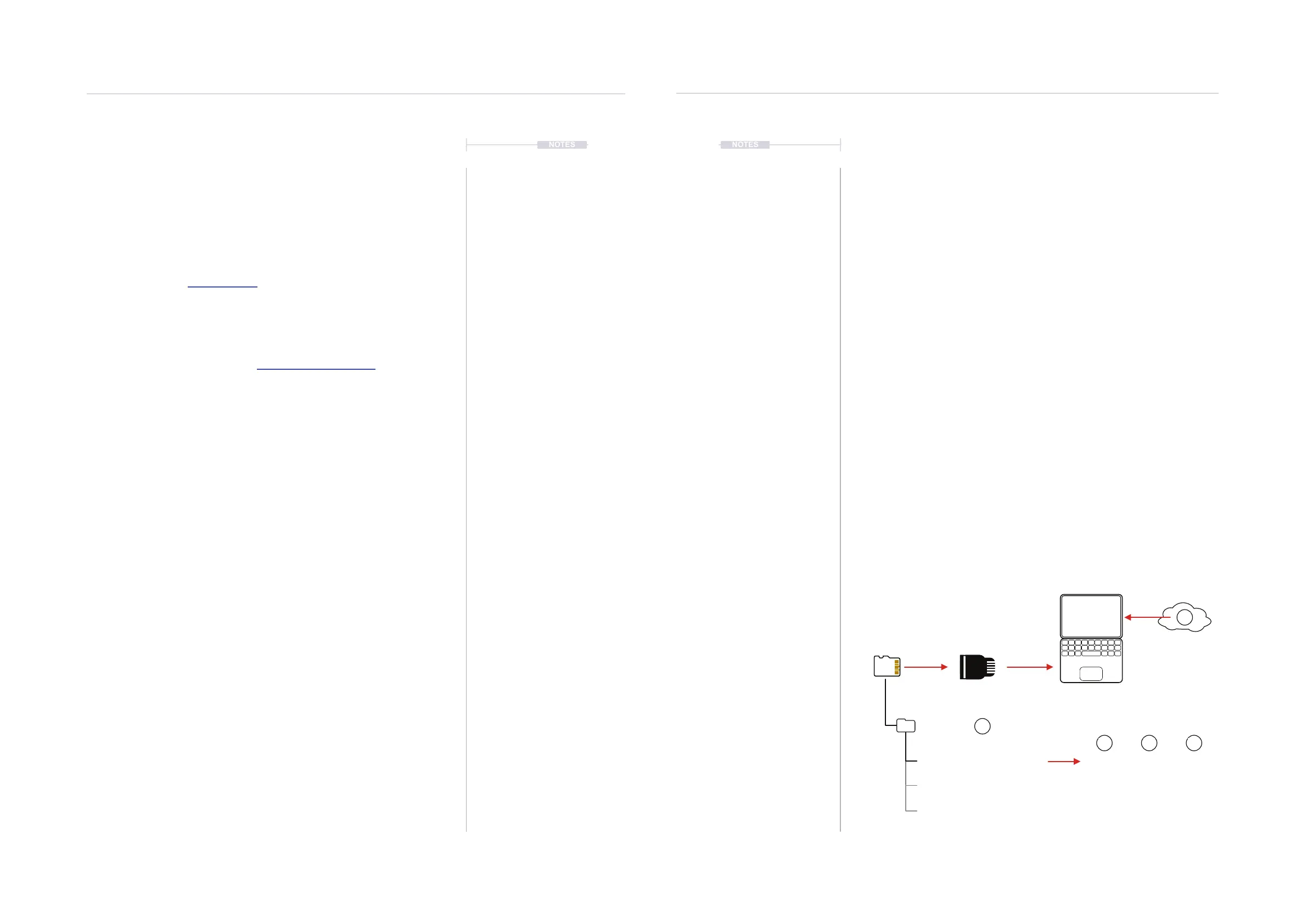
1. Download the latest rmware. Access rmware updates for your device
from your registered account at Polyend.
2. Copy the downloaded .ptf rmware le into the /Firmware folder. This
can be found in the root directory of the SD Card.
3. Insert the SD card into Tracker Mini and power up
4. Hold [Shift] + [4] or use [Menu] to select the ‘Cong’ Menu.
5. Navigate to the ‘Firmware’ menu. In the central window, select the
rmware option to install.
6. Press [Conrm], Screen button.
7. The rmware will install and the on screen prompts provided will guide.
The install process is typically less than 1 minute.
8. Tracker Mini should restart, but press On/Off if a manual start is
required after 100% of the update is completed.
13.1 Device Registration
In order for Polyend to provide device support and to give access to future
rmware updates, your Tracker Mini must be registered on the Polyend
website.
▌ REGISTRATION / SUPPORT CHECKLIST
• Create an account at Polyend.com.
• Register your device, ie Tracker Mini in the relevant account section.
• Access rmware downloads in your account.
• Licence information is available at polyend.com/licenses/
Download rmware
[Menu]
‘Cong’ - ‘Firmware’ - [Conrm]
Sub Folders
SD Card
/Root Directory
/Firmware
PolyendTracker Mini_1.6.0.ptf
PolyendTracker Mini_1.7.0.ptf
PolyendTracker Mini_1.5.0.ptf
1
2
5 64



 To Next Page