99
Polyend Tracker Mini Manual
98
Polyend Tracker Mini Manual
5.10 FX Step Parameters
Each step event has two FX slots which can be populated from a library of
effects. Each FX has two parts, rstly the effect type, represented by a
single character and secondly it’s value.
FX Summary
Tap to select [FX1] or [FX2]. To edit the value, Use [+] / [-] to
adjust the value. The outer [+] / [-] buttons change the value
in larger increments.
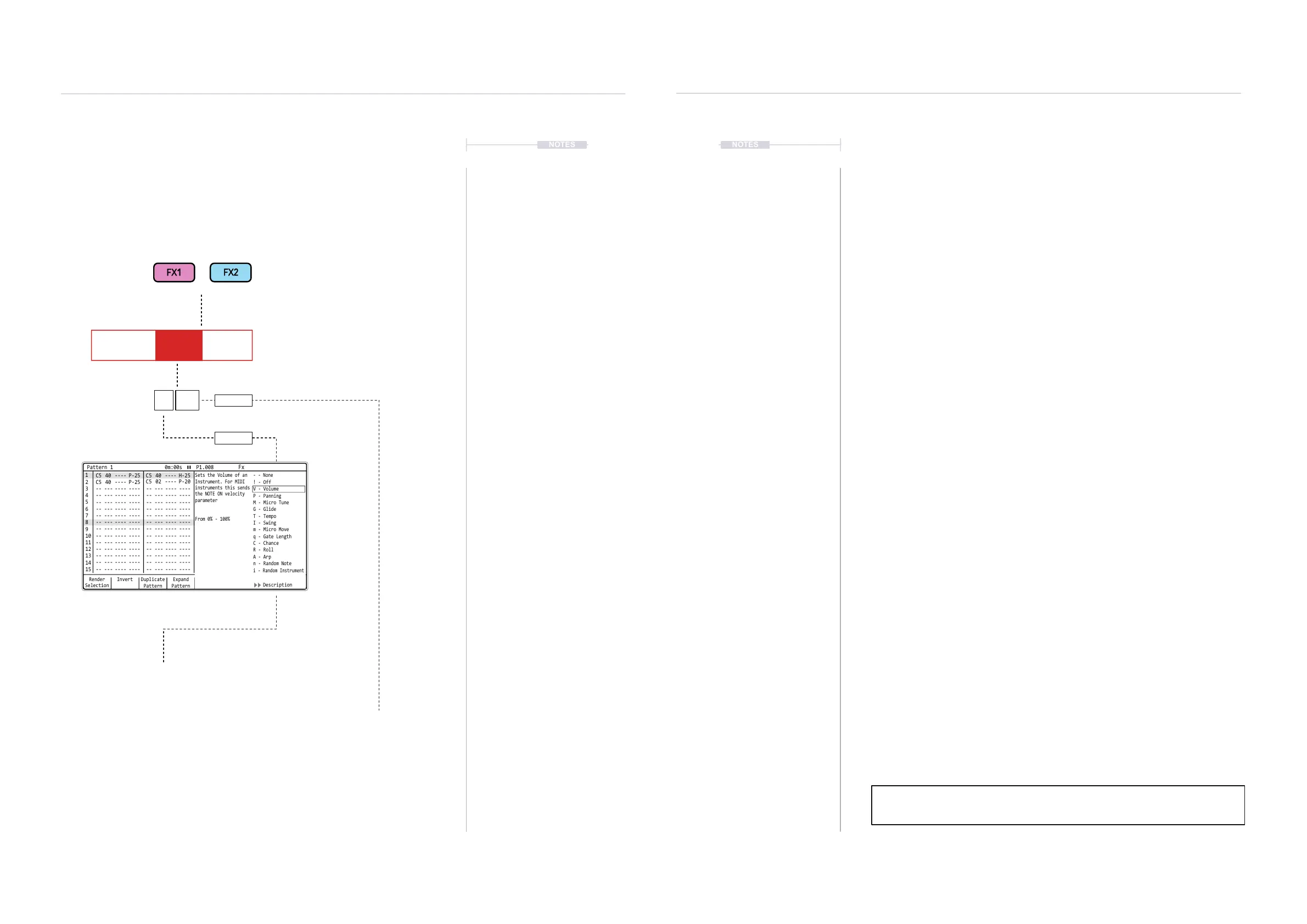
While holding [FX1] or [FX2], the pop-up window
will display the available effects list where the
selection can be made to load to the step event.
NOTESNOTES
Sequencing Steps
5
Sequencing Steps
5
FX1 & FX2 parameter each has a dedicated
button when working in the pattern.
FX1 FX2
FX are the third and fourth parameters in the
step event and are highlighted when selected.
FX Type
FX Value
C5 02 V 10
V 10
P 25
▌ DETAILED APPLICATION OF AN EFFECT TO AN EMPTY STEP
1. Press [1] to select the pattern mode page.
2. Select a blank or existing step event.
3. Press [FX1] or [FX2] to ensure the FX parameter is selected in the step
event. This is a short press. Holding [FX1] or [FX2] will display the effect
list pop-up.
4. Select recording mode, Press [Rec]. The steps selected will appear red
as opposed to green when in normal playback mode.
5. To assign the FX to an empty step, either:-
• Hold [FX1] or [FX2] till list appears then release. This will place the
current effect into the step. Press [+] / [-] to adjust the FX value. The
Outer buttons in larger increments.
• Hold [FX1] or [FX2] + (Up) or (Down) to select the type from the list.
Release the [FX1] or [FX2] button, the FX step remains selected.
Press [+] / [-] to adjust the FX value. The Outer buttons in larger
increments.
• Hold [FX1] or [FX2] + [+] or [-] to select the type from the list.
Release the [FX1] or [FX2] button, the FX step remains selected.
Press [+] / [-] to adjust the FX value. The Outer buttons in larger
increments.
6. To assign or change the FX to an existing step, either:-
• Hold [FX1] or [FX2] + (Up) or (Down) to select the type from the list.
Release the [FX1] or [FX2] button, the FX step remains selected.
Press [+] / [-] to adjust the FX value. The Outer buttons in larger
increments.
• Hold [FX1] or [FX2] + [+] or [-] to select the type from the list.
Release the [FX1] or [FX2] button, the FX step remains selected.
Press [+] / [-] to adjust the FX value. The Outer buttons in larger
increments.
7. Subsequent selection of FX slots allow adjustment of its value with the
[+] and [-] buttons when in [Rec] mode.
In the Effect list window, press the 7
th
and 8
th
screen button to toggle the
description of the highlighted effect on or off. This is an aid to using the FX.
Render
Selection
1 1
2
C5 40 ---- P-25
C5 40 ---- P-25
-- --- ---- ---- -- --- ---- ---- -- --- ---- ---- -- --- ---- ----
-- --- ---- ---- -- --- ---- ---- -- --- ---- ---- -- --- ---- ----
-- --- ---- ---- -- --- ---- ---- -- --- ---- ---- -- --- ---- ----
-- --- ---- ---- -- --- ---- ---- -- --- ---- ---- -- --- ---- ----
-- --- ---- ---- -- --- ---- ---- -- --- ---- ---- -- --- ---- ----
-- --- ---- ---- -- --- ---- ---- -- --- ---- ---- -- --- ---- ----
-- --- ---- ---- -- --- ---- ---- -- --- ---- ---- -- --- ---- ----
-- --- ---- ---- -- --- ---- ---- -- --- ---- ---- -- --- ---- ----
-- --- ---- ---- -- --- ---- ---- -- --- ---- ---- -- --- ---- ----
-- --- ---- ---- -- --- ---- ---- -- --- ---- ---- -- --- ---- ----
-- --- ---- ---- -- --- ---- ---- -- --- ---- ---- -- --- ---- ----
-- --- ---- ---- -- --- ---- ---- -- --- ---- ---- -- --- ---- ----
-- --- ---- ---- -- --- ---- ---- -- --- ---- ---- -- --- ---- ----
C5 02 ---- P-20
C5 40 ---- H-25
C4 12 ---- A 4
C5 40 ---- P-20
C5 40 ---- P-25
C5 40 ---- P-25
2
3 3
4 4
5 5
6 6
7 7
9 9
11 11
13 13
15 15
8 8
10 10
12 12
14 14
Paste
Pattern
Expand
Pattern
Copy
Pattern
Duplicate
Pattern
Invert MoreShrink
Pattern
Pattern 1 0m:00s P1.008
Fx
- - None
Sets the Volume of an
Instrument. For MIDI
instruments this sends
the NOTE ON velocity
parameter
From 0% - 100%
! - Off
P - Panning
M - Micro Tune
G - Glide
T - Tempo
I - Swing
m - Micro Move
q - Gate Length
C - Chance
R - Roll
A - Arp
n - Random Note
i - Random Instrument
V - Volume
Description



 To Next Page