17
Polyend Tracker Mini Manual
16
Polyend Tracker Mini Manual
NOTES
Overview
1
Overview
1
NOTES
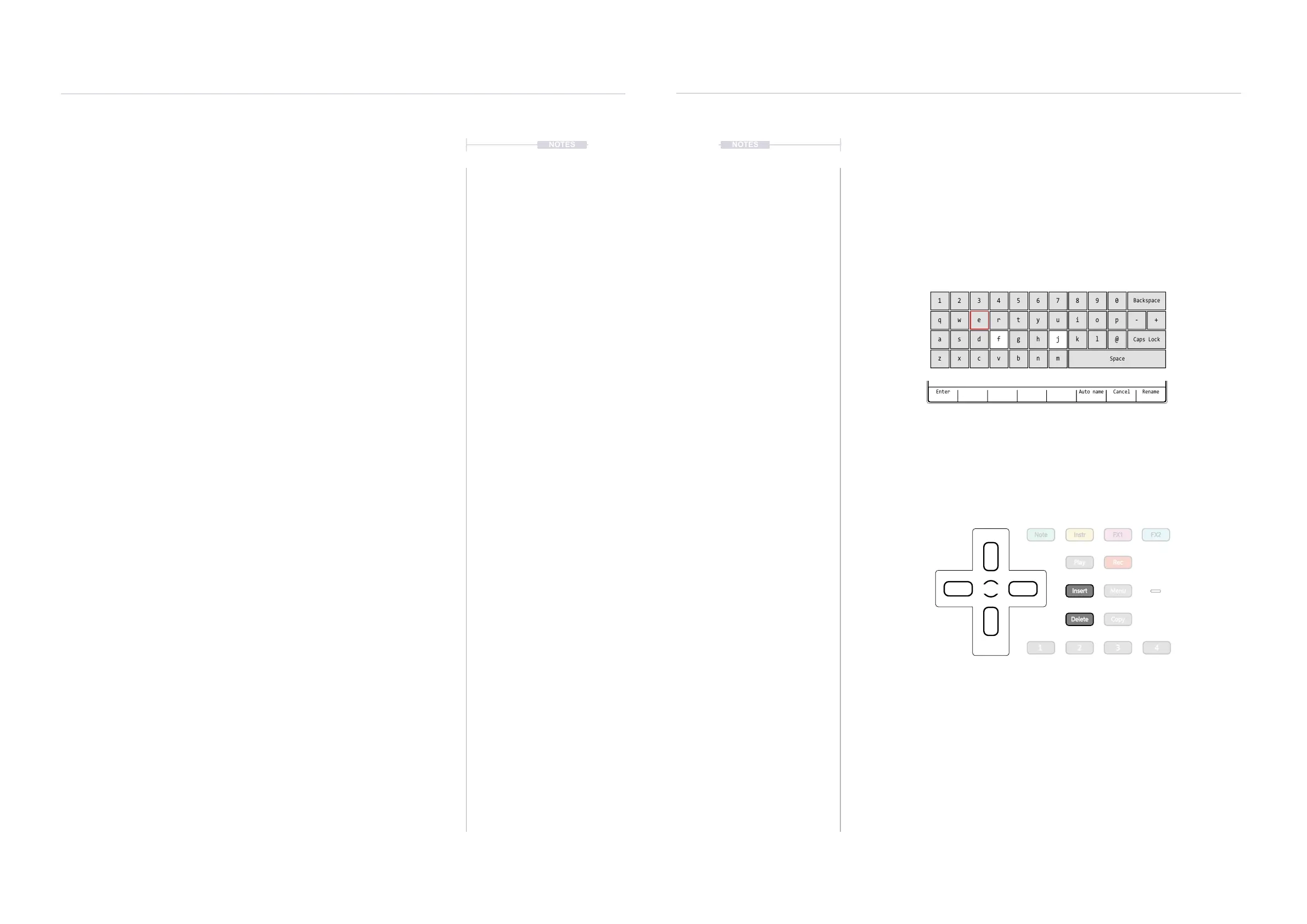
1.9 QWERTY Keyboard.
Some pages will require text editing for naming tracks or projects etc. The
same functionality applies whenever the Alpha numeric pop-up editor is
used. The screen will display the QWERTY keys and the text to edit. The
screen buttons are used to enter, cancel or save while the D-Pad Navigator
buttons perform the editing. Auto naming is also an option.
The characters and the title can be selected by using (Up), (Down), (Left) or
(Right) to navigate and Press the centre D-Pad Navigator button or Press [Insert]
or Press [Enter] - 1
st
Screen Button to select and add the selected character.
Option to [Cancel] - 7
th
from Left Screen Button is also possible.
Save when complete using [Save] - 8
th
Screen Button to save the name.
Enter Auto name RenameCancel
The screen will display the keys laid out in a QWERTY formation.
The Tracker Mini buttons operate in the naming editor screen when presented:-
• D-Pad (Up), (Down), (Left), (Right) will navigate the selection across the
keyboard. Will also navigate left / right in the text of the name when the
name is highlighted .
• D-Pad Navigator (Centre) button or [Insert] will insert the currently
highlighted character into the name at the cursor position. Also a screen
button option.
• [Delete] to delete characters and use with [Shift] to backspace in the name
from the text cursor position.
Note Instr
FX1
FX2
Play Rec
Insert Menu
Delete Copy
21 3 4
1
q
a
z
4
r
f
v
7
u
j
m
0
p - +
@
2
w
s
x
5
t
g
b
8
i
k
Backspace
Caps Lock
Space
3
e
d
c
6
y
h
n
9
o
l
1.8 Introduction to Tracks
Tracker Mini has 8 tracks, each of which can be congured with unique
patterns made up of one or more instrument combinations. Tracks are
structural elements and the track mixer is found in the master section.
Some specic track commands are also available in the pattern pages, for
example muting tracks. By default 4 tracks are displayed for patterns and
the pattern page is assigned to Function button [1].
▌NAVIGATING TRACKS IN THE PATTERN PAGE
1. Press Function [1] to open the pattern page. 4 Tracks are displayed by
default. The pattern page can also be selected in the [Menu].
2. Press (Left) or (Right) to navigate across all 8 tracks. The green or red
highlighted step will anchor the navigation point on the track columns.
▌MUTING TRACKS IN PATTERN PAGE
1. Press [1] to ensure pattern page is selected. 4 Tracks are displayed by
default. The pattern page can also be selected in the [Menu].
2. To mute / unmute, Press [Shift] + [Screen] button for the respective
track. All 8 tracks are presented by the screen buttons when holding the
shift button. Muted tracks are displayed with the screen keys dimmed.
3. Muting will be applied immediately the screen button is pressed. This is
different behaviour than in the track mixer, where muting is applied
when the mute button is released.
▌CHANGING TRACK VIEW FOR THE PATTERN PAGE
• 8 Tracks with only Note parameter: Press [1] + [Note].
• 8 Tracks with Instrument parameter: Press [1] + [Instrument].
• 8 Tracks with only FX1 parameter: Press [1] + [FX1].
• 8 Tracks with only FX2 parameter: Press [1] + [FX2].
• 8 Tracks with 2 selected parameters: Press [1] + [P1] + [P2], where
‘P1’ and ‘P2’ are 2 from; [Note], [Instrument], [FX1], FX2].
• Revert to 4 track mode, Press [1].
(Up) (Down)
(Enter)(Left) (Right)



 To Next Page