93
Polyend Tracker Mini Manual
92
Polyend Tracker Mini Manual
5.8 Note Steps
One of the four components of a step event is a Note. This may be a
musically scaled note or a note assigned to a sample or slice. Essentially
note controls a single note pitch in the step event for the instrument. The
default note value C5 refers to the original sample pitch. C5 is therefore a
default note assigned from the ‘Note’ applied. When using a Beat Sliced
instrument, the rst slice played is assigned as C2.
Note Summary
NOTESNOTES
Sequencing Steps
5
Sequencing Steps
5
Note parameter has a dedicated
button when working in the pattern.
Note is the rst parameter in the step
event and is highlighted when selected
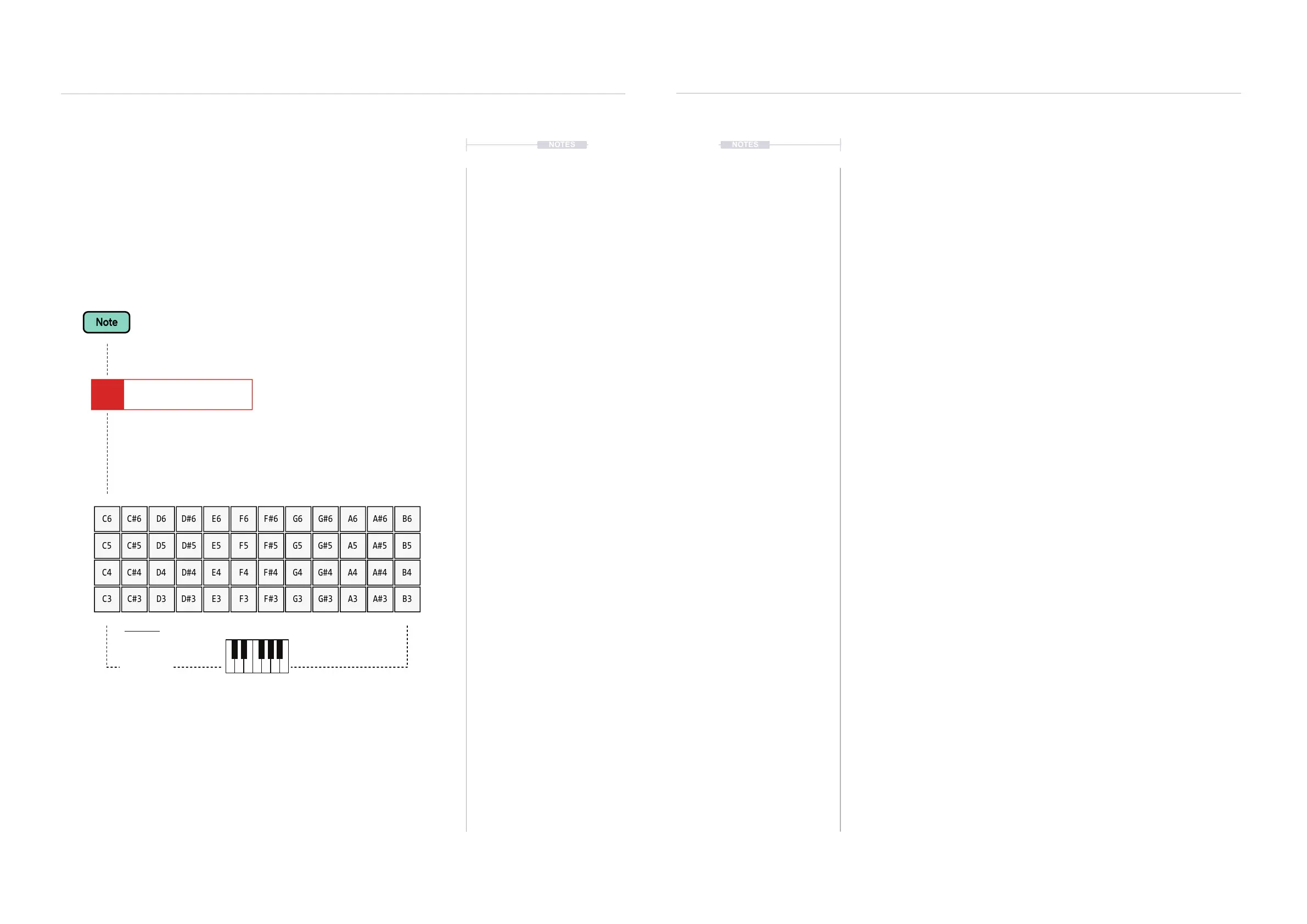
Note grid is used to select a note value for the step event. Hold
[Note] + D-Pad Buttons or [+] / [-] to choose a note. Press [+] / [-]
to adjust existing note when the step is selected.
Lowest Note
Chromatic
Scale shown - default
C
C#
B
A#
The notes value are mapped across the note grid. Starting at C3 bottom left, by
default and top right, at B6 to C6 top left. This therefore covers four octaves.
The Note selected from the note grid can then be placed, repeatedly into steps using
the D-Pad Navigator (Enter) button.
C5 02 V 10 P 25
C6 E6 A6C#6 F#6F6 A#6D6 G6 B6D#6 G#6
C5 E5 A5C#5 F#5F5 A#5D5 G5 B5D#5 G#5
C4 E4 A4C#4 F#4F4 A#4D4 G4 B4D#4 G#4
C3 E3 A3C#3 F#3F3 A#3D3 G3 B3D#3 G#3
▌ DETAILED APPLICATION OF A NOTE VALUE TO A STEP EVENT
1. Press [1] to select the pattern mode page.
2. Select a blank or existing step event.
3. Press [Note] to ensure the note parameter is selected in the step event.
This is a short press. Holding [Note] will display the note grid.
4. Select recording mode, Press [Rec]. The steps selected will appear red
as opposed to green when in normal playback mode.
5. For placement of Note Steps several methods exist:-
• To set the default note, Hold [Note] + [+] / [-] or the D-Pad Navigator
buttons. The Note grid will appear for the note to be selected. The
highlighted note in the grid will be the chosen default.
• Press centre D-Pad (Enter) button. The default note will be placed in
the current step and the cursor will jump to the next step ‘Step
Jump’ interval. Holding (Enter) will repeat the step placement with
the same note until the (Enter) button is released.
• Press any [+] button to place a dened ‘C5’ note into an empty step.
The default note selected prior does not reect in this placement
method. The cursor position will remain on the current step.
• Press the outer [-] button on an empty step to place a dened ‘OFF’
Command into the note step.
• Press the inner [-] button on an empty step to place a dened ‘FAD’
Command into the step note. Press again to cycle to place ‘CUT’
and again to select ‘OFF’.
6. For editing notes within existing steps:-
• Press (Enter) to overwrite an existing note with the previously
selected note. Instrument is unaffected.
• On existing notes, the outer [+] / [-] buttons will change in octave
increments and inner [+] / [-] buttons will change the note in
semitone intervals.
7. Notes will be added, displayed with teal coloured text. New notes are
always added to an empty step along with the currently selected
instrument, coloured yellow. On existing steps, the note is changed and
existing instrument retained.



 To Next Page