111
Polyend Tracker Mini Manual
110
Polyend Tracker Mini Manual
NOTESNOTES
Instruments
6
Instruments
6
The effect settings page covers sample based parameters that affect the
specic instrument. Note that the generic delay and reverb settings are in
the master section of Tracker Mini.
Overdrive
Overdrive introduces a gritty aggressive tone to the audio
sound. Based on traditional practices of pushing the limits
of an amplier and creating distortion in the signal.
Range 0-100%
Bit Depth
Analog signal are smooth evolving shapes. Digital audio
samples represent this by sampling and registering the
audio information into number of bits. The higher the
number the better a signal is represented. Tracker Mini
uses 16 Bit audio which is CD standard, but can be
reduced to give a more LoFi sound effect.
Range 4-16
Reverb Send
The reverb send is not a dedicated instrument effect in
itself but controls the amount of instrument audio that is
sent to the master reverb. This is mixed to the signal and
combined with other sends. Reverb adds space and
represents room reections simulating spacial depth,
distance or proximity.
Range 0-100%
Delay Send
The delay send is not a dedicated instrument effect in
itself but controls the amount of instrument audio that is
sent to the master delay. This is mixed to the signal and
combined with other sends. Delay adds an echo and
repetition into a sound and is a creative effect and lls
space to keep interest.
Range 0-100%
Overdrive
Bit Depth
Delay Send
Reverb Send
Overdrive
0
Bit depth
16
Reverb send
-inf dB
Delay send
-inf dB
Overdrive
0
Bit depth
16
Reverb send
-inf dB
Delay send
-inf dB
Overdrive
0
Bit depth
16
Reverb send
-inf dB
Delay send
-inf dB
Overdrive
0
Bit depth
16
Reverb send
-inf dB
Delay send
-inf dB
6.5 Instrument Automation Parameters - Page 2
Automation also called modulation, creates movement and interest in an
instrument sound. The instrument automation settings page covers the
settings which control modulation over the instrument sound audio sample.
These parameters are located in the second page of the instrument
parameters.
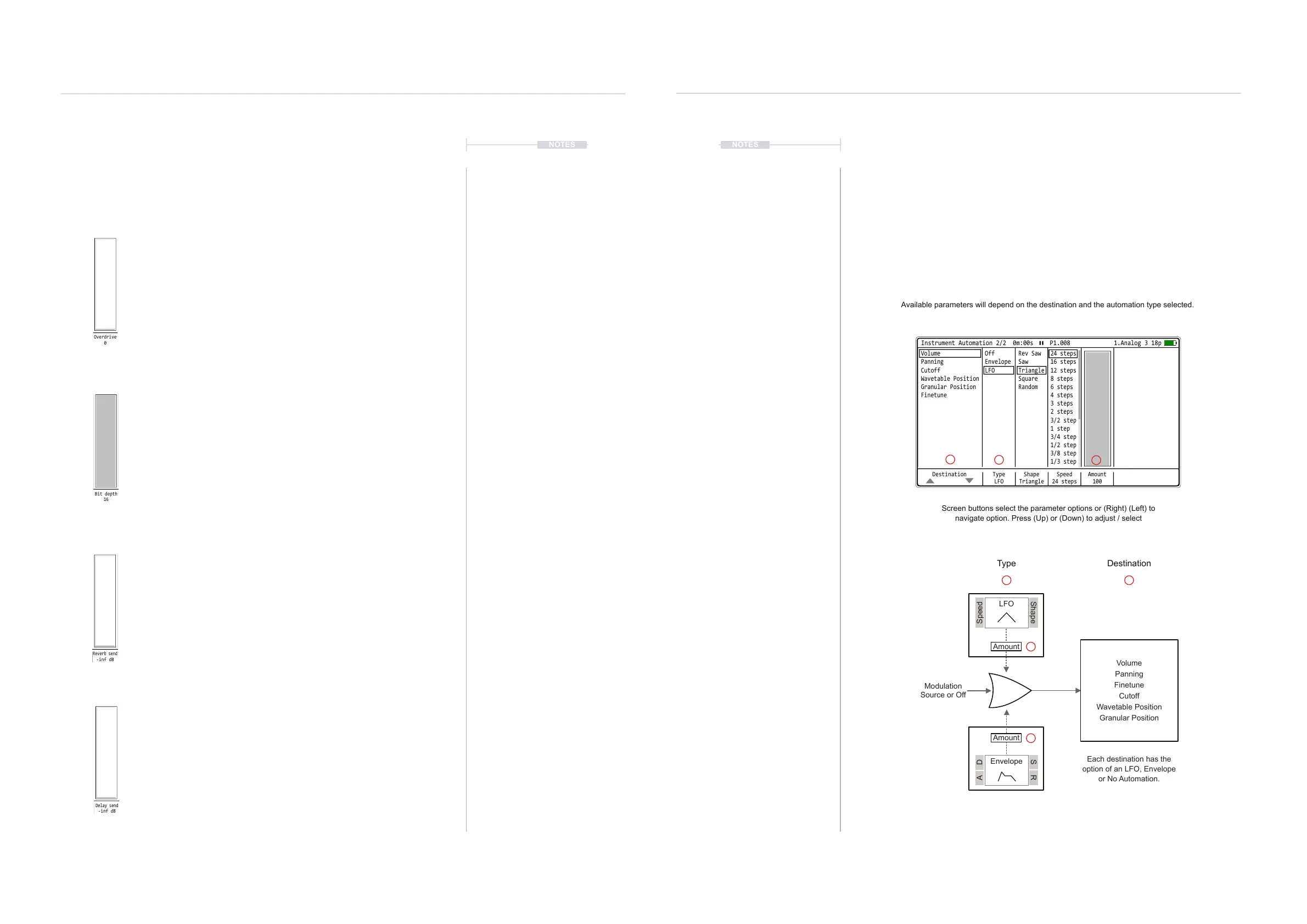
The modulator can be an LFO or an Envelope. Both shape audio over a
time period for one of the several selectable destinations.
LFO
Envelope
Modulation
Source or Off
Volume
Panning
Finetune
Cutoff
Wavetable Position
Granular Position
Each destination has the
option of an LFO, Envelope
or No Automation.
Type Destination
Screen buttons select the parameter options or (Right) (Left) to
navigate option. Press (Up) or (Down) to adjust / select
Available parameters will depend on the destination and the automation type selected.
Destination Type
LFO
Amount
100
Shape
Triangle
Speed
24 steps
Instrument Automation 2/2 0m:00s P1.008
OffVolume Rev Saw 24 steps
4 steps
EnvelopePanning Saw 16 steps
3 steps
LFOCutoff Triangle 12 steps
2 steps
3/4 step
Wavetable Position Square 8 steps
3/2 step
1/2 step
Granular Position Random 6 steps
1 step
3/8 step
1/3 step
Finetune
1.Analog 3 18p
SpeedA D
S RShape
Amount
Amount
2
2
3
3
3
1
1



 To Next Page