77
Polyend Tracker Mini Manual
76
Polyend Tracker Mini Manual
NOTESNOTES
Sequencing Steps
5
Sequencing Steps
5
▌ COPYING AND PASTING STEPS AND STEP RANGES
1. Press [1] to select the Pattern Mode page.
2. Navigate to select a Step. If required Press [Shift] + (Left) or (Right) and
[Shift] + (Up) or (Down) to select a range of tracks and rows.
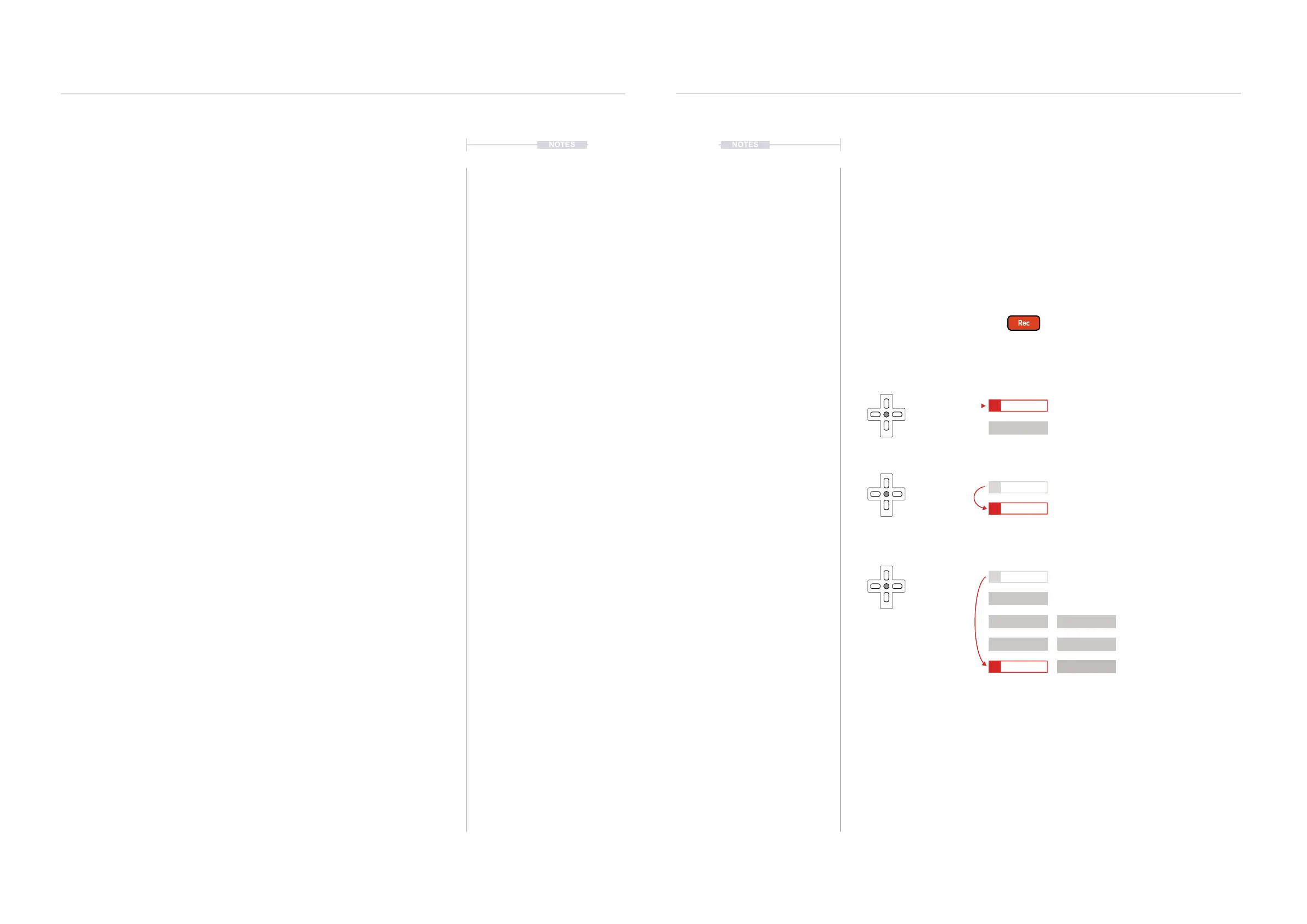
3. Press [Rec] to switch to recording mode. The step bounding box will
turn red and allow copying of the step or collective step range.
4. Press [Copy] button. The selected step or step range will be copied to
the clipboard.
5. Relocate the cursor to the rst step in which to paste by using (Up),
(Down), (Left) or (Right). The top left step is the anchor for a range.
6. Press [Shift] + [Copy] button to paste. The copied step or step range will
be pasted from the clipboard and into the selected step or the relative
range. Undo and Redo can be used if needed.
▌ DELETING STEPS AND STEP RANGES
1. Press [1] to select the Pattern Mode page.
2. Navigate to select a Step. If required, Press [Shift] + (Left) or (Right)
and [Shift] + (Up) or (Down) to select a range of tracks and rows.
3. Press [Rec] to switch to recording mode. The step bounding box will
turn red and allow copying of the step or collective step range.
4. Press [Delete] button. The selected step, if note or instrument is
selected, will be deleted. If only the FX1 or FX2 is selected then the
effect alone is deleted.
5. MIDI channel values are not deleted when deleting a note. This can be
deleted by selected the instrument parameter when deleting.
▌ COPY / PASTE AN ENTIRE PATTERN
1. Press [1] to select the Pattern Mode page.
2. Hold [1] + [Copy] to copy the current pattern to the clipboard.
3. Select a new pattern, Press [1] + (Up) or (Down)
4. Hold [1] + [Shift] + [Copy] to paste into the current pattern.
5.5 Step Jump Recording Multiple Steps
When steps are added using the D-Pad (Enter) button the active step is
automatically advanced to the next step when complete. The intervals for
this are based on the ‘Step Jump’ feature. This is useful for creating
patterns with dened intervals and speeding up workow. Step jump does
not operate when using the [+] / [-] step entry method.
Step Jump Examples
Track 1 Track 2
Recording mode on to edit steps in the pattern
[Enter]
[Enter]
[Enter]
Step Jump
0
1
1
1
3
5
2
2
2
4
6
Step Jump
1
Step Jump
4
The selected step will not
advance and will remain at the
same step position
The selected step will
advance automatically to
select the next step position
The selected step will
advance four steps forward. In
this example selecting the
next ‘on beat’ position.
The Step Jump setting is useful when populating specic intervals, for example each on beat step or
each off beat step or alternate steps for percussion. This speeds up the workow and helps with
creating interesting sequences.
=
C5 40
----
P 25
C5 40
----
P 25
C5 40
----
P 25
C5 40
----
P 25
C5 40
----
P 25
D5 40
----
P 25
D5 40
----
P 25
D5 40
----
P 25
D5 40
----
P 45
D5 40
----
P 45
D5 40
----
P 45



 To Next Page